
Chapter 50 · Looking after your data · 2 min read
Backups
On this page
Your company file lives on your own computer. That keeps your books private, and it also makes backing them up your responsibility. SAABI takes most of that work off your hands: it copies every company you have opened, on a schedule you set, into a folder of your choosing.
Opening the backup settings
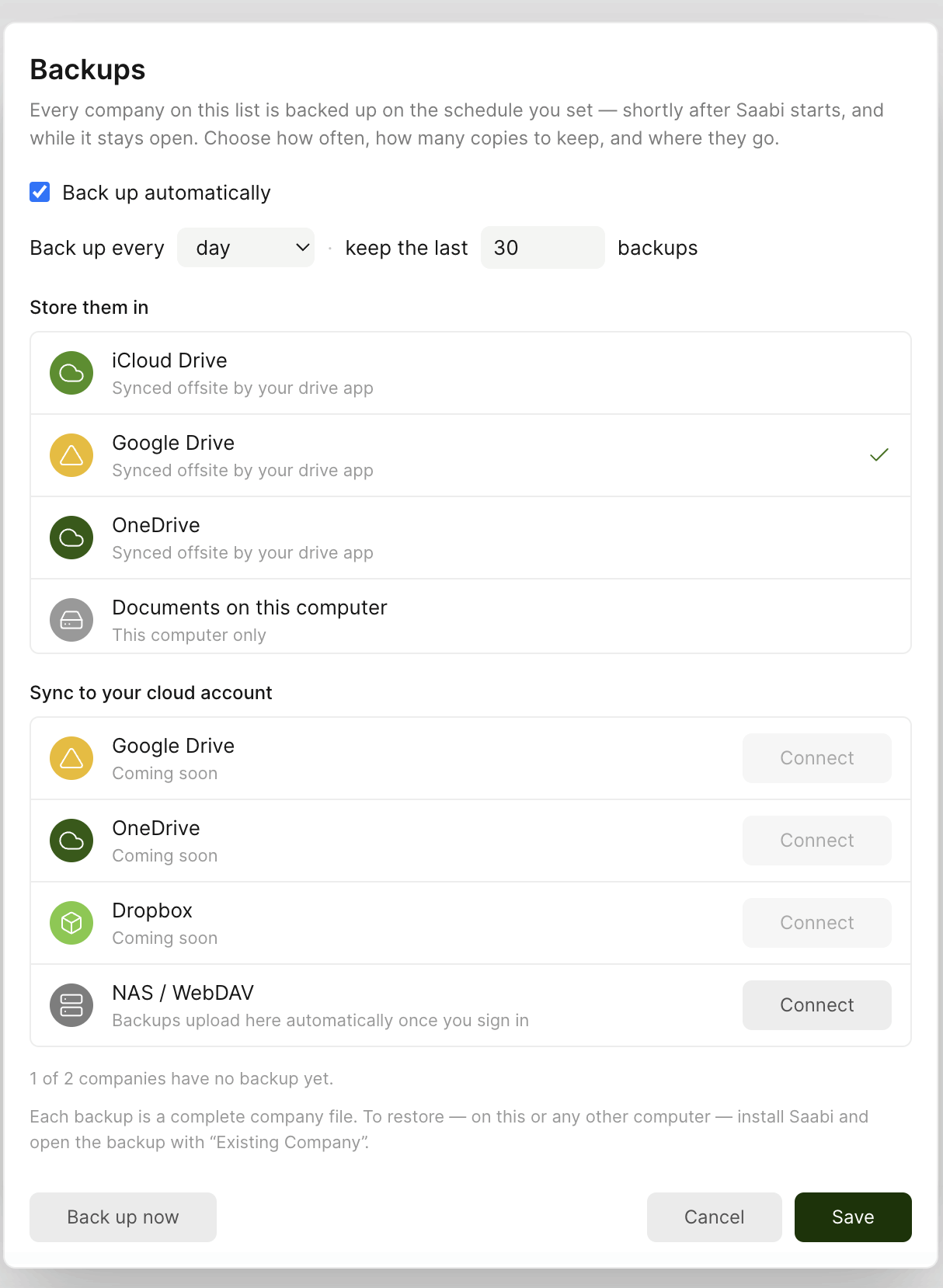
Select Backups in the sidebar footer. The same settings are also reachable from the Welcome to Saabi screen (Chapter 1), so you can check on your backups before opening any company at all.
The schedule
Back up automatically switches the schedule on. With it on, SAABI copies each company shortly after it starts, and again while it stays open.
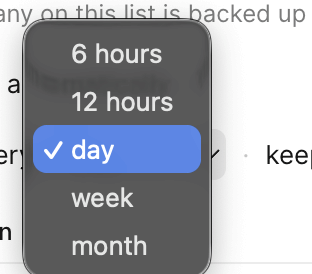
Back up every sets the interval. The choices are 6 hours, 12 hours, day, week and month.
Keep the last n backups decides how many copies are retained before the oldest is discarded. The default is 30, which with a daily schedule gives you a month of history.
Where the copies go
Under Store them in, choose one destination:
- iCloud Drive, Google Drive or OneDrive — the copy is written into that service's folder on your computer, and your drive application syncs it offsite. This is the safest of the four, because a copy ends up on a machine that is not yours.
- Documents on this computer — the copy stays on this machine only. It protects you against losing the working file, but not against losing the computer.
A tick marks the destination currently in use.
Important
A backup on the same disk as the original is not a backup against theft, fire or drive failure. If you have a drive service installed, choose it.
Connecting a cloud account
Sync to your cloud account connects SAABI directly to a service rather than going through a folder on disk. NAS / WebDAV can be connected now — backups upload there automatically once you sign in. Direct Google Drive, OneDrive and Dropbox connections are marked Coming soon.
Backing up now
Back up now takes an immediate copy of every company on the list, whatever the schedule says. Use it before an upgrade, before a large import, or before any change you are not certain about.
The line above the buttons tells you where you stand — how old the oldest copy set is, or how many companies have never been backed up.
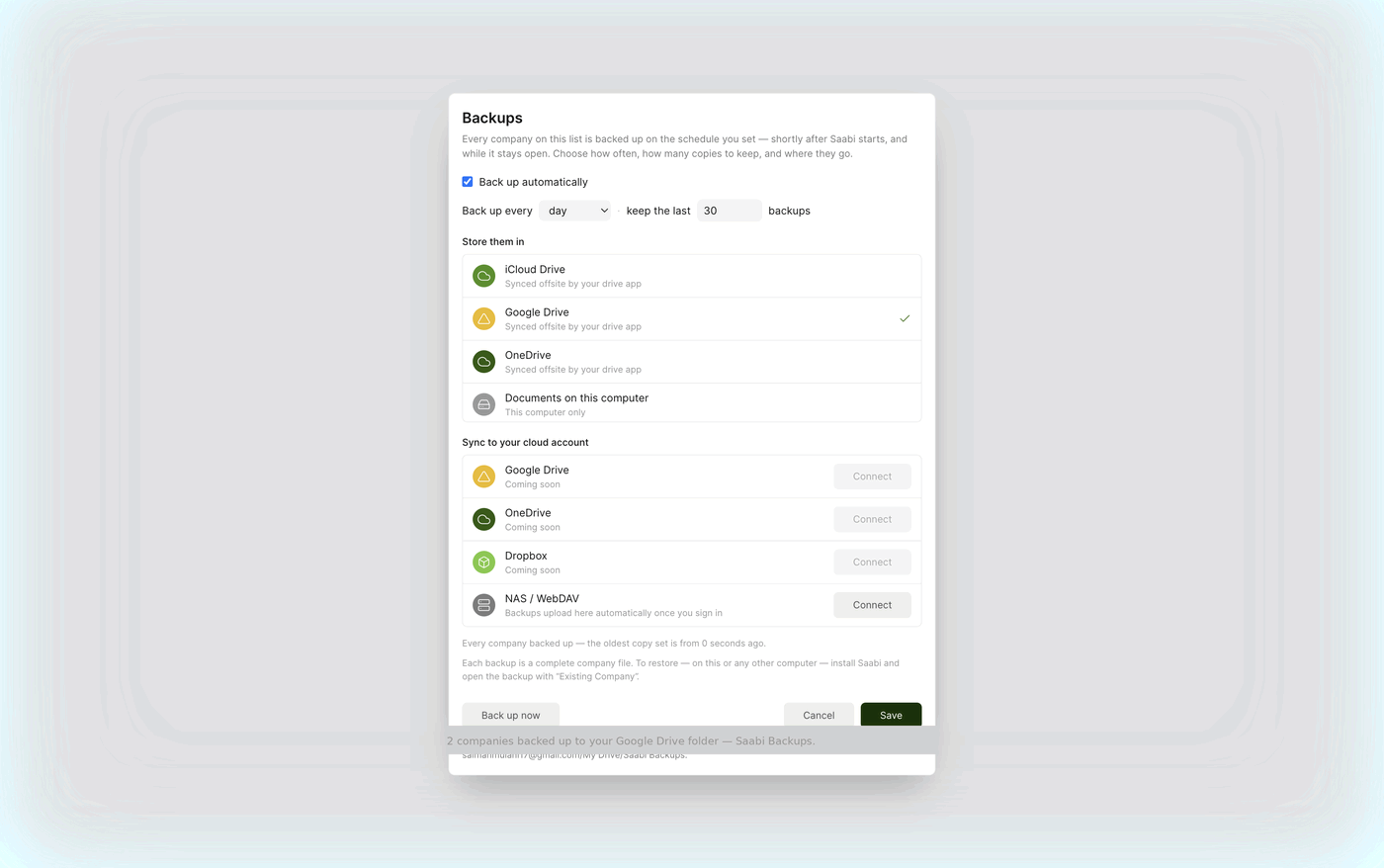
Select Save to keep changes to the schedule, or Cancel to leave them as they were.
Restoring
Each backup is a complete company file, not a fragment. To restore one — on this computer or any other:
- Install SAABI on the computer you want to work on.
- Open the Welcome to Saabi screen.
- Choose Existing Company.
- Select the backup file.
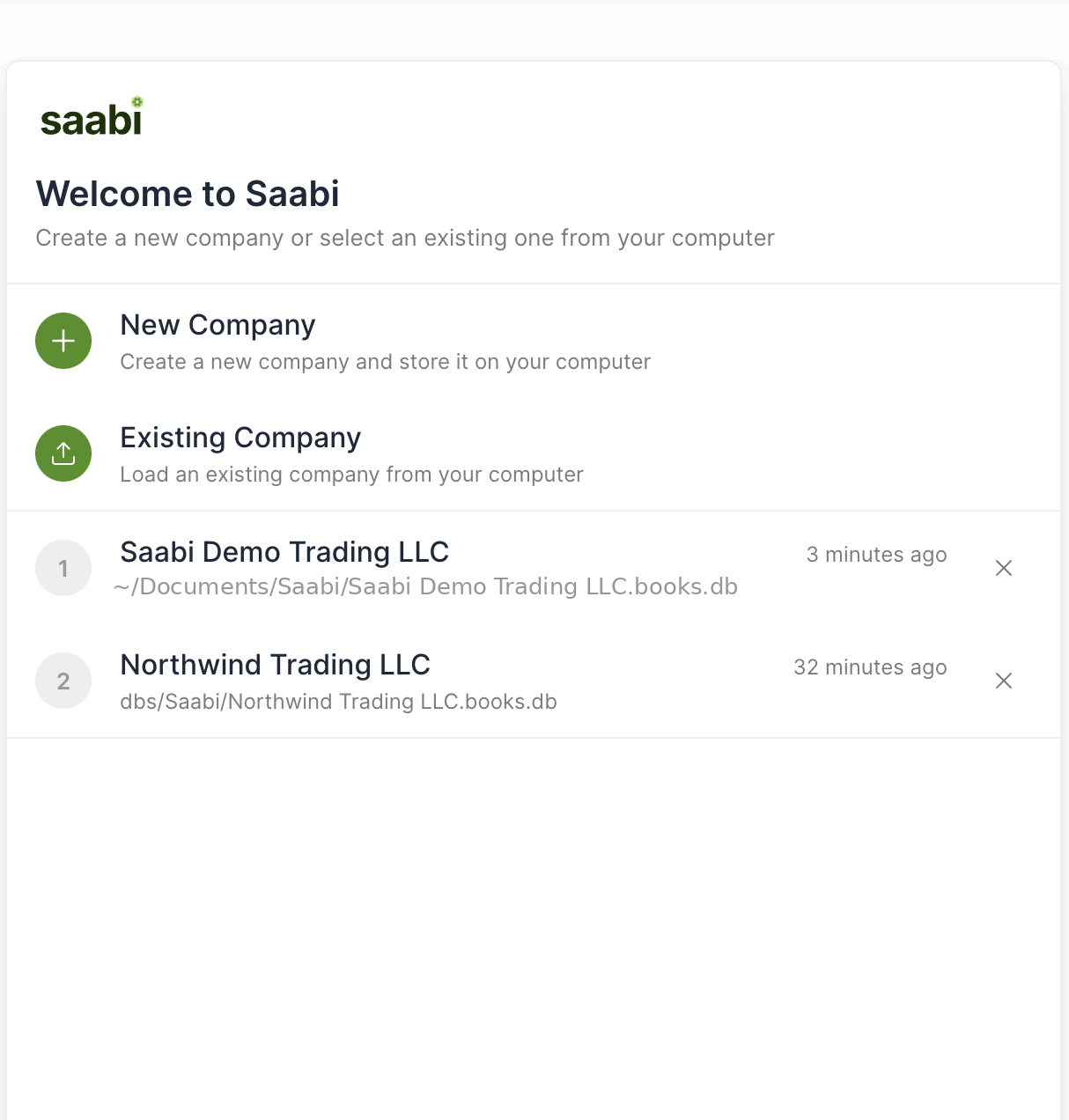
That is the whole procedure. There is no import step and no restore wizard, because a backup is simply a copy of the file SAABI already works with.
Tip
Test a restore once, soon after you set backups up. Open a recent copy as an existing company, confirm the figures look right, then switch back to your working file. A backup you have never opened is a backup you do not yet know works.
Saabi Desktop User Manual 1.0 · covers Desktop 1.0.0 · Something wrong or missing? Tell us