
Chapter 1 · Getting started · 5 min read
Getting started with SAABI
On this page
SAABI is a desktop accounting application for small and medium businesses. It runs on your own computer — on macOS or Windows — and it keeps everything it knows about your business in a single database file with a .db extension, stored wherever you choose to put it. There is no server to install, no account to register and no subscription to activate. This chapter covers what happens the first time you open SAABI: the Welcome to Saabi screen, the choice between starting a new company and opening one you already have, and the smaller controls on that screen that you will come back to later.
How SAABI stores your data
Every company you keep books for is one .db file. When you record an invoice, add a customer or post a journal entry, SAABI writes it into that file. Nothing is sent anywhere else.
Two consequences follow from this, and both are worth understanding before you begin.
- You choose where the file lives. SAABI proposes a location when you create a company, but you can put the file anywhere you have permission to write — a documents folder, an external drive, a folder that your own backup software already watches.
- You are responsible for the file. If the file is deleted or the disk fails, the books go with it. SAABI includes a backup facility, described below, and you should set it up early.
Important
Do not open the same .db file from two copies of SAABI at once, and do not put it in a folder that a syncing service rewrites while the application has it open. Both can corrupt the file.
The Welcome to Saabi screen
When you start SAABI without a company already open, you land on the Welcome to Saabi screen. Its subtitle states the choice in front of you: create a new company, or select an existing one from your computer.
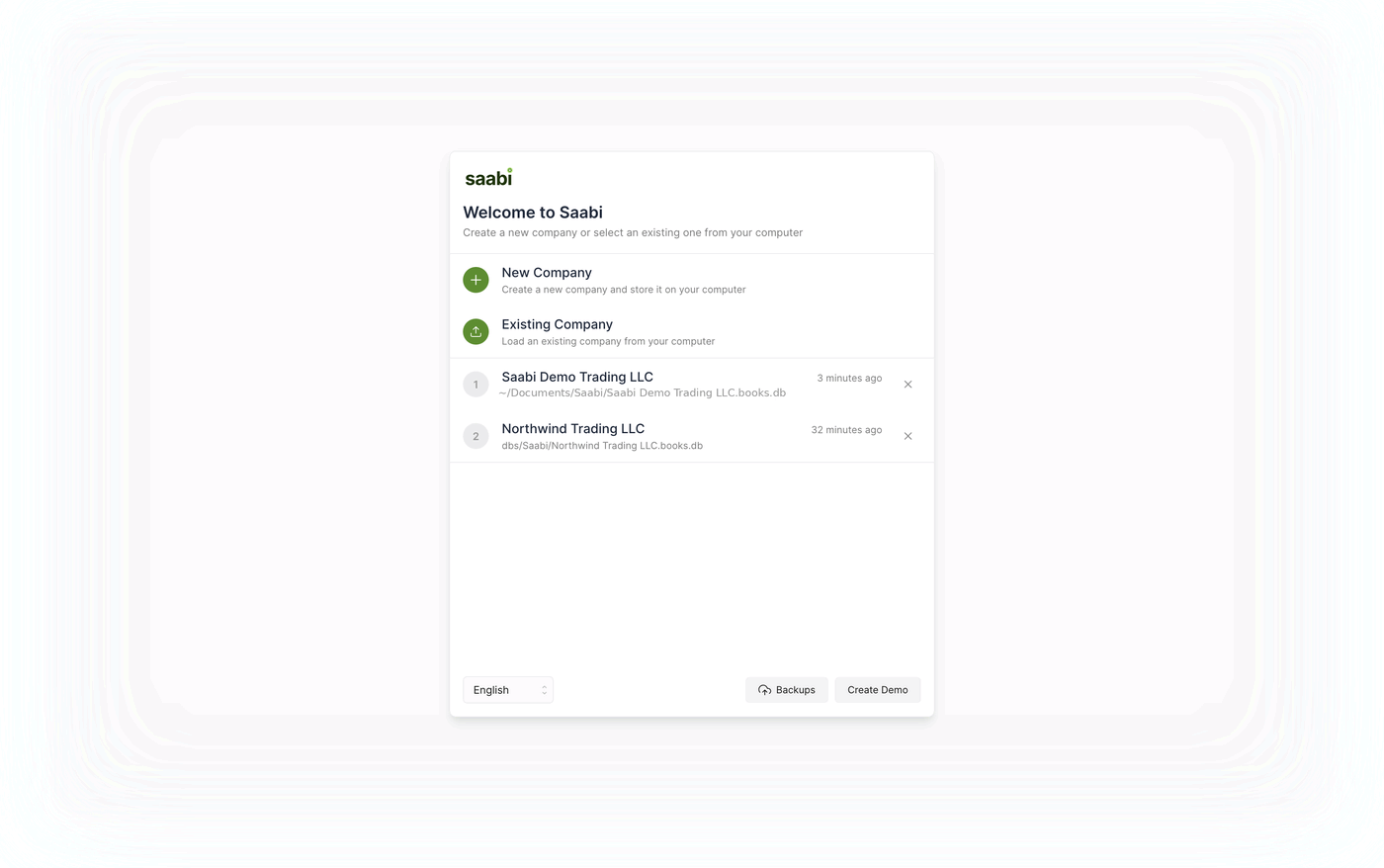
The screen has four regions: the two actions at the top, the list of recently opened companies below them, and a footer holding the language selector on the left and the Backups and Create Demo buttons on the right.
New Company
Choose New Company to start a fresh set of books. SAABI asks you where to save the .db file and what to call it, then opens the Set up your organization form, where you enter your company name, your country and your fiscal year. That form is covered in full in Chapter 2.
Pick the file name with some care. It appears in the recent-companies list from then on, so a name that identifies the business — rather than books or accounts — is worth the extra few seconds.
Existing Company
Choose Existing Company to open a .db file that already exists. A file browser opens; navigate to the file and select it.
You need this option in three situations: when you have moved the file to a new folder or a new computer, when you keep more than one company and the one you want has dropped off the recent list, and when you are restoring from a backup.
The recent-companies list
Beneath the two actions, SAABI lists the companies you have opened recently. Each row shows the company name, the path to its .db file and how long ago you last opened it.
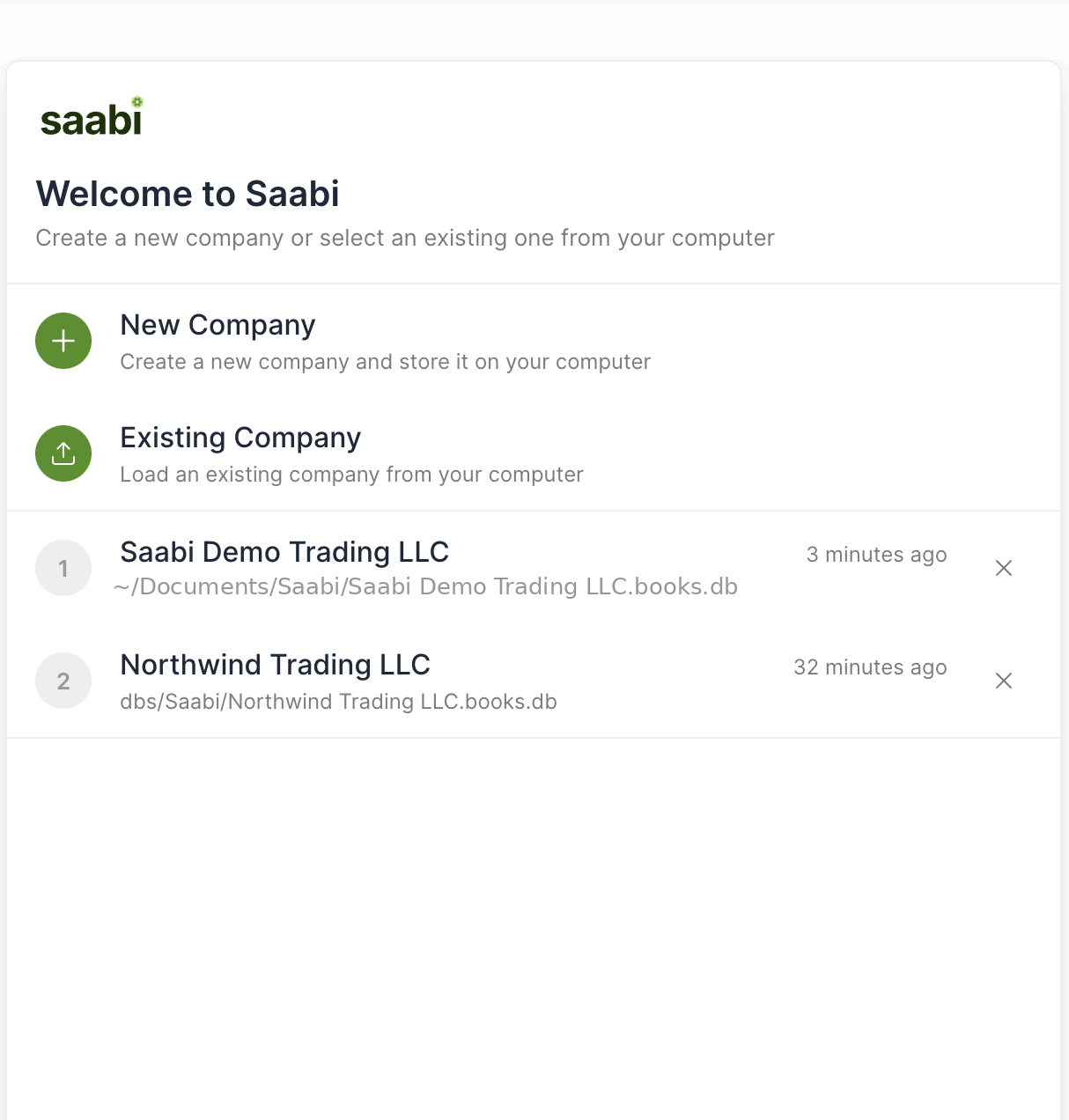
Click a row to open that company. Click the ✕ at the right-hand end of a row to remove it from the list.
Note
Removing a row removes only the shortcut. The .db file itself is untouched, and you can open it again at any time through Existing Company.
The path shown on each row is what tells two similarly named companies apart, so read it rather than the name alone when you keep several sets of books.
The language selector
The dropdown at the bottom left of the screen sets the language of the SAABI interface. It defaults to English. Changing it here applies the new language before you open a company, so the setup form you fill in next appears in the language you picked.
The setting affects labels, menus and buttons. It does not translate the data you have entered, and it does not change your currency or number formatting — those come from the country and locale you choose when you create the company.
Create Demo
Create Demo builds a complete sample company: a chart of accounts, items, customers, suppliers and a year of invoices and payments. It is the fastest way to see what a populated SAABI file looks like without risking anything.
Use it to try out reports and features before committing real figures, and to follow the worked examples in this manual with data in front of you.
Tip
The demo company is an ordinary .db file like any other. It appears in the recent-companies list alongside your real books, so give the real ones distinctive names, and delete the demo file when you no longer need it.
Backups
The Backups button at the bottom right opens the backup settings without opening a company first, so that if a company file will not open you can still get to your backups. From here you can take a backup immediately and set how often SAABI should take one on its own; the same controls are available once a company is open, from Backups in the sidebar footer.
Set a backup schedule on the day you create your books, not later. The schedule, where the copies go and how to restore one are covered in Chapter 50.
Important
Backups are written to your own computer. Copy them somewhere else as well — an external drive or a location your organisation already backs up — so that a single failed disk does not take both the books and their backups.
What comes next
With SAABI installed and the Welcome screen understood, the next step is creating the company itself. Chapter 2 walks through the Set up your organization form field by field, including how the country you choose determines your chart of accounts and your currency.
Saabi Desktop User Manual 1.0 · covers Desktop 1.0.0 · Something wrong or missing? Tell us