
Chapter 36 · Financial reports · 3 min read
Trial Balance
A trial balance lists every account in your books — ledger accounts and group accounts alike — with the balance it opened with, what moved through it, and the balance it closed with. Businesses prepare one at the end of each reporting period for a single reason: to prove the bookkeeping is arithmetically sound. Because every entry posts an equal debit and credit, the total of the Debit column and the total of the Credit column must match for any period. If they do not, something is wrong with the entries rather than with the report. Open it from the sidebar at Reports > Trial Balance.
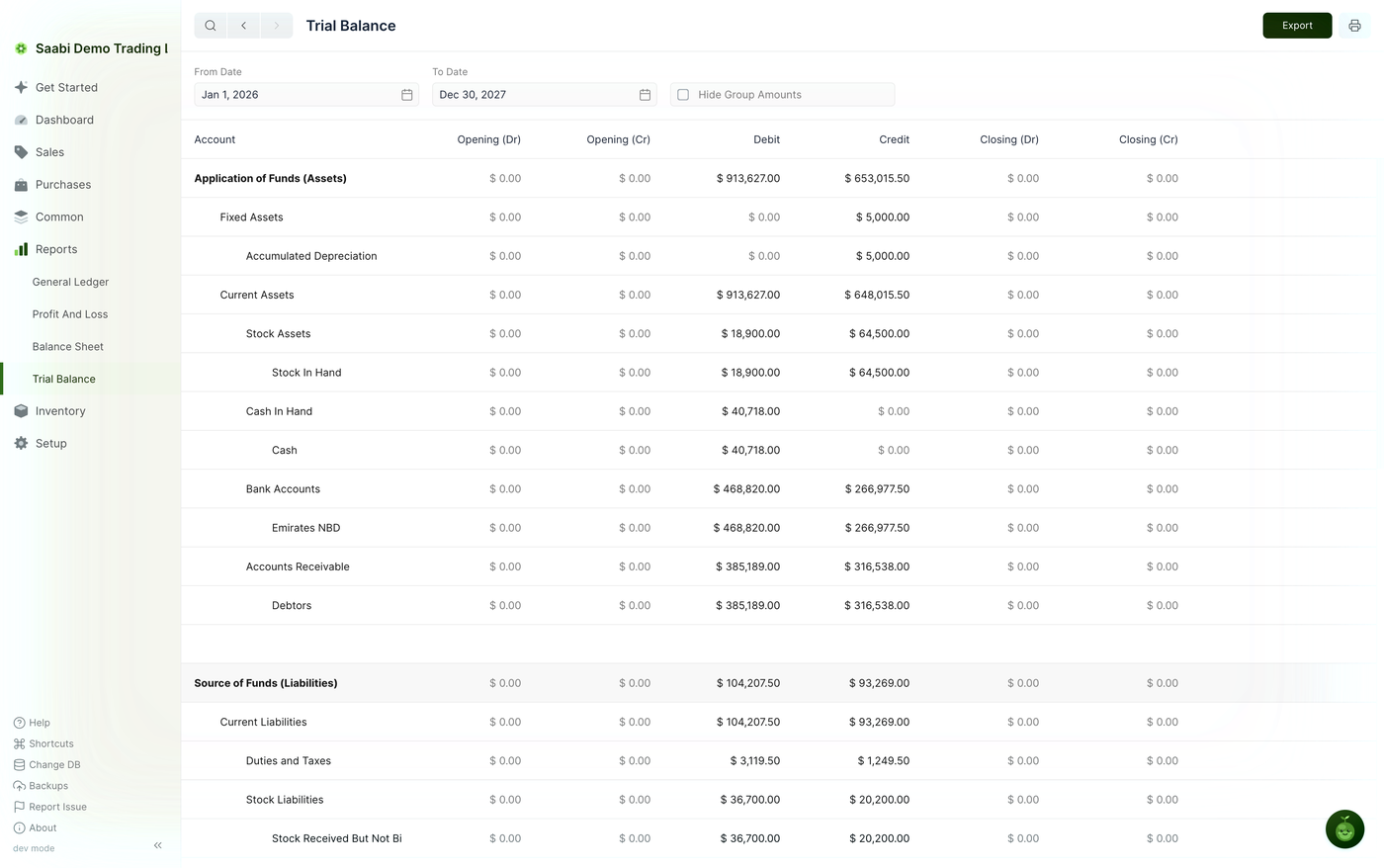
Filters
The Trial Balance has three controls.
- From Date — the date the reporting period starts. Balances as they stood on this date make up the opening columns. The default is the first day of the current fiscal year.
- To Date — the date the reporting period ends. The default is the end of the current fiscal year.
- Hide Group Amounts — see below.
Set the two dates to the period you are closing, then read the columns from left to right.
The column pairs
The first column names the account. The six that follow are three pairs, and each pair splits one figure into a debit side and a credit side.
| Column | What it holds |
|---|---|
| Opening (Dr) | The balance the account carried into From Date, if it stood in debit |
| Opening (Cr) | The balance the account carried into From Date, if it stood in credit |
| Debit | Everything debited to the account between From Date and To Date |
| Credit | Everything credited to the account between From Date and To Date |
| Closing (Dr) | The balance carried out at To Date, if it stands in debit |
| Closing (Cr) | The balance carried out at To Date, if it stands in credit |
Reading a pair is a matter of knowing that an account can only stand one way at a time. A bank account holding money is a debit balance, so its figure appears under Opening (Dr) and its partner column shows $ 0.00. A supplier account you owe money to is a credit balance, so its figure appears under Opening (Cr). Splitting the balance across two columns rather than using minus signs is what lets you total each side and compare them.
The three pairs work as a chain: opening, plus the movement in Debit and Credit, gives the closing balance. An account that opened at zero, was debited $40,718.00 and credited nothing, closes at $40,718.00 under Closing (Dr).
Note
When From Date is the first day of your books, every account opens at $ 0.00 and the opening pair is empty throughout. This is normal in a first fiscal year.
Important
The point of the report is the comparison at the foot of the Debit and Credit columns. Those two totals must be equal. The same applies to the closing pair.
Hide Group Amounts
The report lists group accounts such as Current Liabilities alongside the ledger accounts beneath them, such as Duties and Taxes and Stock Liabilities, so every amount on a group row is also counted in the rows below. Checking Hide Group Amounts blanks the group figures and leaves only the ledger accounts (Chapter 34); here it also makes the column totals a straight sum of what is on screen.
Folding rows
Group rows fold and unfold on click, as on the other reports (Chapter 34). Fold the root groups you have already checked and work down the report one group at a time.
Using the report
- Set From Date and To Date to the period you are closing.
- Compare the Debit and Credit totals. They should agree.
- Read down the Closing (Dr) and Closing (Cr) columns for balances that look wrong — an expense account standing in credit, or a bank account standing in credit when it should not be.
- For any account that needs explaining, open General Ledger, filter to that account and set the same dates. The trial balance gives you the totals; the ledger gives you the entries.
Click Export in the top right to save the report as a CSV or JSON file, or use the print icon beside it to print or save a PDF.
Saabi Desktop User Manual 1.0 · covers Desktop 1.0.0 · Something wrong or missing? Tell us