
Chapter 44 · Inventory · 4 min read
Stock Ledger
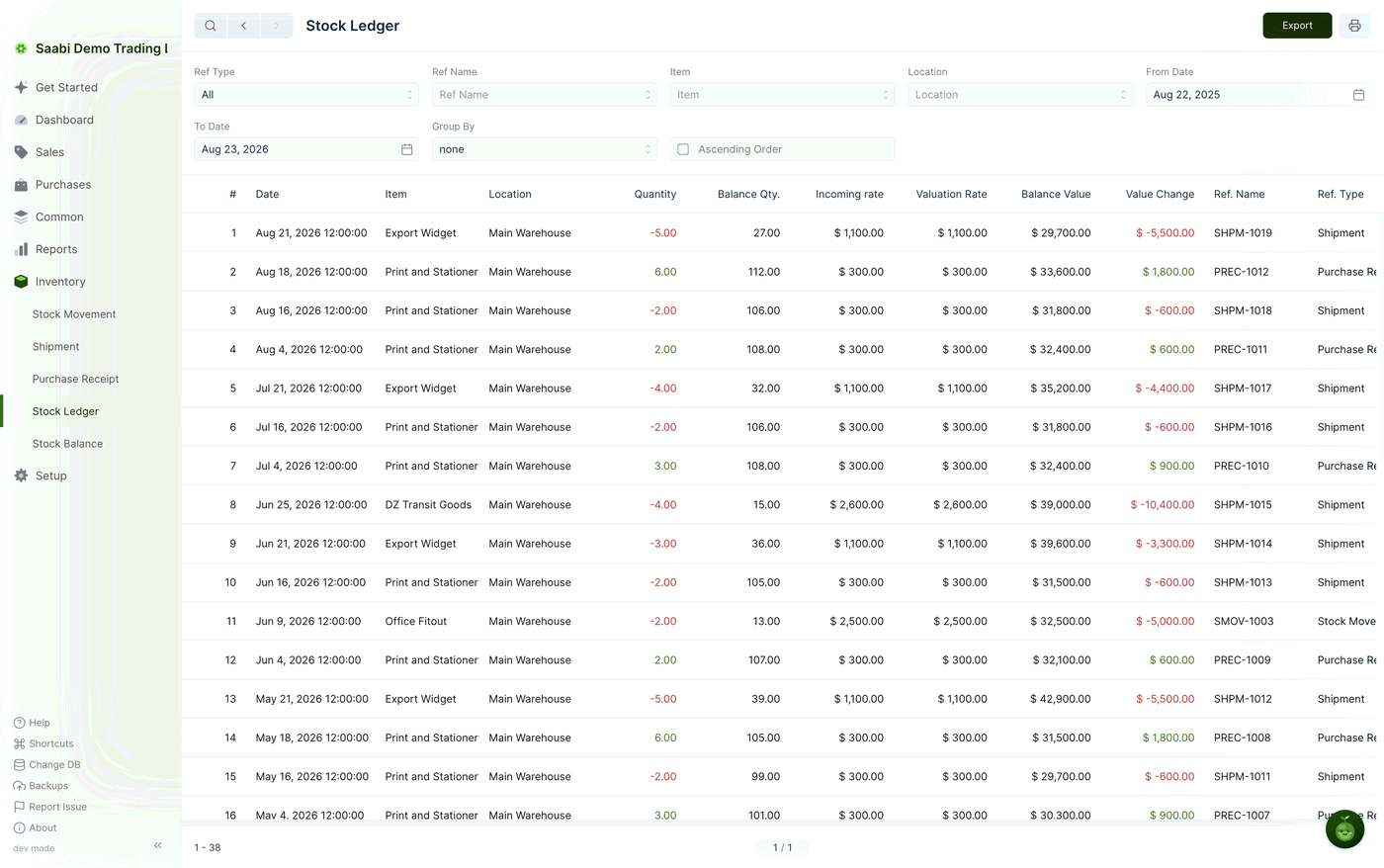
The Stock Ledger is the record of everything that has happened to your stock. Every time you submit a Stock Movement, a Shipment or a Purchase Receipt, SAABI writes one line here for each row of that entry, showing what moved, where it moved, and what it did to the quantity and the value you are holding. Use it when you need to trace a discrepancy back to the transaction that caused it. The report is read-only: to change a line, cancel or correct the transaction behind it.
To open it, go to Inventory > Stock Ledger.
Filters
The filters sit above the table, and the report redraws as you set each one.
- Ref Type — restricts the report to one kind of transaction. Leave it at
Allto see everything, or chooseShipmentto see only goods going out to customers, and so on. - Ref Name — restricts the report to the lines produced by one particular entry, such as a single shipment. Set Ref Type first; Ref Name offers nothing until it knows which kind of entry you mean.
- Item — shows only the lines involving the item you choose.
- Location — shows only the lines involving the Location you choose. Combine it with Item to follow one item through one warehouse.
- From Date — the earliest date shown. It defaults to roughly a year back.
- To Date — the latest date shown. It defaults to tomorrow, so today's entries are always included.
- Group By — gathers the lines under a heading instead of listing them flat. It is set to
noneby default; grouping by reference, for example, collects every line that came from the same transaction. - Ascending Order — a checkbox. The report normally shows the newest entry first; check this to read the entries oldest first, which is the order to use when you are reconciling a balance forward.
Columns
- Date — when the movement happened, not when it was entered. A backdated transaction appears at its own date.
- Item — the tracked item that moved.
- Location — the Location whose quantity this line changed. A Material Transfer produces two lines, one for each Location.
- Quantity — how much this line moved. Negative for goods leaving, positive for goods arriving.
- Balance Qty. — how much of that item was at that Location after this line. This is the running total, and it is the figure to follow when you are hunting a shortfall.
- Incoming rate — the rate at which this particular movement was valued, in USD.
- Valuation Rate — the value SAABI now carries per unit of that item at that Location, after the movement.
- Balance Value — what the remaining stock is worth: Balance Qty. multiplied by Valuation Rate.
- Value Change — how much this line added to or took off the value held. It carries the same sign as Quantity.
- Ref. Name — the entry that caused the line, such as
SHPM-1019orPREC-1012. This is your route back to the source document. - Ref. Type — what kind of entry that was: Shipment, Purchase Receipt or Stock Movement.
Reading a negative quantity
A negative Quantity is not an error and does not mean your stock has gone below zero. It records the direction of the movement: the goods left that Location. A positive figure means they arrived. SAABI colours the two differently — outward in red, inward in green — so the direction is visible without reading the sign.
Take the first line of the report shown above. Export Widget moved at Main Warehouse with a Quantity of -5.00, so five units left. Balance Qty. of 27.00 is what remained afterwards. The Valuation Rate was $1,100.00, so Value Change is $-5,500.00 — five units at $1,100.00 taken off the value held — and Balance Value of $29,700.00 is the twenty-seven remaining units at that same rate. Ref. Type reads Shipment and Ref. Name gives the entry that did it.
Note
Balance Qty. itself should never be negative. SAABI blocks any transaction that would take a Location below zero, including backdated ones. If you are chasing a blocked entry, read the ledger in Ascending Order with Item and Location set, and find the point where the balance runs out.
Taking the report out of SAABI
Export in the title bar saves the report as it is currently filtered, so set the filters first and export what you actually want. The print button beside it produces a printable copy. The footer shows how many lines the current filters return.
Saabi Desktop User Manual 1.0 · covers Desktop 1.0.0 · Something wrong or missing? Tell us