
Chapter 13 · Sales · 3 min read
Sales Payments
On this page
A payment records the movement of money. On the sales side it is the entry you make when a customer pays you: it reduces what they owe and increases the balance in your bank or cash account. Most sales payments are best made from the invoice they settle, because SAABI then fills in the customer and the amount for you. You can also record a payment on its own — for a deposit taken before an invoice exists, or for money received that you will match to invoices later.
The Sales Payments list
Payments received live at Sales > Sales Payments. Each row shows the payment number, its status, the party who paid, the posting date and the amount.
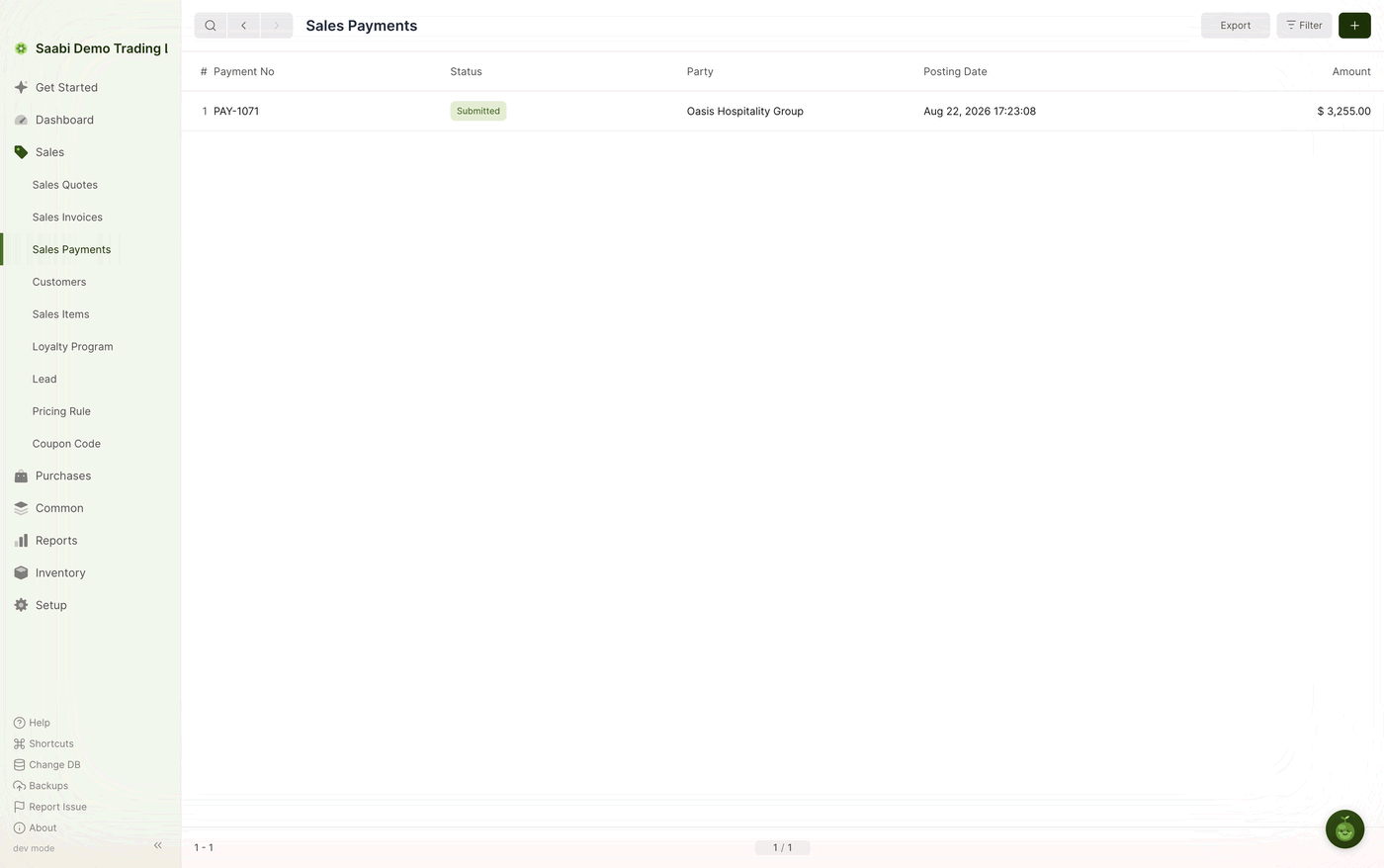
The toolbar works as it does on every list: Export writes the rows to a file, Filter narrows them, and + starts a new payment.
Recording a payment against an invoice
This is the usual route, and the one to prefer, because the invoice reference is set for you and the outstanding amount is carried across.
- Open the submitted invoice at
Sales > Sales Invoices. - Click Create in the toolbar and choose Payment.
- The payment quick-edit panel opens on the right with the outstanding amount already in Amount.
- Check Payment Method, To Account and Posting Date, and add a reference if you have one.
- Click Save. SAABI saves and submits the payment in one step.
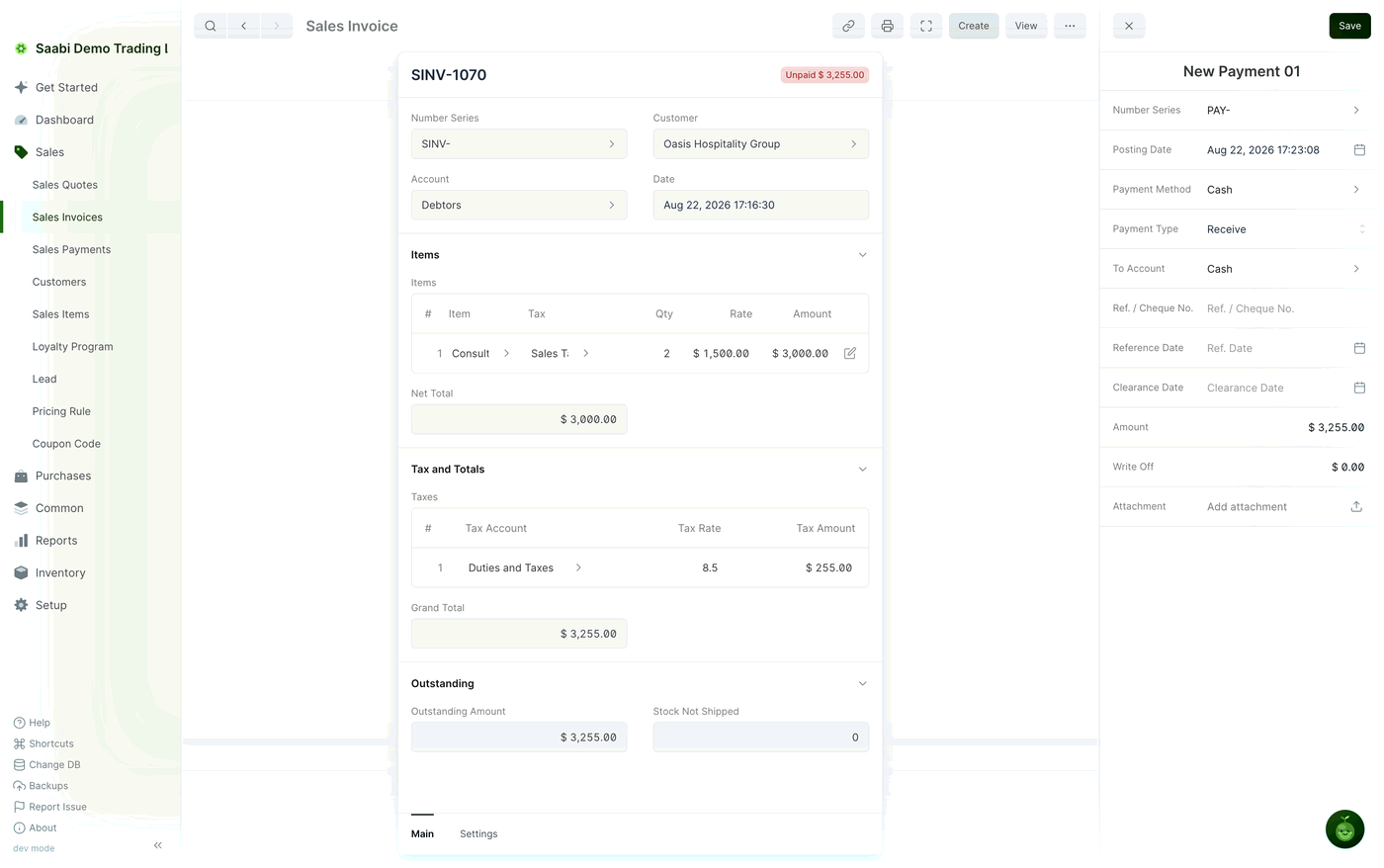
The invoice's Outstanding Amount falls by what you received, and its status moves to Partly Paid or, once the balance reaches zero, to Paid. The same procedure is illustrated step by step in Chapter 12.
Creating a standalone payment
- Go to
Sales > Sales Paymentsand click +. - Choose the party who paid you.
- Set Payment Type to
Receiveand fill in the accounts, the date and the amount. - If the money settles a particular invoice, add that invoice in the references table at the foot of the panel. This is what tells SAABI to reduce that invoice's outstanding amount.
- Click Save, then submit the payment to record it.
The payment fields
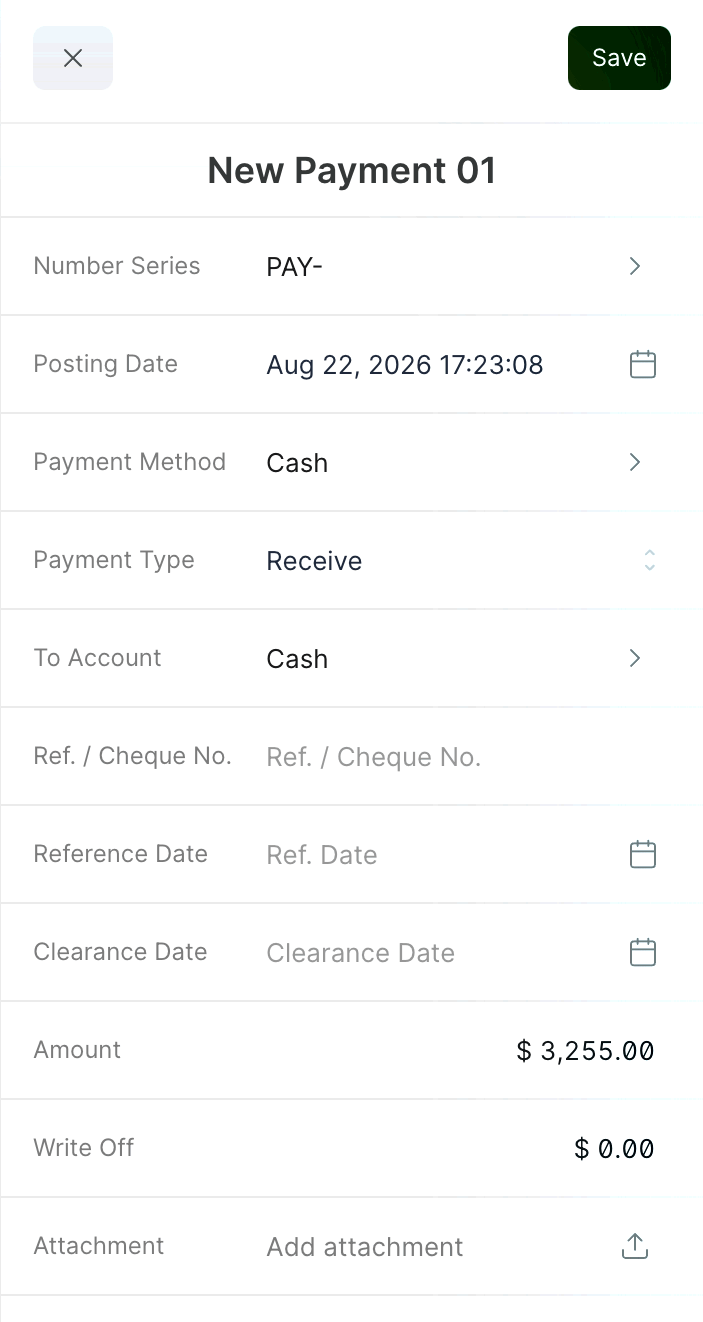
- Number Series — the prefix the payment number is drawn from,
PAY-by default. - Posting Date — the date the money moved. This is the date the entry appears under in your reports.
- Payment Method — how the money was paid, for example
Cash. - Payment Type —
Receivewhen a customer pays you,Paywhen you pay a supplier. - To Account — where the money went. On a sale this is the bank or cash account that received it.
- From Account — where the money came from. On a sale this is your receivable account, which SAABI sets from the customer record.
- Ref. / Cheque No. — the cheque number, transfer reference or card slip number.
- Reference Date — the date on that reference, which may be earlier than the posting date.
- Clearance Date — the date the funds actually cleared, for payments that take time to land.
- Amount — how much was received. Reduce it below the outstanding figure to record a part payment.
- Write Off — an amount you are giving up rather than collecting.
- Attachment — a remittance advice or receipt.
The direction of a payment follows its type:
| Transaction | Payment Type | To Account | From Account |
|---|---|---|---|
| Sale | Receive | Bank or cash accounts | Accounts receivable |
| Purchase | Pay | Accounts payable | Bank or cash accounts |
Writing off a balance
Write Off handles the small residue that is not worth chasing — a rounding difference, a bank charge deducted in transit, or a shortfall you have agreed to accept. Enter the shortfall in Write Off and leave Amount at the full invoiced figure. The money actually transferred is the amount less the write off, and the written-off portion is booked to the write off account set at Setup > Settings > General.
Note
A write off closes the invoice. Once it is applied, the invoice's outstanding amount reaches zero and its status becomes Paid, even though you received less than you billed.
Tip
When a customer settles several invoices with one transfer, record the payment from the invoice with the largest balance, then adjust the amount and add the other invoices in the references table, rather than splitting the transfer into several entries.
Saabi Desktop User Manual 1.0 · covers Desktop 1.0.0 · Something wrong or missing? Tell us