
Chapter 15 · Sales · 3 min read
Sales Items
An item is anything you sell — a product you ship or a service you perform. The item record holds the name that appears on the invoice, the rate you normally charge, the income account the sale is credited to, and the tax the sale attracts. Setting items up once means every invoice line takes three actions: pick the item, set the quantity, save. This chapter covers the sales side; items you buy are set up the same way under Purchases > Purchase Items (Chapter 24), and the whole record is described in Chapter 27.
The Sales Items list
Open Sales > Sales Items. Each row shows the item name, its unit type, the tax that applies to it and its rate.
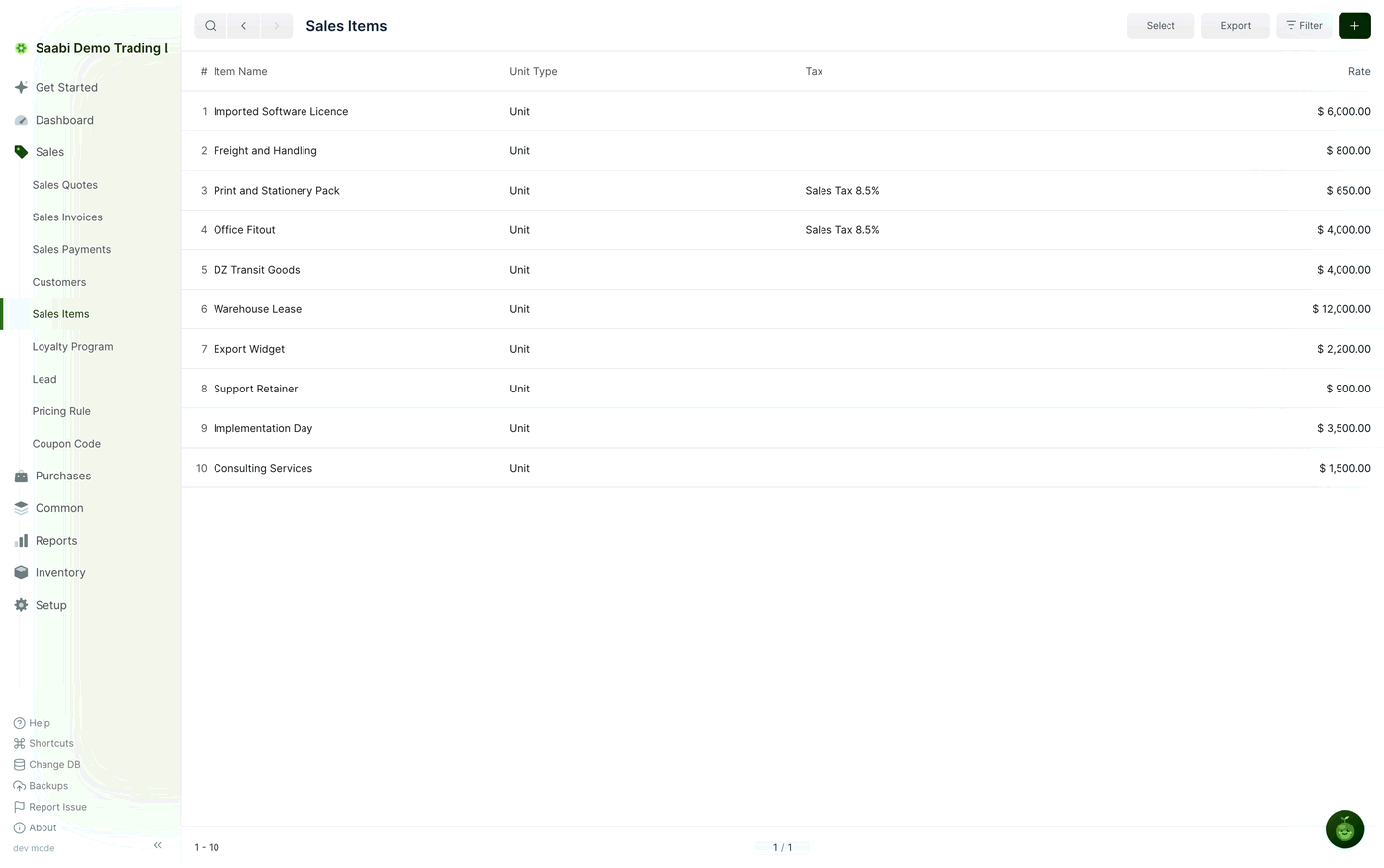
The toolbar carries Select for acting on several rows at once, plus the usual Export, Filter and +.
Creating a sales item
- Go to
Sales > Sales Itemsand click +. - Enter the Item Name. This is what appears on the invoice line and on the printed invoice.
- Set Type to
Productfor something you ship orServicefor something you perform. - Under Details, set the Unit Type and the Rate you normally charge.
- Under Accounts, set Sales Acc. — the income account credited when the item is sold — and the Tax the sale attracts.
- Click Save.
Important
Create an item you only sell under Sales > Sales Items, an item you only buy under Purchases > Purchase Items, and an item you do both with under Common > Items. What an item is used for is fixed when it is created and cannot be changed afterwards. The Purpose field behind this is explained in Chapter 24.
The item record
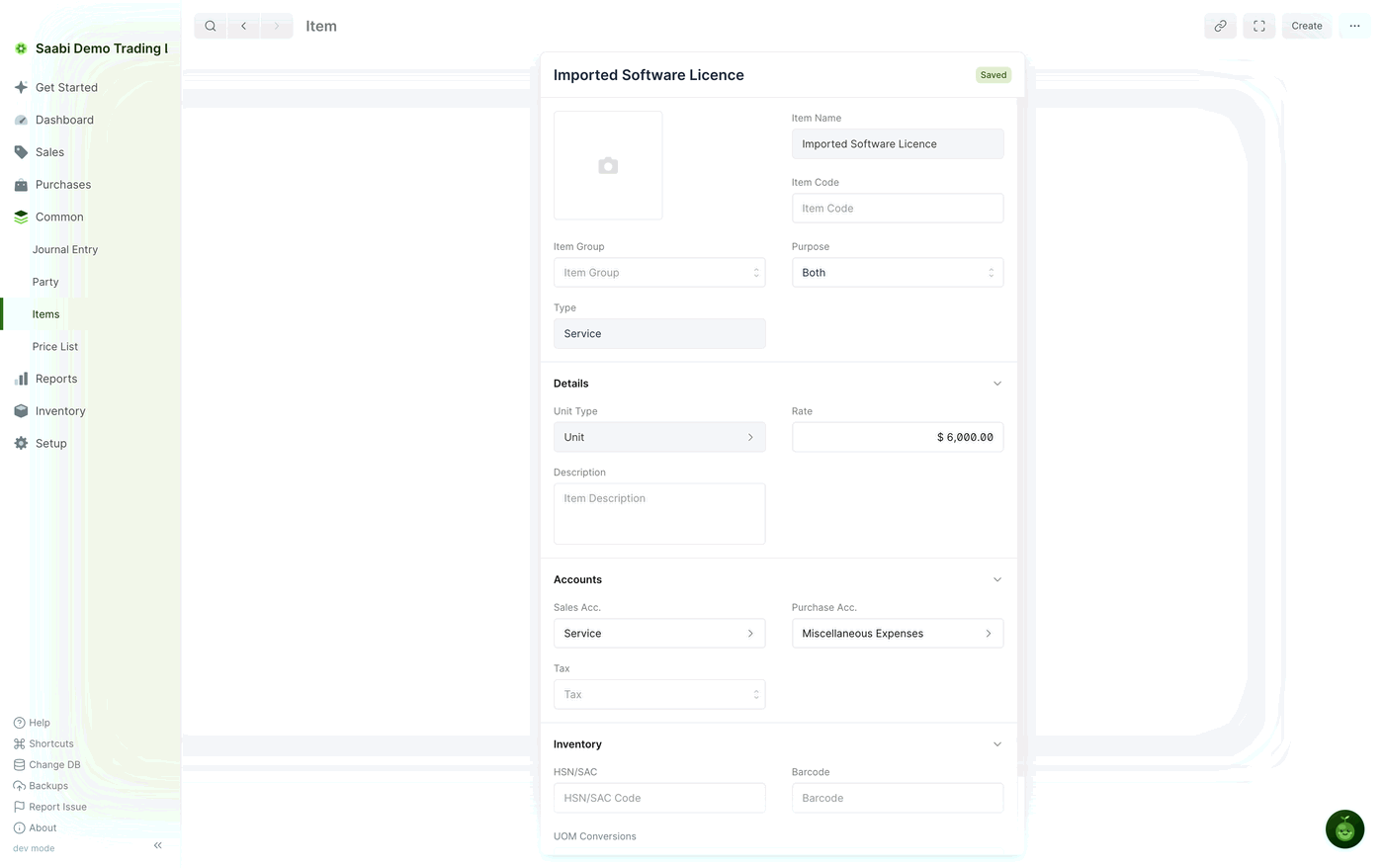
- Item Image — an optional picture, useful in the point of sale grid view.
- Item Name — the name the item is identified by. Each item needs its own.
- Item Code — a short unique code for tracking and reference.
- Item Group — the category the item belongs to, used for grouping and for filtering in the point of sale.
- Purpose — whether the item is for sales, purchases or both.
- Type —
ProductorService.
Under Details:
- Unit Type — the base unit the rate applies to,
Unitby default. - Rate — the standard price. This is what an invoice row picks up, and you can change it on the row for a one-off price.
- Description — a longer description of what the item is. It can be printed on the invoice.
Under Accounts:
- Sales Acc. — the income account credited when the item is sold.
- Purchase Acc. — the expense account debited when the item is bought.
- Tax — the tax applied when the item is invoiced. Like the rate, it can be overridden on the invoice row.
The Inventory section — HSN/SAC, Barcode (the code a scanner reads to add the item at the till) and UOM Conversions (for an item sold in more than one unit, such as a box of twelve) — is covered with the rest of the record in Chapter 27.
How items reach the invoice
When you choose an item on an invoice row, SAABI fetches its rate and its default tax onto the line. Both can be changed there without altering the item record, so a negotiated price on one sale does not affect the next one. To change the price for good, change the Rate on the item; to run a different set of prices for a customer group or a season, use a price list (Chapter 28) or a pricing rule (Chapter 18) instead.
Tip
Give items names your customers will recognise on a printed invoice. The item name is what appears in the ITEM column of the PDF, so Consulting Services reads better on a bill than an internal code.
Saabi Desktop User Manual 1.0 · covers Desktop 1.0.0 · Something wrong or missing? Tell us