
Chapter 14 · Sales · 3 min read
Customers
A customer is anyone you sell to. The customer record holds the name that appears on the invoice, the contact details that are printed with it, the account the sale is booked against, and the currency you bill in. You need a customer before you can raise a sales invoice, though you never have to break off to create one: any Customer field on an invoice or quote will create the record for you as you type. This chapter covers the customer list and what each field on the record does.
The Customers list
Open Sales > Customers. Each row shows the customer's name, email, phone and the total they currently owe you.
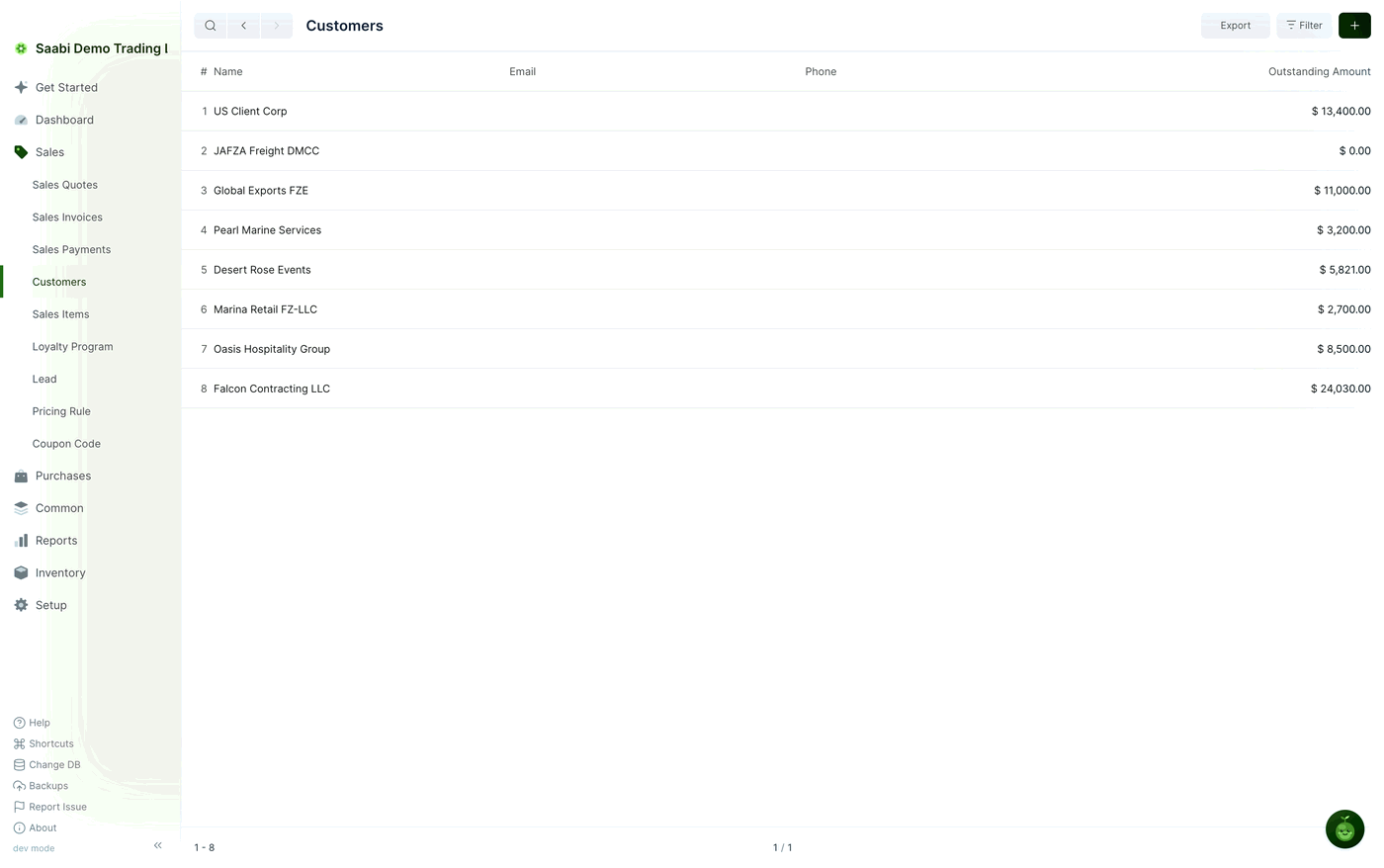
The Outstanding Amount column is the quickest read of who owes you what. A customer with $ 0.00 has no unpaid invoices. Use Filter to narrow the list and Export to take it out of SAABI.
Creating a customer
- Go to
Sales > Customersand click +. - Enter the Name. Each customer needs a name of its own, and it is the name that appears on the invoice.
- Fill in the contact and billing details you have. None of them are required to raise an invoice, but the email, phone and address are what get printed on it.
- Click Save.
Important
Create a customer under Sales > Customers and a supplier under Purchases > Suppliers. A party you both buy from and sell to belongs under Common > Party, where you can set its Role to cover both. Choose the right place at the outset — the role a record was created under cannot be changed afterwards. See Chapter 26.
The customer record
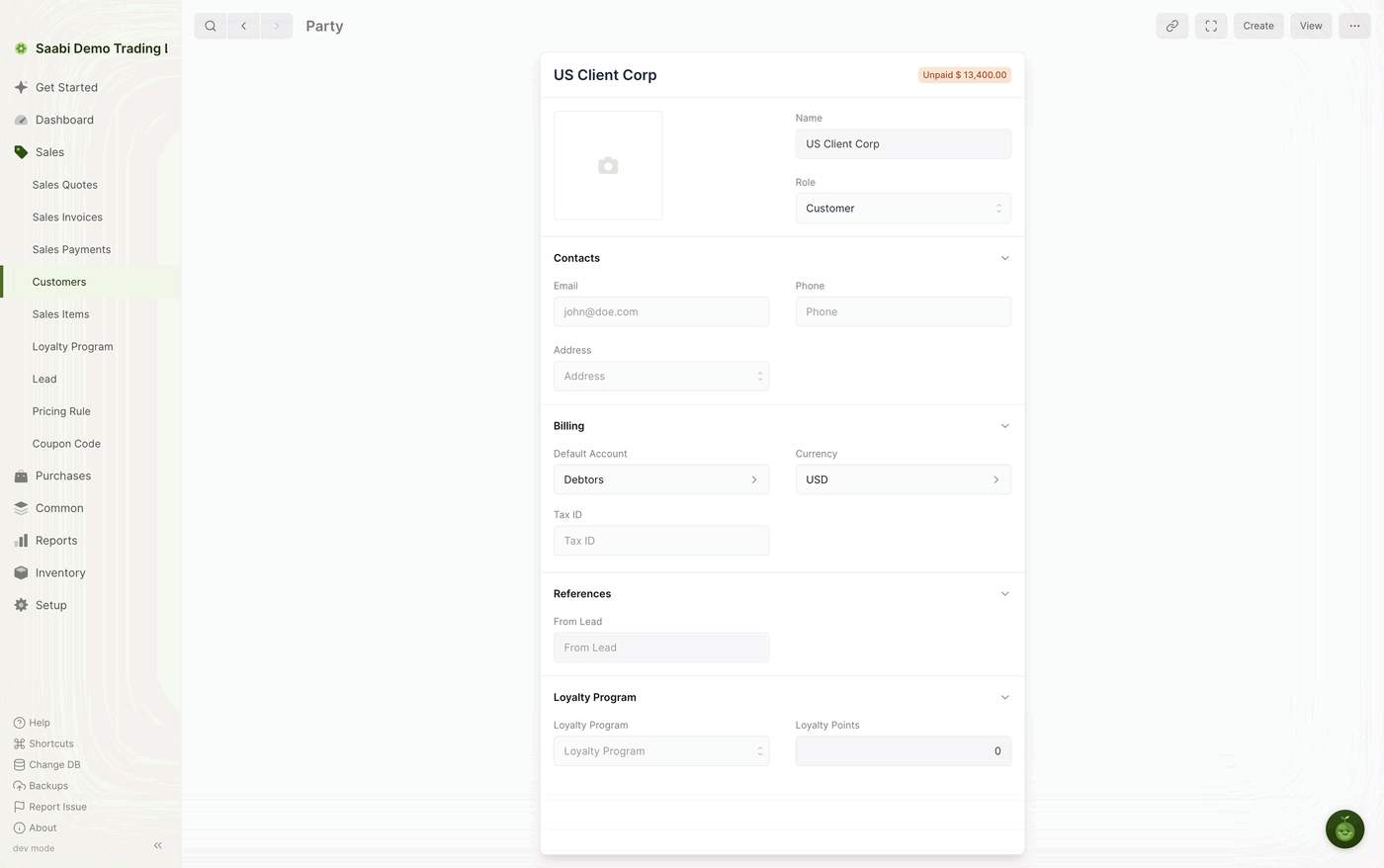
- Name — how the customer is identified throughout SAABI and on printed invoices.
- Role — whether this party is a customer, a supplier, or both. A record created under
Sales > Customershas the roleCustomer.
Under Contacts:
- Email — the customer's email address, which may be shown when the invoice is printed.
- Phone — the customer's phone number, also available to the print template.
- Address — the postal address printed in the "billed to" block.
Under Billing:
- Default Account — the receivable account this customer's invoices are booked against,
Debtorsby default. SAABI fills the invoice's Account field from here. - Currency — the currency their invoices are raised in,
USDfor Saabi Demo Trading LLC. - Tax ID — the customer's tax registration number, for invoices that must carry it.
Under References:
- From Lead — the lead this customer was converted from, if they started as one. SAABI sets it when you create a customer from a lead, and it gives you the trail back to the original enquiry.
Under Loyalty Program:
- Loyalty Program — the loyalty program this customer belongs to. Leave it empty if they are not on one.
- Loyalty Points — the points they have accrued and not yet spent. The figure is maintained by SAABI as invoices are submitted and points are redeemed; you do not edit it by hand.
The outstanding badge
A customer with unpaid invoices carries a badge in the top right of the record showing the total still owed — Unpaid $ 13,400.00 for the customer above. It is the same figure as the Outstanding Amount column in the list, and it moves as invoices are raised and payments recorded. A customer who owes nothing shows no badge.
Tip
To see what makes up that figure, filter Sales > Sales Invoices by the customer and read the Outstanding Amount column. The Receivables Ageing widget on the dashboard breaks the same total down by how overdue it is.
Saabi Desktop User Manual 1.0 · covers Desktop 1.0.0 · Something wrong or missing? Tell us