
Chapter 39 · Inventory · 3 min read
Stock Movements
On this page
A Stock Movement records stock going into, out of, or between your own Locations. Unlike a Shipment or a Purchase Receipt it has no customer or supplier attached and no invoice behind it, which makes it the entry to use for opening stock, transfers between Locations, internal consumption and write-offs. Everything a Stock Movement does happens on the stock side of your books.
To see the entries you have already made, go to Inventory > Stock Movement.
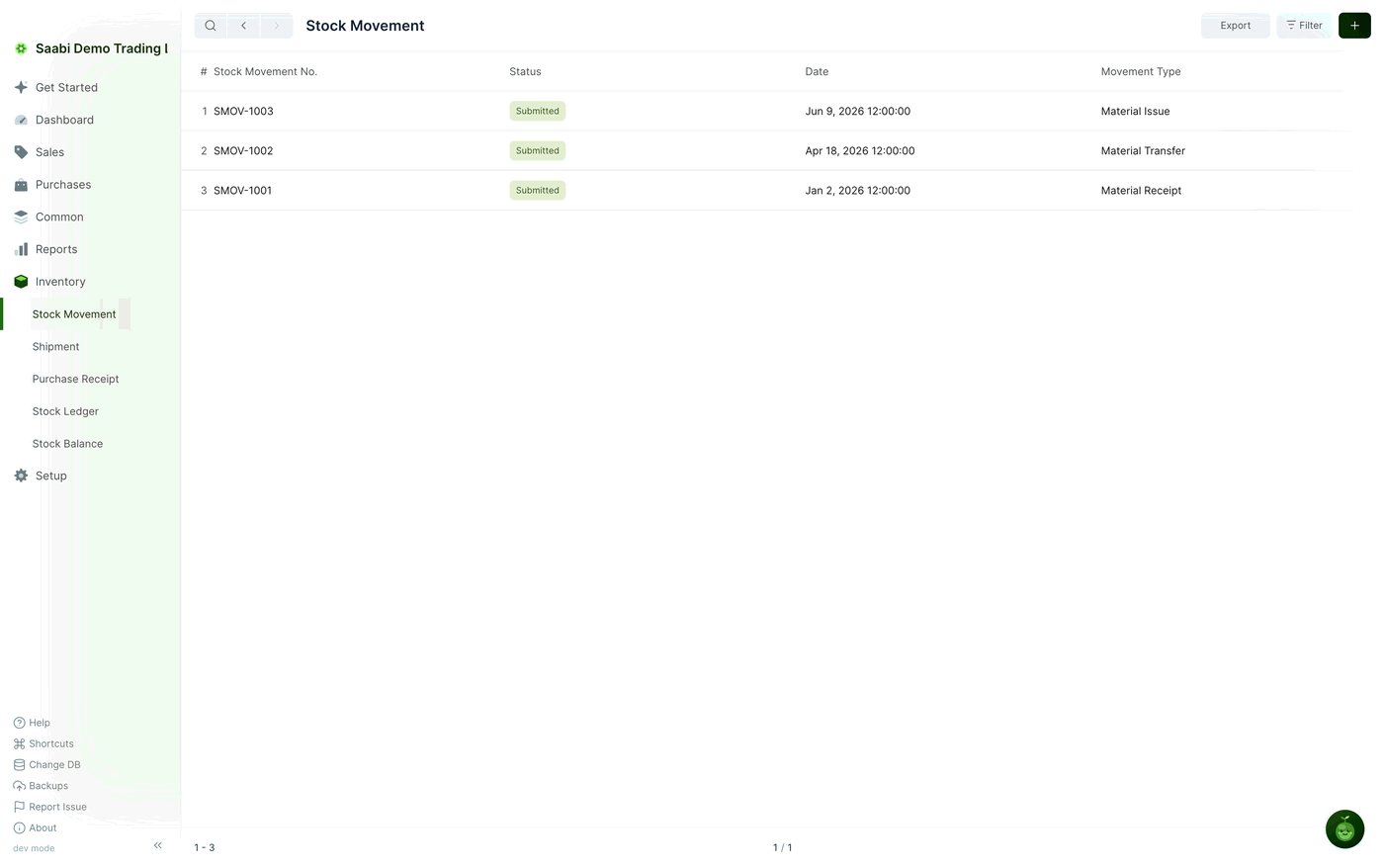
The list shows the entry number, its status, the date and the Movement Type. Use Filter to narrow it down and Export to take the rows out of SAABI.
The three movement types
Before you create an entry, decide which kind of movement you are recording. The Movement Type decides which Location fields you have to fill in on each row.
| Movement Type | What it records | From | To |
|---|---|---|---|
| Material Issue | Stock leaves a Location and does not come back | Set | Leave empty |
| Material Receipt | Stock arrives at a Location from outside your Locations | Leave empty | Set |
| Material Transfer | Stock moves from one of your Locations to another | Set | Set |
Use Material Receipt for the stock you are holding on the day you start using SAABI, and Material Issue for goods consumed internally, damaged or written off. Material Transfer moves the same goods between two of your own Locations and leaves your total quantity unchanged.
Creating a stock movement
- Go to
Inventory > Stock Movementand click the + button in the title bar. - Choose the Movement Type.
- Check the Date. SAABI fills in today's date, and you can backdate the entry if the stock actually moved earlier.
- In the Items section, click Add Row.
- Choose the Item. Only items with Track Item set can be selected.
- Set the Locations the Movement Type calls for — From, To, or both.
- Enter the Quantity and the Rate.
- Add a row for each further item, then click Save.
- Click Submit to record the movement.
Nothing reaches your stock records until you submit. A saved entry can still be edited; a submitted one cannot.
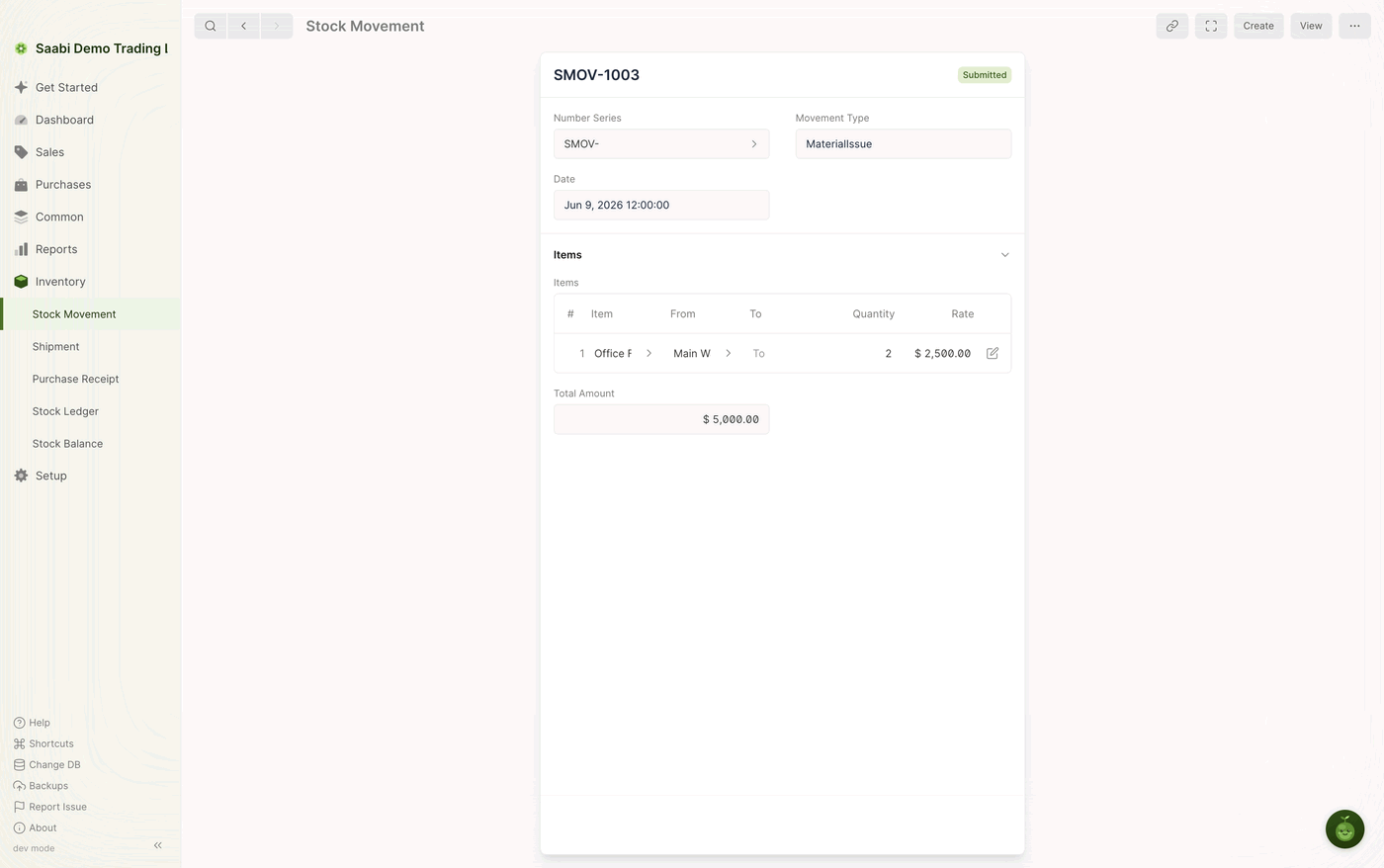
The Items grid
Each row of the grid is one item moving between one pair of Locations. The columns are:
- # — the row number.
- Item — the tracked item being moved.
- From — the Location the stock leaves. Fill this in for Material Issue and Material Transfer.
- To — the Location the stock arrives at. Fill this in for Material Receipt and Material Transfer.
- Quantity — how many units are moving. Enter a positive number; the Movement Type and the Locations decide the direction.
- Rate — the value of one unit, in USD. This is what the movement is worth per unit, not a selling price, and it feeds the valuation SAABI reports in the Stock Ledger.
Click the pencil at the end of a row to open the row in a panel where every field is visible at once. Use it when a column is too narrow to read or when the item needs a serial number or a batch.
Important
An outward movement is refused if the From Location does not hold enough of the item, and backdated entries are checked the same way. Either choose a Location that holds enough stock, or record an inward movement into that Location dated before this one.
Total Amount
Below the grid, Total Amount shows the value of the whole entry: every row's quantity multiplied by its rate, added together. In the movement shown above, two units of Office Fitout at $2,500.00 give a Total Amount of $5,000.00. The field is calculated for you and cannot be typed into — correct a wrong total by correcting the row that caused it.
After you submit
Submitting the entry writes a line into the Stock Ledger for each row and updates the Stock Balance for the Locations involved. To see exactly what was written, open the submitted entry and choose the ledger you want from the View menu in the toolbar.
Saabi Desktop User Manual 1.0 · covers Desktop 1.0.0 · Something wrong or missing? Tell us