
Chapter 26 · Shared records · 3 min read
Parties
On this page
A party is any business or person you sell to or buy from. Parties belong to SAABI's master data — the records that describe your business rather than record its transactions. Master data holds still while transactions come and go: creating a party, an item, a tax template or a price list changes no account balance on its own, but every invoice, payment and report you produce afterwards leans on it. Get the master data right and the day-to-day entries take care of themselves.
What master data is
Transactional entries — invoices, payments, journal entries — move money between accounts. Master data does not. Instead it supplies the names, rates and default accounts that transactional entries reuse:
- Party — who you trade with.
- Items — what you buy and sell.
- Tax Templates — the tax rates and accounts applied to them.
- Price List — the rates that apply in a given season or to a given kind of trade.
The pattern for creating any of them is the same: open the list, click the + button, fill in the form, and click Save. The record is available to transactions from that moment.
The Party list
Go to Common > Party. This list shows every party in the company file, whatever its role — the customers you sell to and the suppliers you buy from, side by side.
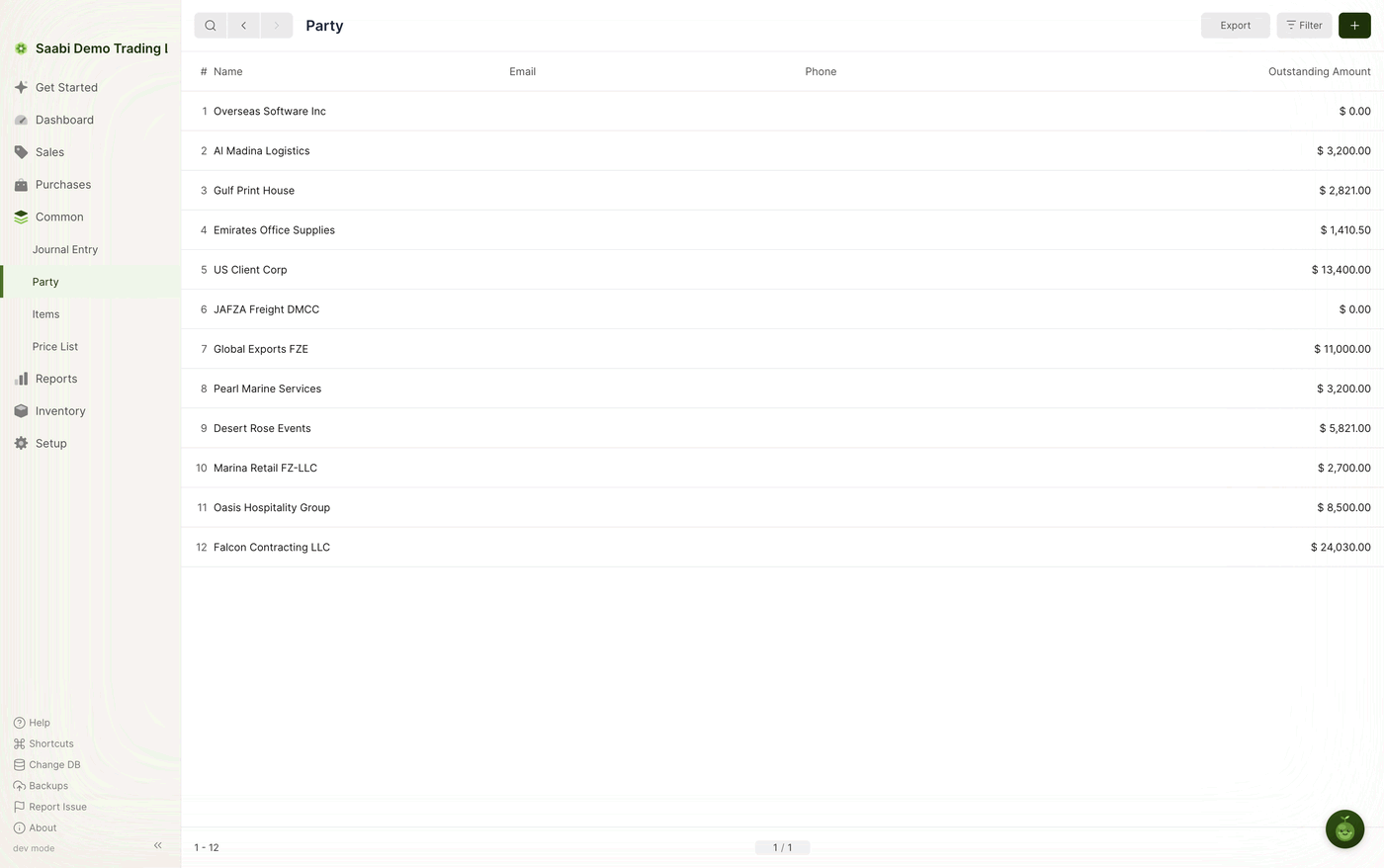
The columns are Name, Email, Phone and Outstanding Amount. For a customer, the outstanding amount is what they owe you; for a supplier, it is what you owe them.
One record, three roles
A single party record can act as a customer, as a supplier, or as both. The Role field is what decides which:
| Role | Create it from | Used on | Also listed under |
|---|---|---|---|
| Customer | Sales > Customers | Sales invoices | Common > Party |
| Supplier | Purchases > Suppliers | Purchase invoices | Common > Party |
| Both | Common > Party | Sales and purchase invoices | Sales > Customers and Purchases > Suppliers |
The Both role earns its place whenever the same business is on either side of your books — a logistics firm you invoice for storage and who invoices you for freight, for example. One record keeps both balances against one name.
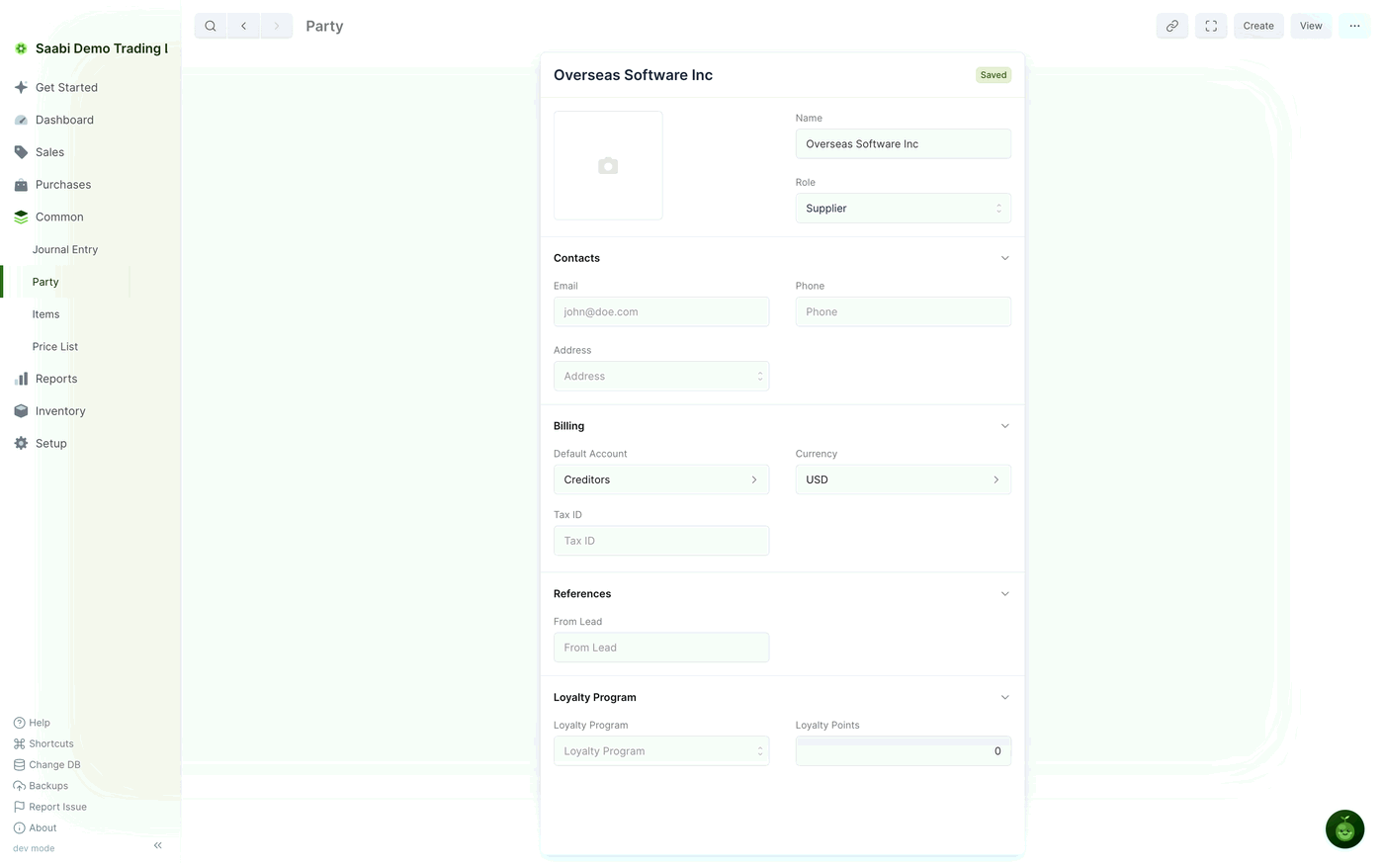
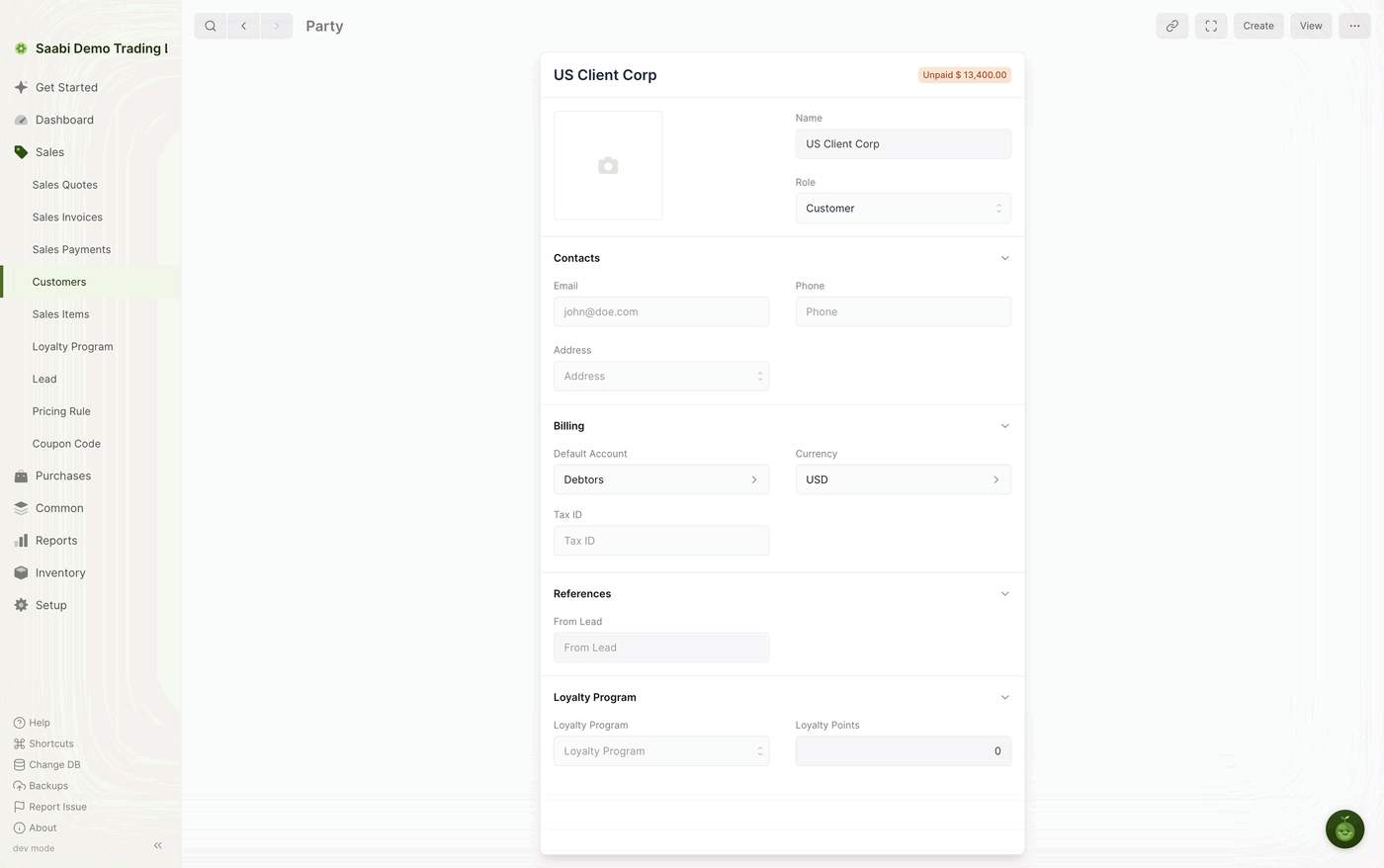
The same form with Role set to Customer carries a receivable default account instead, and the header shows what the customer currently owes.
Creating a party
- Open the list that matches the role you want:
Sales > Customers,Purchases > Suppliers, orCommon > Partyfor a party that is both. - Click the + button.
- Enter the Name. Every party needs a name of its own.
- Check the Role.
- Fill in the Contacts section — Email, Phone and Address.
- In the Billing section, set the Default Account, the Currency and the Tax ID.
- Click Save.
Important
Create the party from the list that matches the role you need. Role decides which lists the record appears in, and it is fixed once the record has been created.
Party fields
- Party Image — an optional picture or logo.
- Name — the unique name the party is known by.
- Email, Phone, Address — contact details, available to print on documents.
- Default Account — the account credited or debited when a transaction involving the party is recorded. Receivable for a customer, payable for a supplier.
- Currency — the currency invoices for this party are raised in. See Chapter 31.
- Tax ID — the party's tax registration number.
- Role —
Customer,SupplierorBoth.
Duplicating and deleting
To base a new record on an existing one, open it, choose Duplicate from the … menu, change what differs and click Save. To remove a record, choose Delete from the same menu.
Note
A master record used on a transaction cannot be deleted. To remove one, delete the transactions that refer to it first. In most cases it is better to leave the old record in place than to unpick the history that depends on it.
Saabi Desktop User Manual 1.0 · covers Desktop 1.0.0 · Something wrong or missing? Tell us