
Chapter 42 · Inventory · 3 min read
Serial Numbers
On this page
Some goods need to be followed one unit at a time — machines under warranty, equipment you may have to recall, anything a customer might ring up about by its number. For those, SAABI can keep a Serial Number record for every single unit of an item, showing where that unit is and whether it is still in stock. Use this chapter to switch serial tracking on, to mark an item as serialised, and to enter serial numbers as goods move.
Enabling serial numbers
Serial numbers are an optional inventory feature and are off until you turn them on.
- Go to
Setup > Settingsand click the Inventory tab. - In the Features section, check Enable Serial Number.
Two things change. Tracked items gain a Has Serial Number option, and the Serial Number record becomes available in SAABI. There is no Serial Number entry in the sidebar; to reach the list, open Quick Search, type serial number list and choose the first result.
Marking an item as serialised
An item is serialised only if two boxes are checked on the item record, and the order matters.
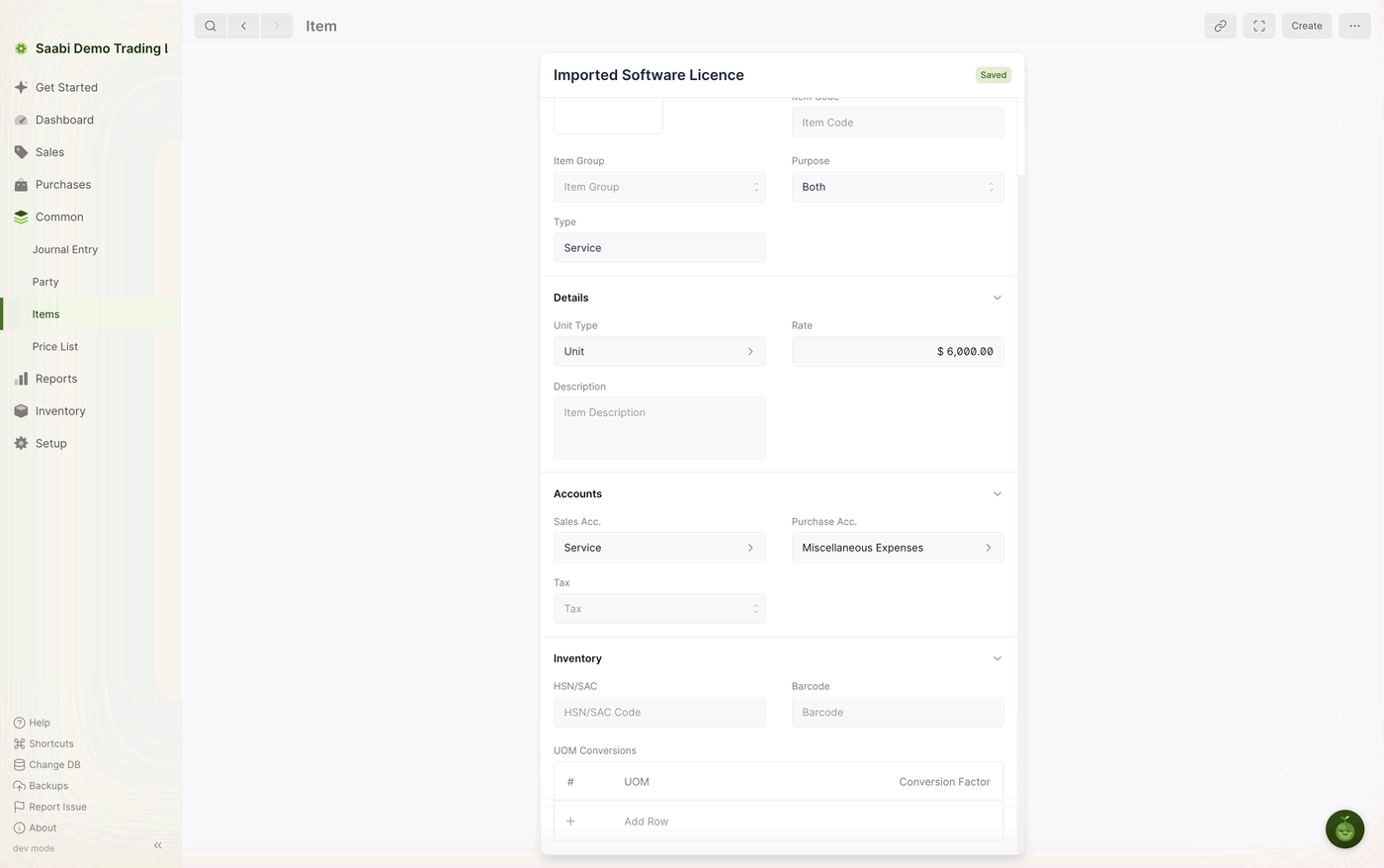
- Open the item at
Common > Items, or create it at the point you add it. - Check Track Item.
- Check Has Serial Number.
Important
Has Serial Number can be set only if Track Item is set, and Track Item can be set only while the item is being created. An item that already exists without tracking cannot be converted into a serialised item — create a new item record instead.
The Serial Number record
Once an item is serialised, SAABI maintains one Serial Number record for each unit of that item. The record carries the number itself, the item it belongs to, and a status that tells you where the unit stands.
A Serial Number has one of three statuses:
- Active — the unit is in stock. It can be used only on an outward transaction.
- Inactive — the unit is not in stock. It can be used only on an inward transaction.
- Delivered — the unit has gone out on an outward transaction and cannot be used again.
The status changes on its own as you record transactions:
| Status change | What causes it |
|---|---|
| Inactive to Active | An inward transaction: a Material Receipt Stock Movement, or a Purchase Receipt |
| Active to Delivered | An outward transaction: a Material Issue Stock Movement, or a Shipment |
Note
Cancelling a transaction reverts the status of every Serial Number it touched, so a shipment cancelled in error puts its units back to Active rather than leaving them stranded.
Entering serial numbers on a transaction
Once an item is serialised, every transaction that changes its stock — Stock Movements, Shipments and Purchase Receipts — must name the serial numbers involved. The grid columns are too narrow for this, so the numbers go in through the row panel.
- In the Items grid, click the pencil at the end of the row.
- Find the serial number field in the panel that opens.
- Enter one serial number per line, one for each unit of quantity on that row.
- Close the panel and finish the entry as usual, then Save and Submit.
Important
The count must match. A row for three units needs exactly three serial numbers on three separate lines. Give a serial number that is already Delivered, or one that is Inactive on an outward row, and SAABI refuses the entry.
Saabi Desktop User Manual 1.0 · covers Desktop 1.0.0 · Something wrong or missing? Tell us