
Chapter 38 · Inventory · 4 min read
Inventory Settings
Once inventory is enabled, a fifth tab appears in Settings. The Inventory tab controls how the inventory module behaves: which Location is offered by default, which accounts the stock entries post to, and which of the optional stock features are available to you. A second group of settings — Auto Stock Transfer — lives on the Defaults tab and decides whether SAABI moves stock for you when an invoice is submitted. Set both before you start recording stock in earnest.
To open the tab, go to Setup > Settings and click Inventory at the bottom of the settings card.
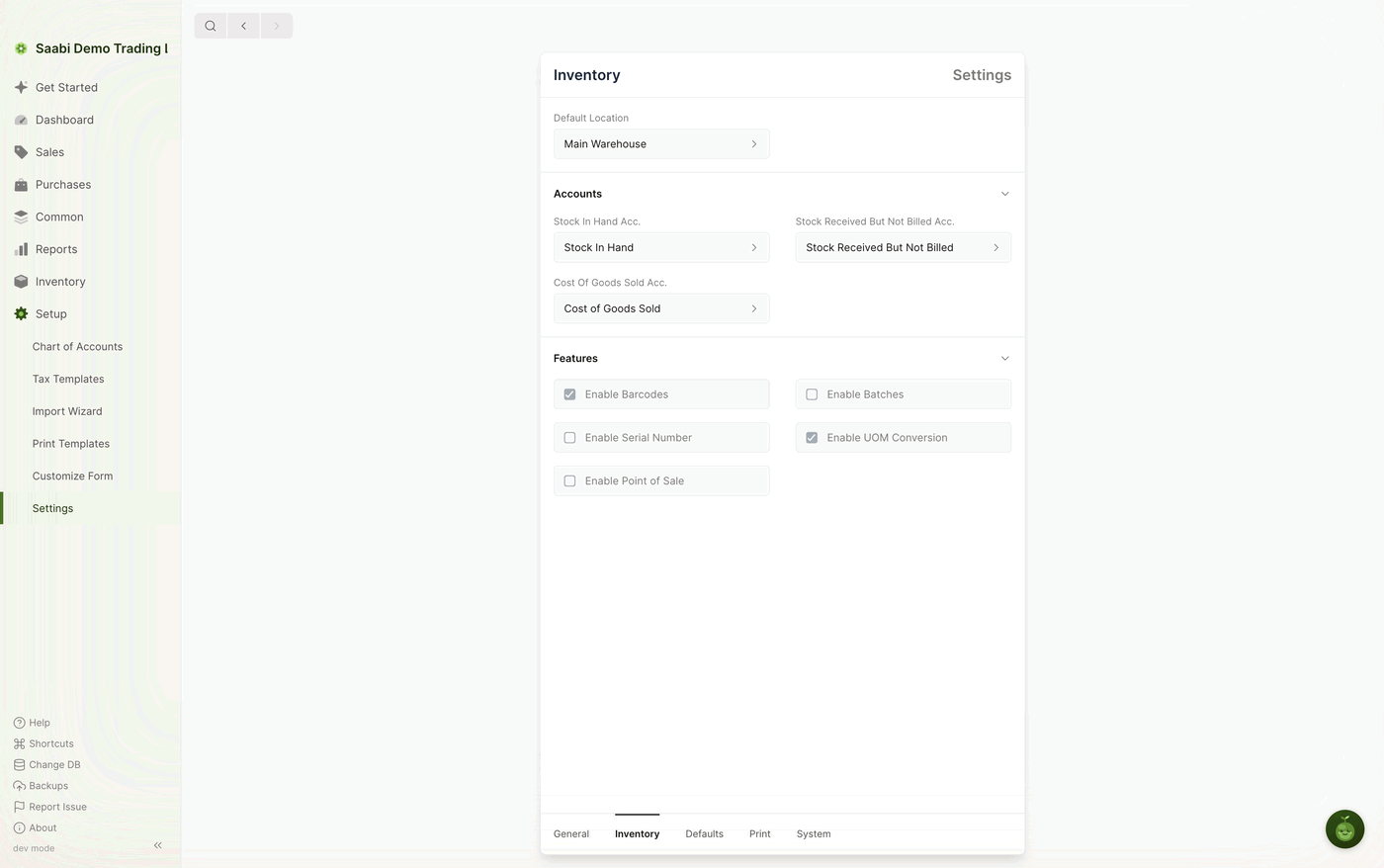
Default Location
Default Location is the Location SAABI fills in for you whenever a new inventory transaction row is created. Setting it to the place most of your stock passes through saves you choosing a Location on every row. In the demo file it is set to Main Warehouse.
You can still change the Location on any individual row. The default only decides what is offered first.
Accounts
Three accounts connect your stock records to your ledger. SAABI fills each of them in with a sensible account when you set the company up, and most businesses never need to change them.
- Stock In Hand Acc. — the asset account that carries the value of the stock you are holding. It is debited whenever stock is received. The demo file uses
Stock In Hand. - Stock Received But Not Billed Acc. — the account that holds the gap between goods and paperwork. It is debited when you raise a purchase invoice for a tracked item and credited when the matching purchase receipt is made. The demo file uses
Stock Received But Not Billed. - Cost Of Goods Sold Acc. — the expense account charged when a shipment takes goods out of a Location. The demo file uses
Cost of Goods Sold.
Note
Change these accounts before you record any stock. Reassigning them once entries exist leaves your earlier postings against the old accounts.
Features
The Features section of the Inventory tab holds five checkboxes. Each one is off by default except where noted, and checking one adds fields or screens elsewhere in SAABI.
- Enable Barcodes — lets you store a barcode on an item and adds a barcode input to the forms where items are entered, so you can scan a line in instead of typing it. Checked in the demo file.
- Enable Batches — allows stock to be grouped into batches. Tracked items gain a Has Batch option, and the Batch record becomes available through Quick Search.
- Enable Serial Number — allows individual units to be tracked by serial number. Tracked items gain a Has Serial Number option, and the Serial Number record becomes available through Quick Search.
- Enable UOM Conversion — lets an item carry more than one unit of measure, so you can buy in cases and sell in units. When entering a quantity you can choose which unit you mean. Checked in the demo file.
- Enable Point of Sale — makes SAABI's point of sale features available.
Note
Some settings changes ask you to reload SAABI before they take effect. Accept the prompt when it appears; nothing you have entered is lost.
Auto Stock Transfer
By default SAABI treats the sale and the shipment as two separate steps: you submit the invoice, then create the Shipment or Purchase Receipt yourself. Auto Stock Transfer, on the Defaults tab, lets you collapse those two steps into one.
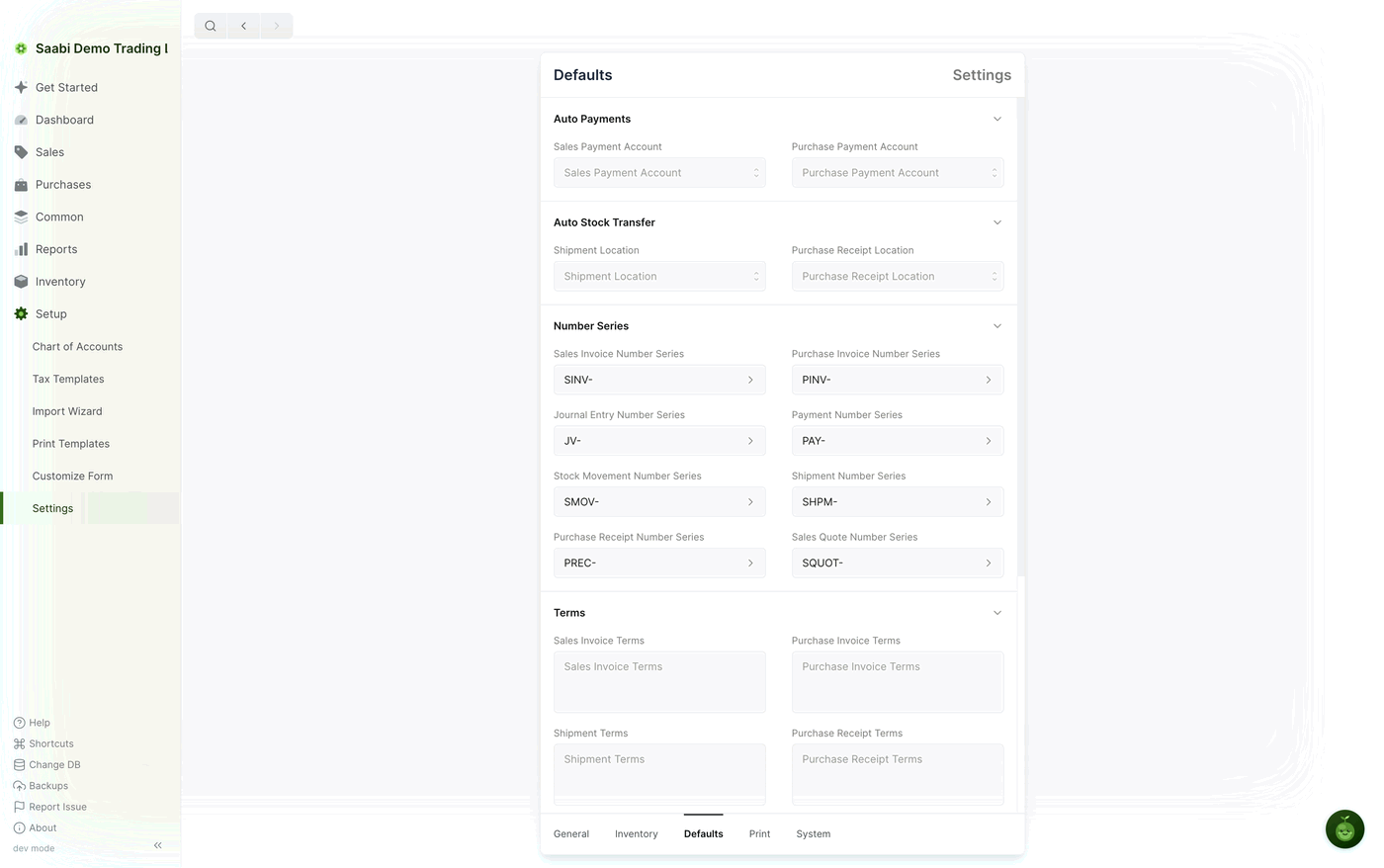
- Shipment Location — the Location goods are shipped from when a sales invoice is submitted.
- Purchase Receipt Location — the Location goods are received into when a purchase invoice is submitted.
Set a Location in either field and SAABI handles that side of the stock movement for you. Leave a field empty and nothing is transferred automatically, which is the arrangement the demo file uses and the one the following chapters describe.
Tip
Automatic transfer suits a single-location business where goods always leave as soon as they are invoiced. If you ship from more than one Location, or invoice well before you despatch, leave both fields empty so that each Shipment and Purchase Receipt records what actually happened.
Number series for inventory entries
The Number Series section below Auto Stock Transfer sets the prefix for each kind of entry. Three of them belong to inventory:
- Stock Movement Number Series —
SMOV-in the demo file, giving entries such asSMOV-1003. - Shipment Number Series —
SHPM-, givingSHPM-1019. - Purchase Receipt Number Series —
PREC-, givingPREC-1012.
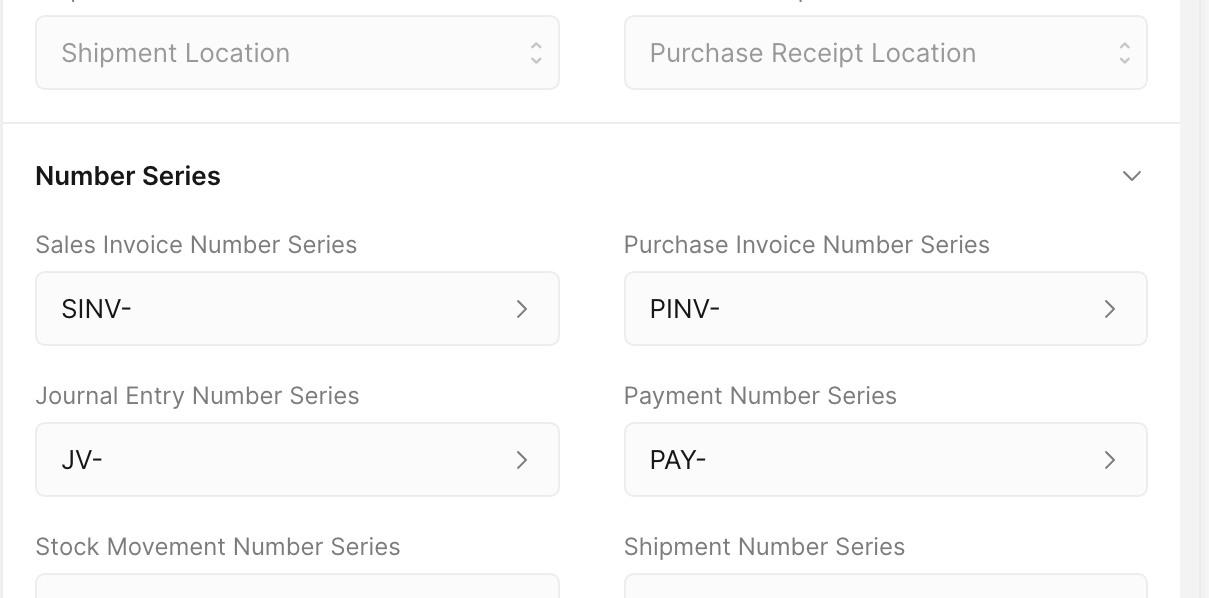
Change a prefix here if your existing records use a different convention. Entries already saved keep the numbers they were given.
Saabi Desktop User Manual 1.0 · covers Desktop 1.0.0 · Something wrong or missing? Tell us