
Chapter 23 · Purchases · 2 min read
Suppliers
A supplier is a party you buy from. The supplier record holds the name, contact details and default accounting settings that SAABI reuses every time you record a bill from that business. Create a supplier once, and every purchase invoice, payment and report afterwards refers to the same record — which is what lets SAABI tell you at a glance how much you owe each one.
The supplier list
Go to Purchases > Suppliers. The list shows every party created with the supplier role.
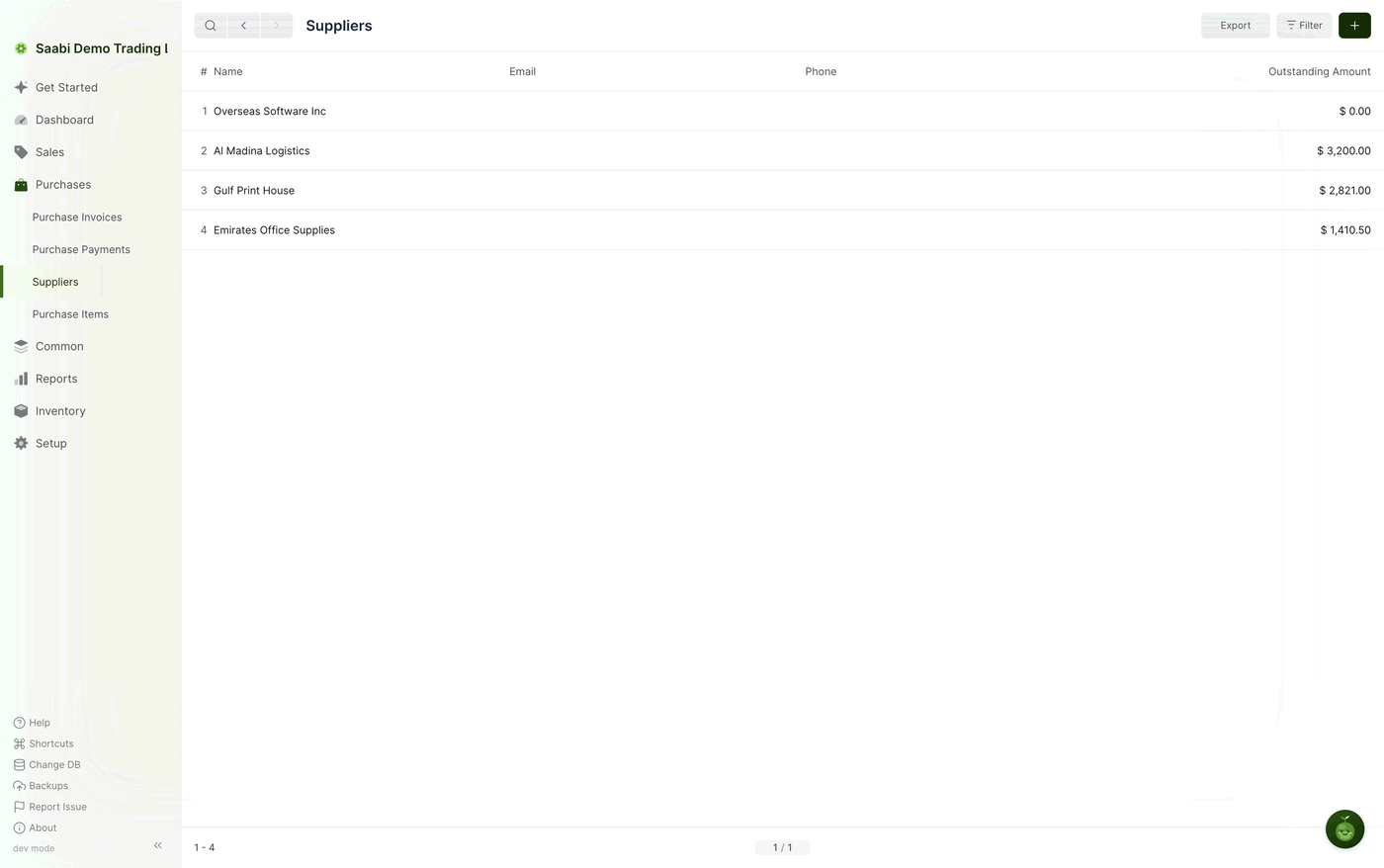
The columns are:
- Name — the supplier's name.
- Email and Phone — the contact details recorded on the party.
- Outstanding Amount — the total of that supplier's bills you have not yet paid.
A supplier you have settled in full shows $ 0.00. Click any row to open the record.
Adding a supplier
- On the Suppliers list, click the + button at the top right.
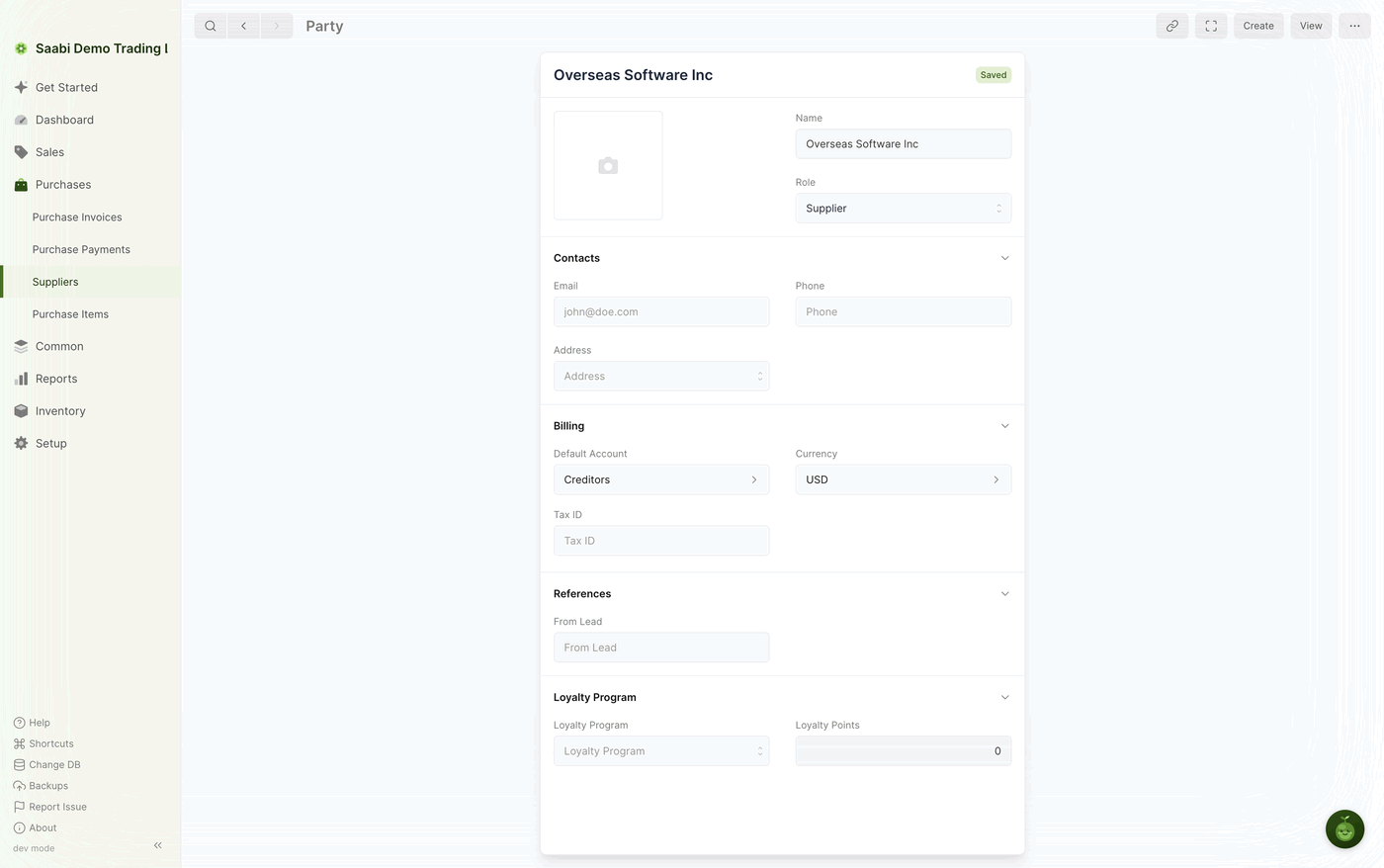
- Type the supplier's Name. Each party needs a name of its own, so make it one you will recognise in a link field later.
- Leave Role set to
Supplier. - Fill in the Contacts section — Email, Phone and Address. These are the details that can be printed on documents.
- In the Billing section, check the Default Account and set the Currency and Tax ID if you have them.
- Click Save.
You can also create a supplier without leaving an invoice. Type a new name into the Supplier field on a purchase invoice and choose the Create option the field offers.
Supplier fields
- Party Image — an optional picture or logo to identify the supplier by.
- Name — the unique name the supplier is known by throughout SAABI.
- Role —
Supplierfor a party you only buy from. See Chapter 26 for a record that both buys and sells. - Email, Phone, Address — contact details, available to print on documents.
- Default Account — the account credited when you record a bill from this supplier. For a supplier this is a payable account, usually
Creditors. - Currency — the currency this supplier bills you in. Set it to something other than your company currency to raise purchase invoices in the supplier's own currency.
- Tax ID — the supplier's tax registration number.
Important
Create a party from the list that matches the role you need. Role decides which lists the record appears in, and it is fixed once the record has been created.
Where suppliers are used
Once a supplier exists you can:
- Select it in the Supplier field of a purchase invoice, which pulls in its default account and currency.
- Pay it, either from the invoice through Create > Payment or from
Purchases > Purchase Payments. - See what you owe it in the Outstanding Amount column of the supplier list, and what you owe every supplier together in the Payable figure on the Dashboard.
A supplier that has been used on a transaction cannot be deleted. To remove one, delete the transactions that refer to it first.
Saabi Desktop User Manual 1.0 · covers Desktop 1.0.0 · Something wrong or missing? Tell us