
Chapter 27 · Shared records · 3 min read
Items
An item is anything you buy or sell on an invoice — a product you keep in stock, a licence you resell, or a service you bill by the day. The item record carries the rate, the unit, the accounts and the tax that SAABI should apply each time the item is used, so an invoice line needs only the item and a quantity. This chapter covers the whole record; Chapter 15 and Chapter 24 cover the fields that matter most on each side.
The item list
Go to Common > Items. This list shows every item in the company file, whether it is used for sales, for purchases, or for both.
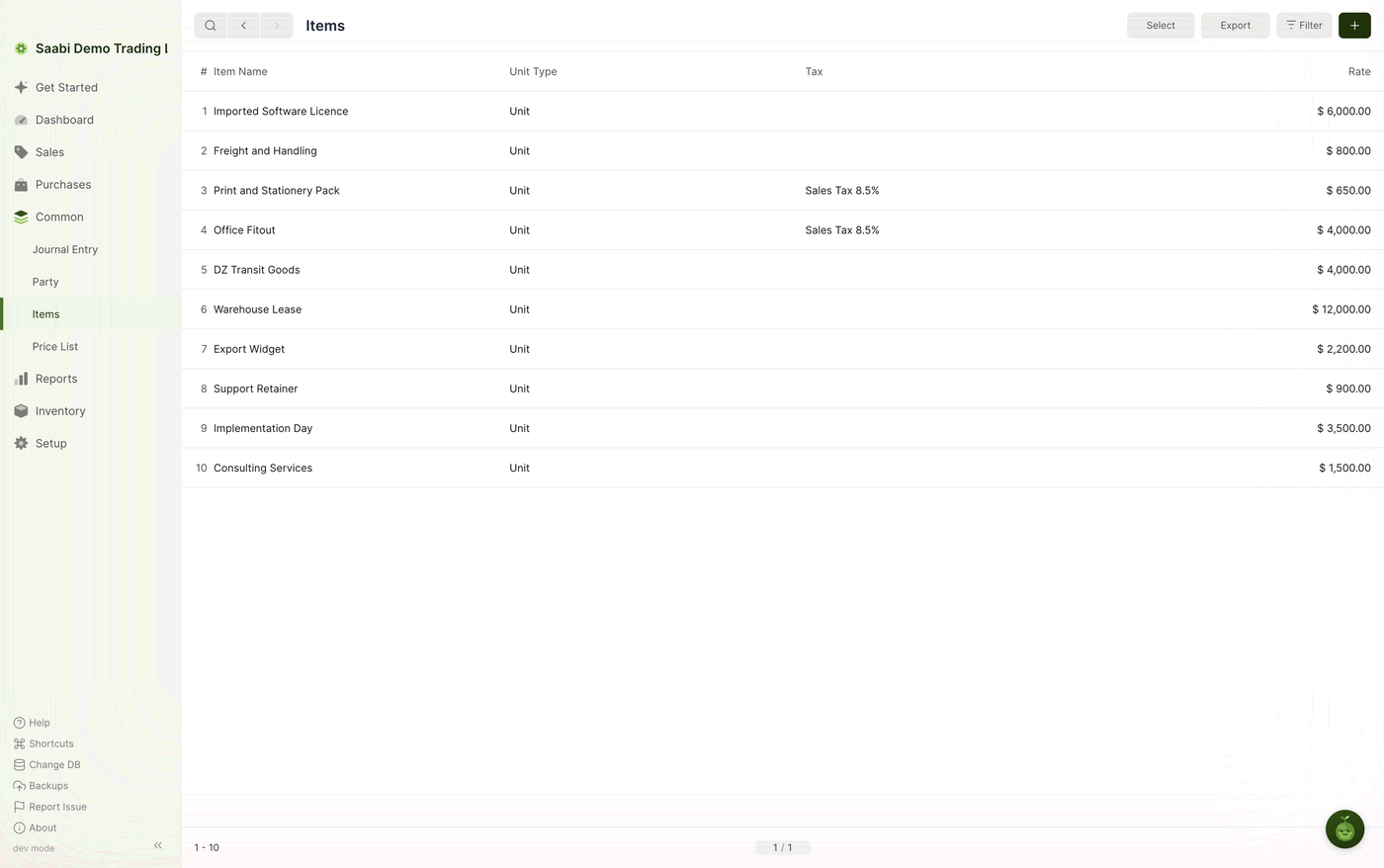
The columns are Item Name, Unit Type, Tax and Rate. The toolbar carries Select, Export, Filter and the + button.
Creating an item
- Click the + button at the top right of the list.
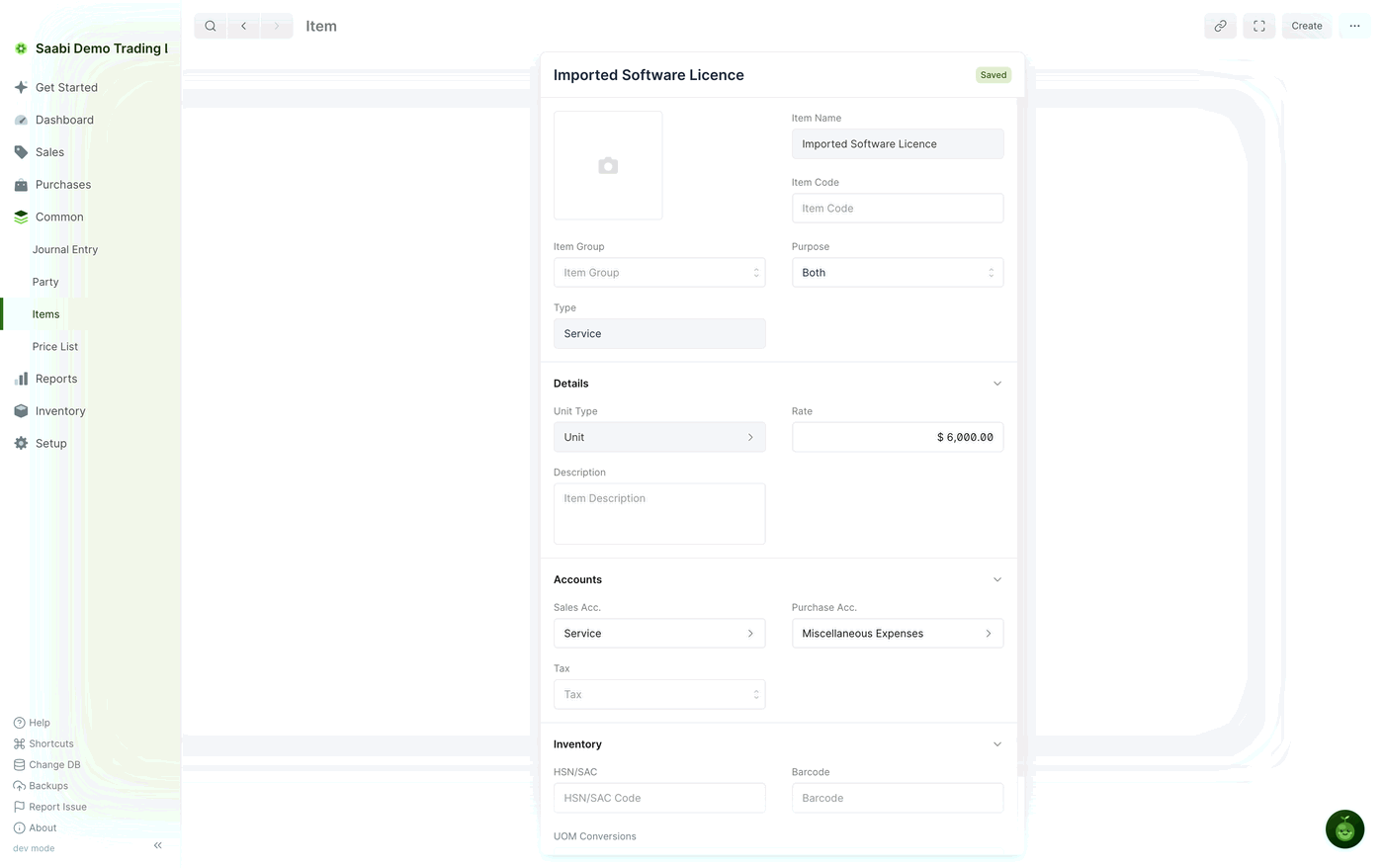
- Fill in the identity fields at the top of the form.
- Work down through the Details, Accounts and Inventory sections.
- Click Save.
Identity fields
- Item Image — an optional picture to identify the item by.
- Item Name — the name the item is known by. Each item needs a name of its own, since this is what you select in an invoice row.
- Item Code — a unique code for tracking and reference, useful when several items share a similar name.
- Item Group — a category the item is grouped under, for organisation and reporting. Item groups are available when Enable Item Group is ticked in
Setup > Settings > General. - Purpose — whether the item is for
Sales,PurchasesorBoth. This is what decides whether the item appears in the Sales Items list, the Purchase Items list, or both — see Chapter 24. - Type —
Productfor something physical,Servicefor work and time. A service is never tracked as stock.
Details
- Unit Type — the base unit the rate applies to, such as
Unit,HourorKg. - Rate — the base price of the item, in your company currency. It is a default: change it on any invoice row, or override it altogether with a price list.
- Description — a description of what the item is. It can be printed on invoices when Display Description In Invoice is turned on in the print settings.
Accounts
- Sales Acc. — the income account credited when the item is sold.
- Purchase Acc. — the expense or asset account debited when the item is bought.
- Tax — the tax template applied to the item. It is pulled into the Tax cell of the invoice row when the item is selected, and can be changed there.
An item with Purpose set to Both uses its sales account in one direction and its purchase account in the other, which is what lets one record serve a product you buy in and sell on.
Inventory
- HSN/SAC — the classification code used for the item on tax documents.
- Barcode — a machine-readable code. With a barcode set, you can add the item to an invoice by scanning it into the Enter barcode field in the toolbar of a new entry.
- Track Inventory — turns on stock-level monitoring for the item, so its quantity is maintained by stock movements, shipments and purchase receipts. This applies to items of type
Product, and appears once Enable Inventory is ticked inSetup > Settings > General.
UOM Conversions
UOM Conversions sit at the foot of the form, in a grid of UOM and Conversion Factor rows. Use them when you trade an item in more than one unit — buying by the box and selling by the unit, for example. Click Add Row, choose the other unit, and enter how many base units it represents.
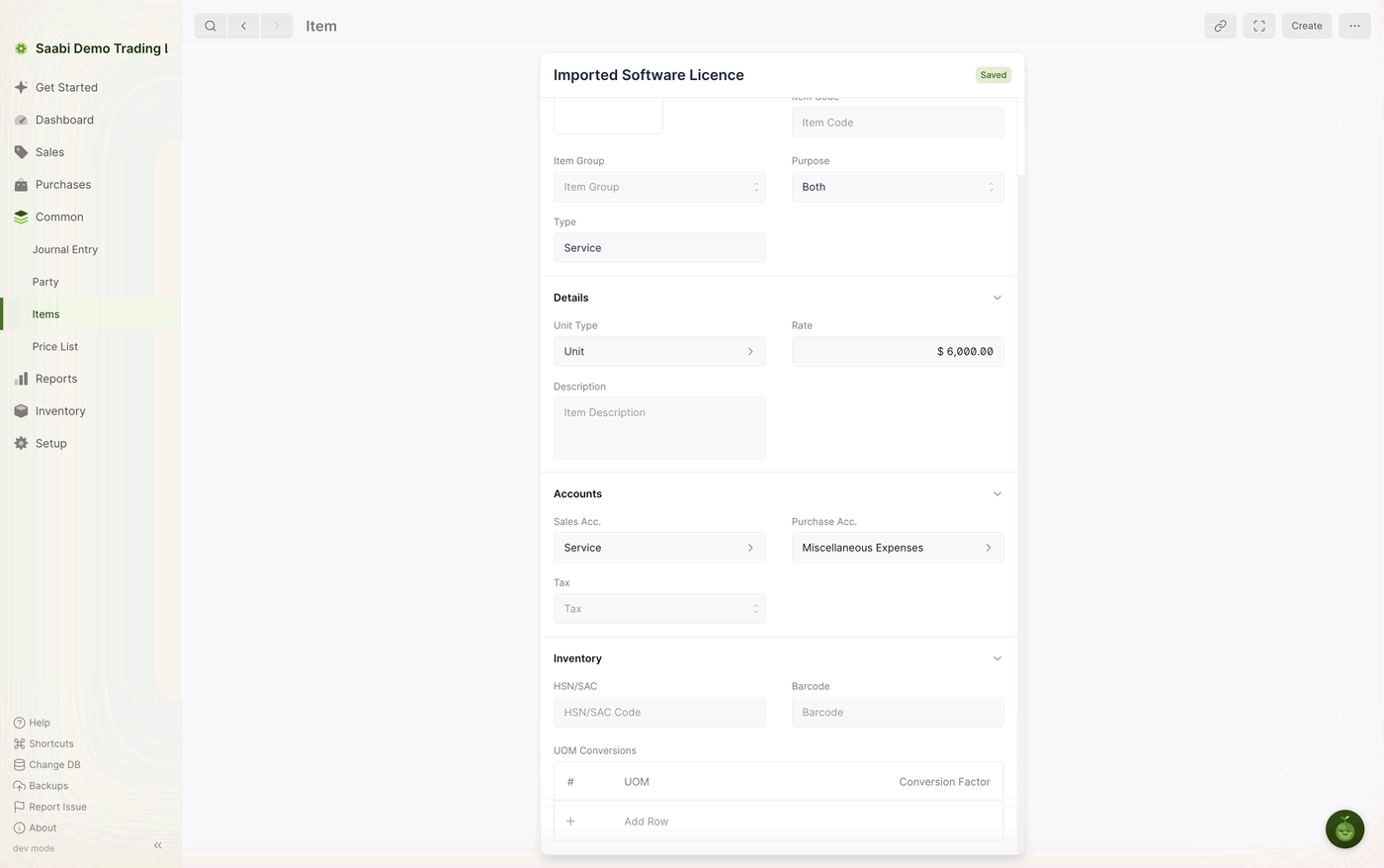
With a conversion in place, an invoice row can be entered in the transfer unit while SAABI records the quantity in the stock unit. The row panel shows both: Qty. in Transfer Unit and Transfer Unit alongside Quantity, Stock Unit and the Conversion Factor between them.
Tip
Set up the units before you record transactions with the item. Conversions are used at the moment an invoice row is entered, so adding one later does not change entries already recorded.
Saabi Desktop User Manual 1.0 · covers Desktop 1.0.0 · Something wrong or missing? Tell us