
Chapter 18 · Sales · 4 min read
Pricing Rules
On this page
A pricing rule is a standing instruction that changes what a customer pays when their order meets conditions you set. It covers the offers most small businesses run: a percentage off when someone buys five or more, a free item with every third purchase, a lower price on orders above a certain value, or a discount that expires at the end of the month. You write the rule once and SAABI applies it whenever an invoice matches. Coupon codes, covered in Chapter 19, are built on top of pricing rules.
Before you start
Pricing rules depend on two settings at Setup > Settings > General, in the Features section: Enable Discount Accounting and Enable Pricing Rule. Discount accounting is what gives the discount somewhere to be booked, so both are needed. Once they are on, Pricing Rule appears in the sidebar under Sales.
The Pricing Rule list
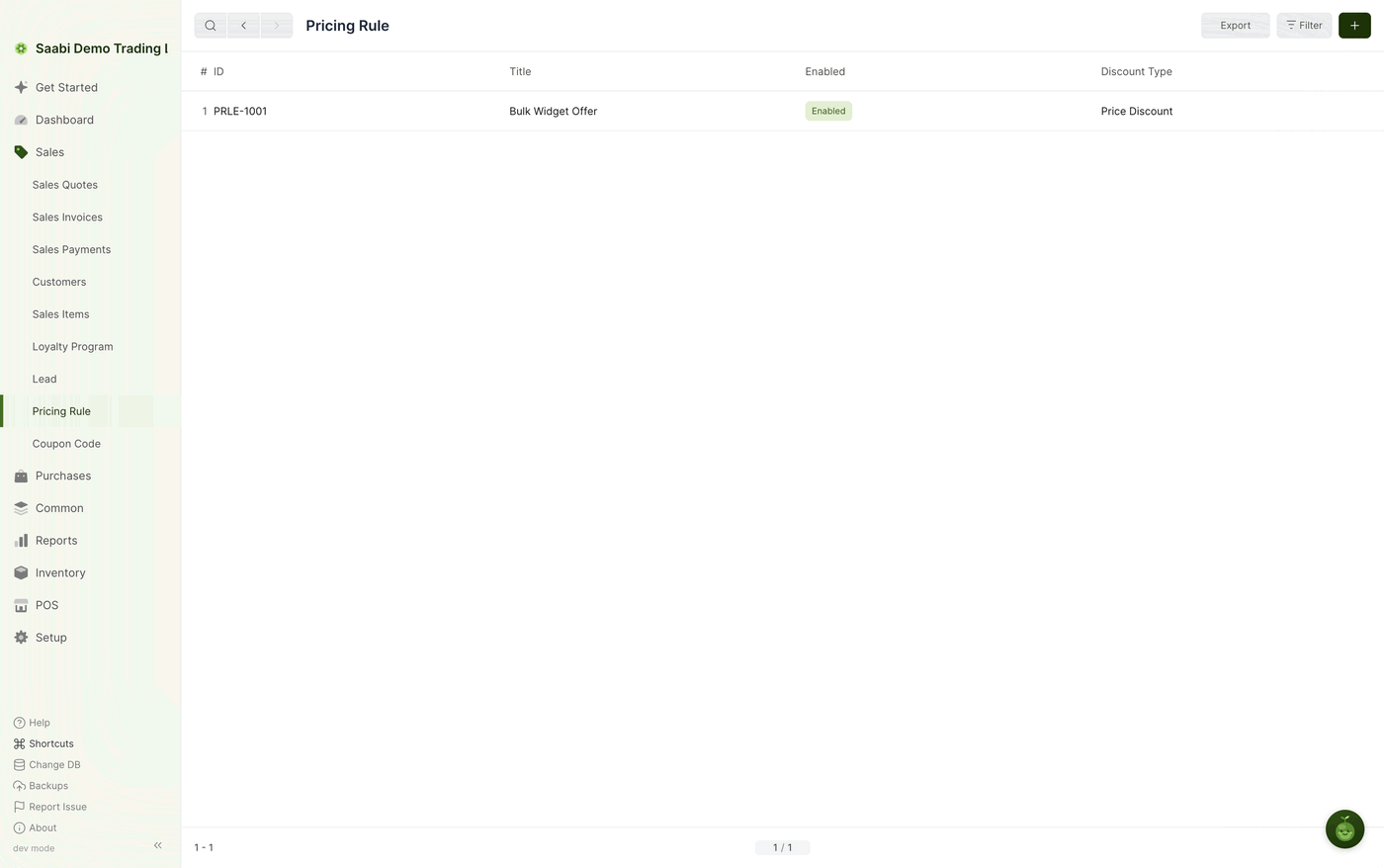
Open Sales > Pricing Rule. Each row shows the rule's identifier, its title, whether it is enabled and what kind of discount it gives.
Creating a pricing rule
- Go to
Sales > Pricing Ruleand click +. - Give the rule a Title. This is the required field and the name you will recognise it by.
- Leave Is Pricing Rule Enabled ticked so the rule takes effect.
- Choose the Discount Type.
- Add the items the rule applies to under Applied Items, or leave the grid empty to apply it to everything.
- Fill in the conditions — the quantity or amount thresholds, and the dates the rule is valid between.
- Click Save.
Identity and scope
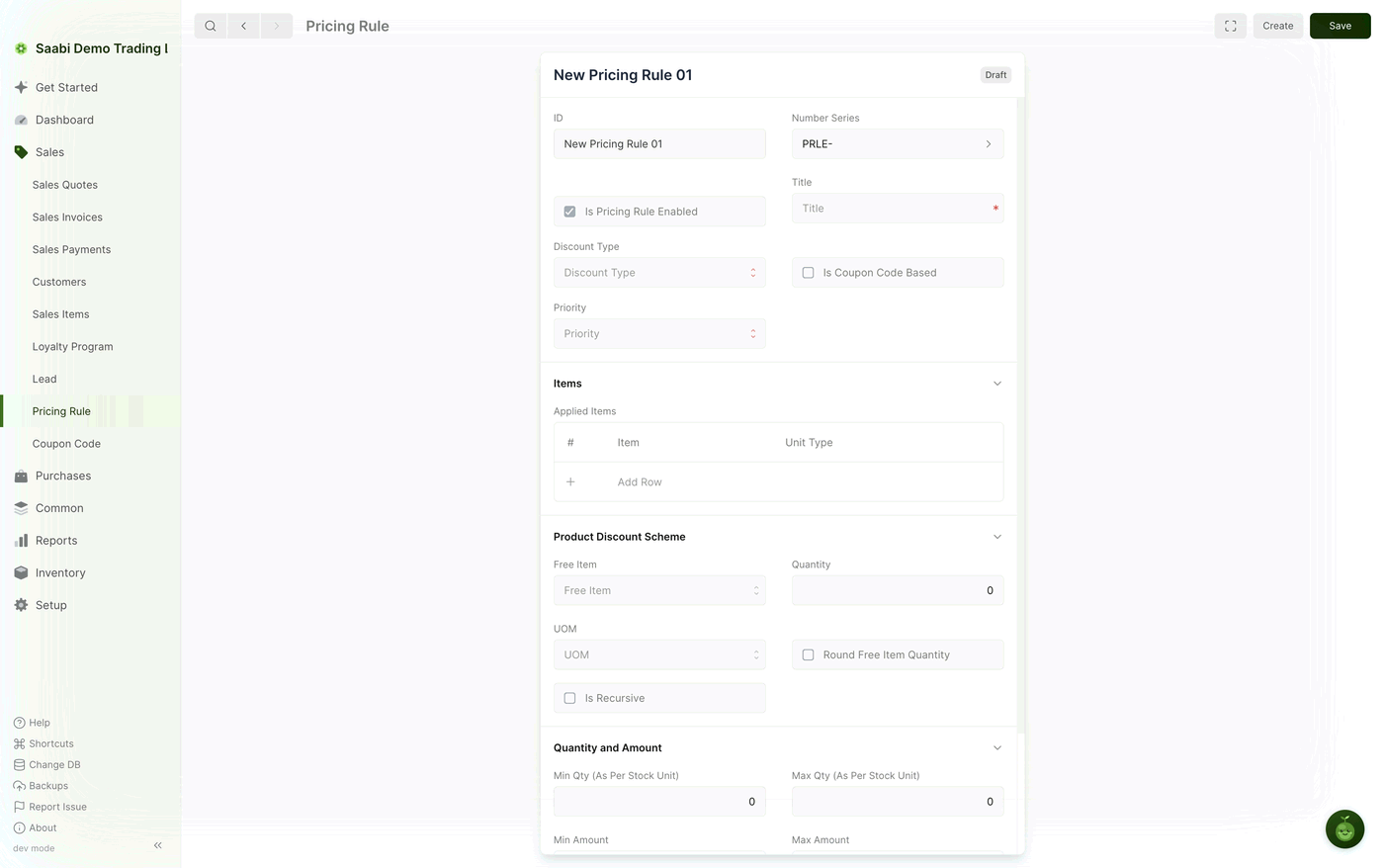
- ID — the rule's identifier, filled in from the number series.
- Number Series — the prefix the identifier is drawn from,
PRLE-by default. - Is Pricing Rule Enabled — tick to activate the rule, clear to shelve it without deleting it.
- Title — the name of the rule.
- Discount Type — whether the rule gives a price discount, which reduces what is charged, or a product discount, which gives an item away or at a reduced price. The fields that apply to your choice become available once it is set.
- Is Coupon Code Based — tick this and the rule only applies when a coupon code linked to it is used. Leave it clear and the rule applies automatically to every order that matches.
- Priority — a number that decides which rule wins when more than one could apply to the same item. The higher priority takes precedence.
Applied Items
Applied Items is a grid with an Item and a Unit Type column, and Add Row at the bottom. Add a row for each item the rule should cover. Leaving the grid empty applies the rule to every item, which is what you want for an order-value rule such as "spend over $5,000 and take 5% off".
Product Discount Scheme
This section sets up the giveaway when the rule offers a free or discounted item.
- Free Item — the item given away when the rule triggers.
- Quantity — how many of it to give.
- UOM — the unit the free quantity is counted in.
- Round Free Item Quantity — tick this when the calculation can produce a fraction of an item, and choose how the fraction should be handled. Rounding down gives the customer the whole items they have earned; rounding up is more generous.
- Is Recursive — tick this for offers that repeat. A buy-three-get-one rule with recursion on gives one free item for every three bought, rather than one free item however many are bought.
Quantity and amount thresholds
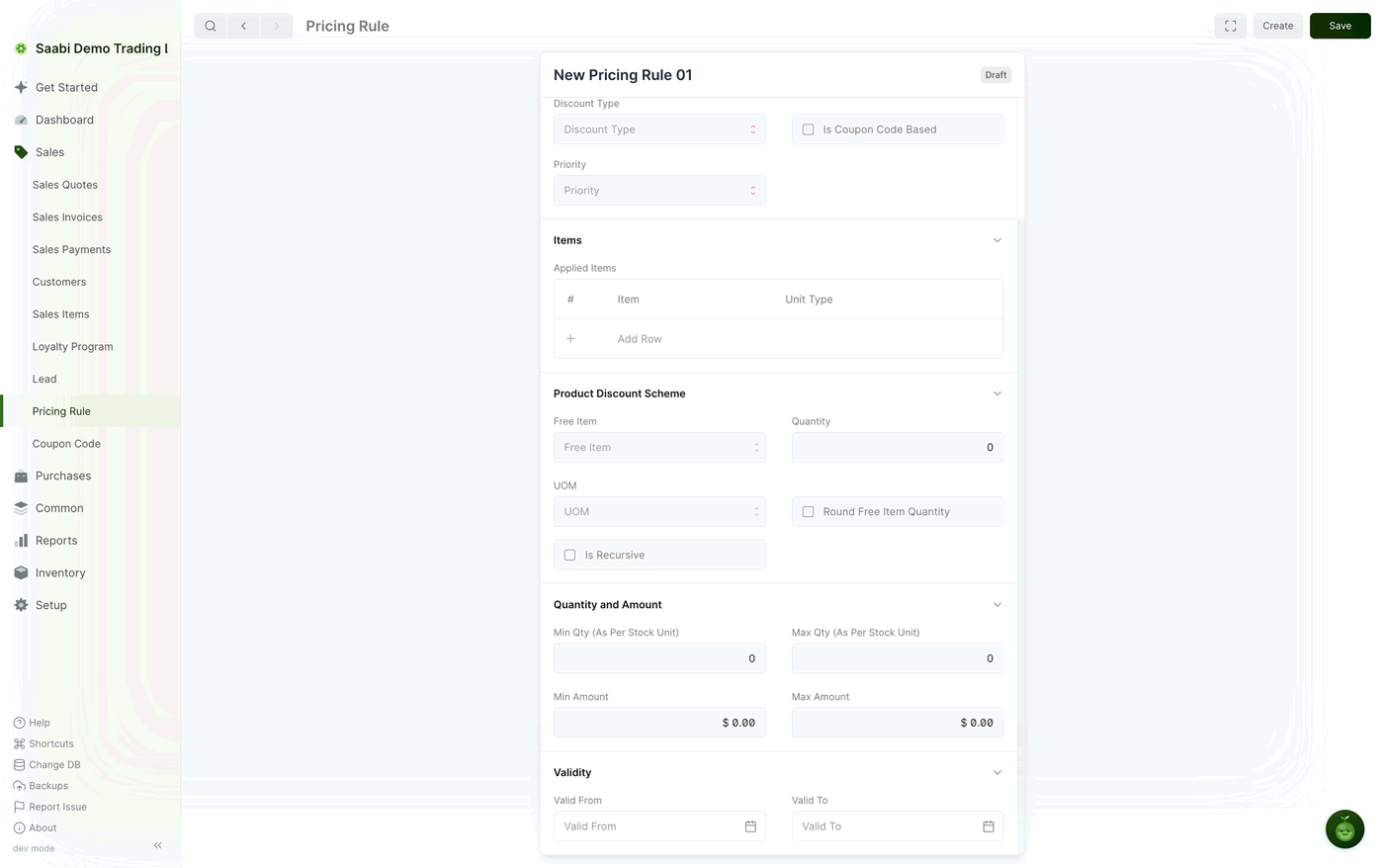
The Quantity and Amount section is what makes a rule conditional. A rule with no thresholds applies to every matching order.
- Min Qty (As Per Stock Unit) — the smallest quantity of the item that triggers the rule.
- Max Qty (As Per Stock Unit) — the largest quantity the rule still applies to.
- Min Amount — the smallest order value the rule applies to.
- Max Amount — the largest order value the rule applies to.
Quantities are counted in the item's stock unit, so a rule set to a minimum of 5 means five stock units regardless of the unit the invoice line was entered in.
Validity
- Valid From — the date the rule starts working.
- Valid To — the date it stops.
Leave both empty for a rule with no end date. Setting them is the tidiest way to run a seasonal offer: the rule stops applying on its own, and stays on file as a record of what was offered.
Two worked examples
Buy three, get one free. Set Discount Type to a product discount, put the item in Applied Items, set Free Item to the same item with a Quantity of 1, tick Is Recursive, and set the minimum quantity to 3. Every third unit bought earns one free.
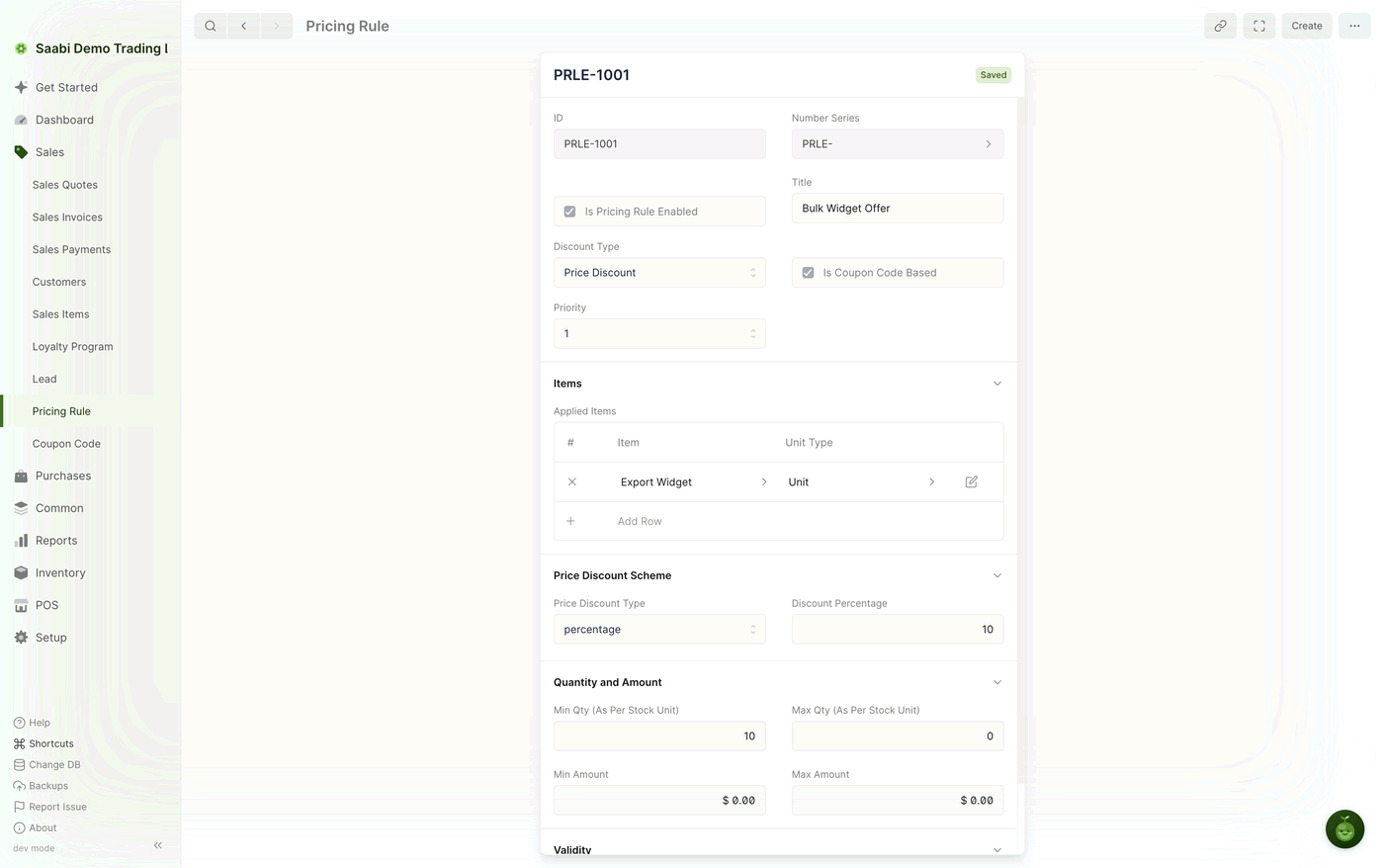
Buy two, take 10% off. Set Discount Type to a price discount, choose a percentage discount of 10, put the item in Applied Items, and set Min Qty (As Per Stock Unit) to 2. Orders of one unit pay full price; orders of two or more take the discount.
Note
When two rules could apply to the same item, only one takes effect: the one with the higher Priority. Give overlapping rules distinct priorities so the outcome is predictable rather than incidental.
Saabi Desktop User Manual 1.0 · covers Desktop 1.0.0 · Something wrong or missing? Tell us