
Chapter 8 · Getting started · 5 min read
Quick Search
On this page
Quick Search is the fastest way to get anywhere in SAABI. It searches your records, your lists, your reports and the application's own pages at once, and it opens whatever you pick. Once you are familiar with it you will use it far more than the sidebar: it takes fewer keystrokes to type SINV-1067 than to open Sales, click Sales Invoices and scroll. This chapter covers opening it, searching, narrowing the results with filters, and moving through them from the keyboard.
Opening Quick Search
There are two ways in.
- Press Cmd + K on macOS, or Ctrl + K on Windows and Linux.
- Click the search icon at the left of the page header.
The dialog opens in the centre of the window, over whatever page you were on, with the cursor already in the input at the top.
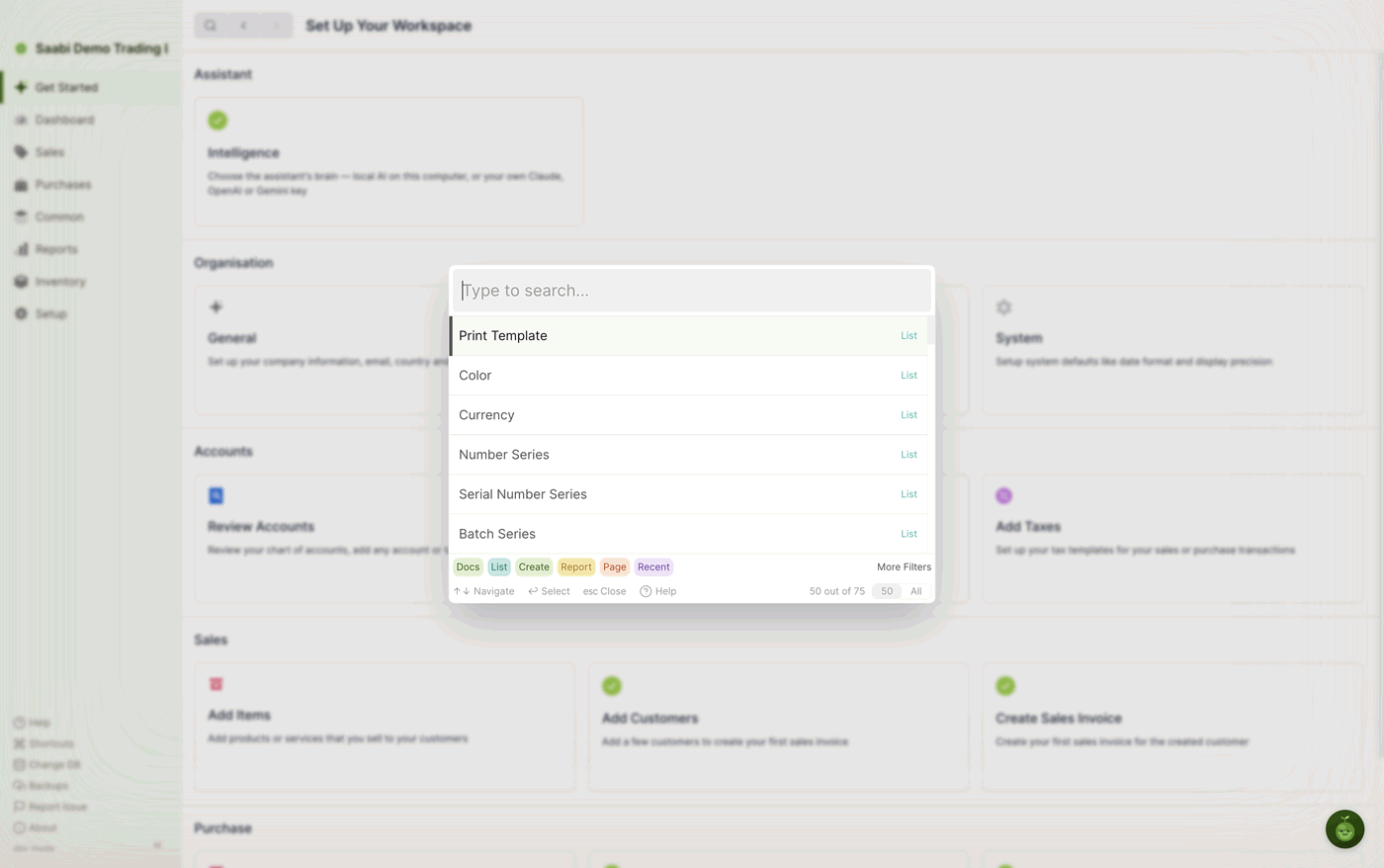
Press Esc to close it again without going anywhere.
Searching
Type what you are looking for. Results appear beneath the input and narrow with every character.
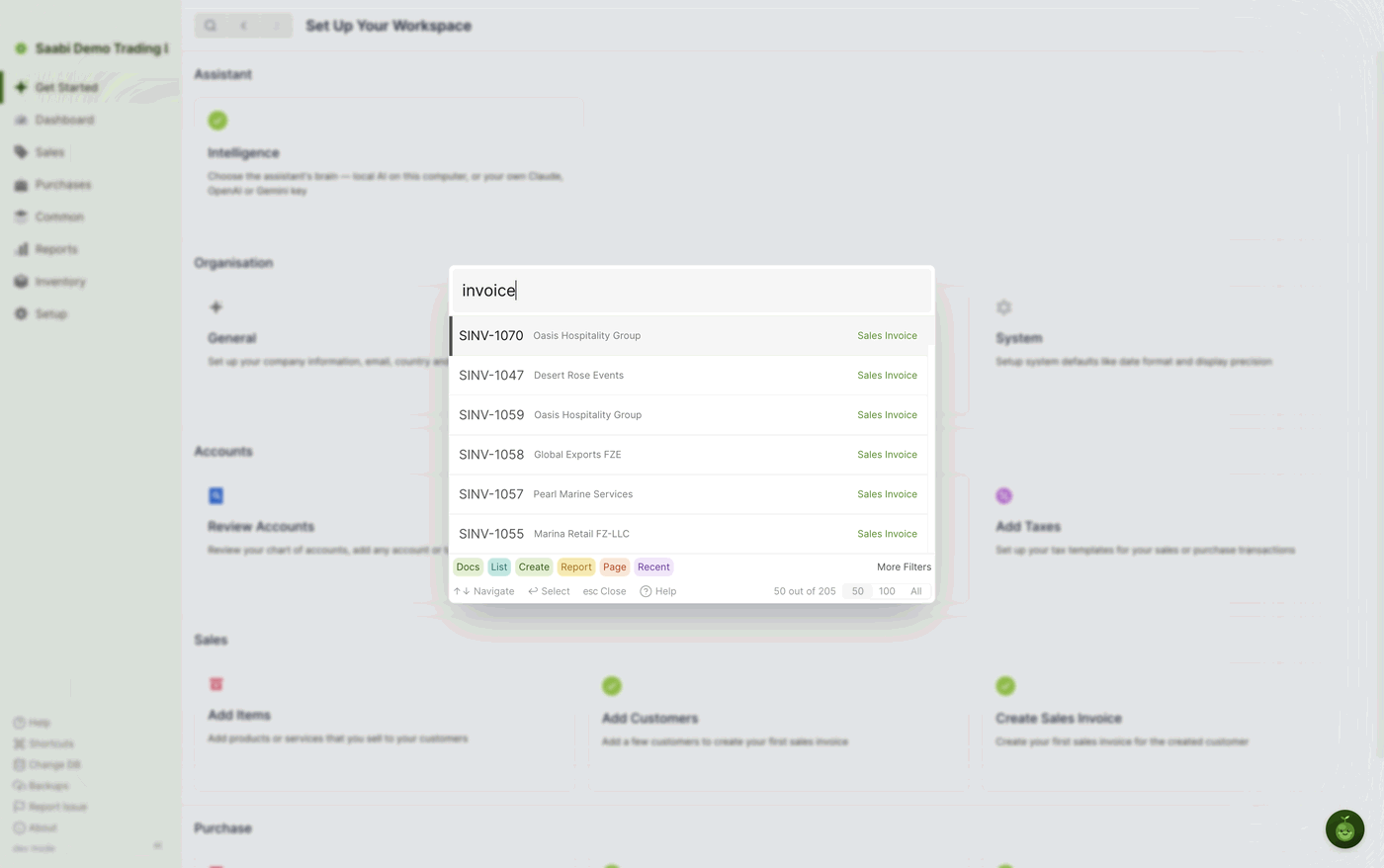
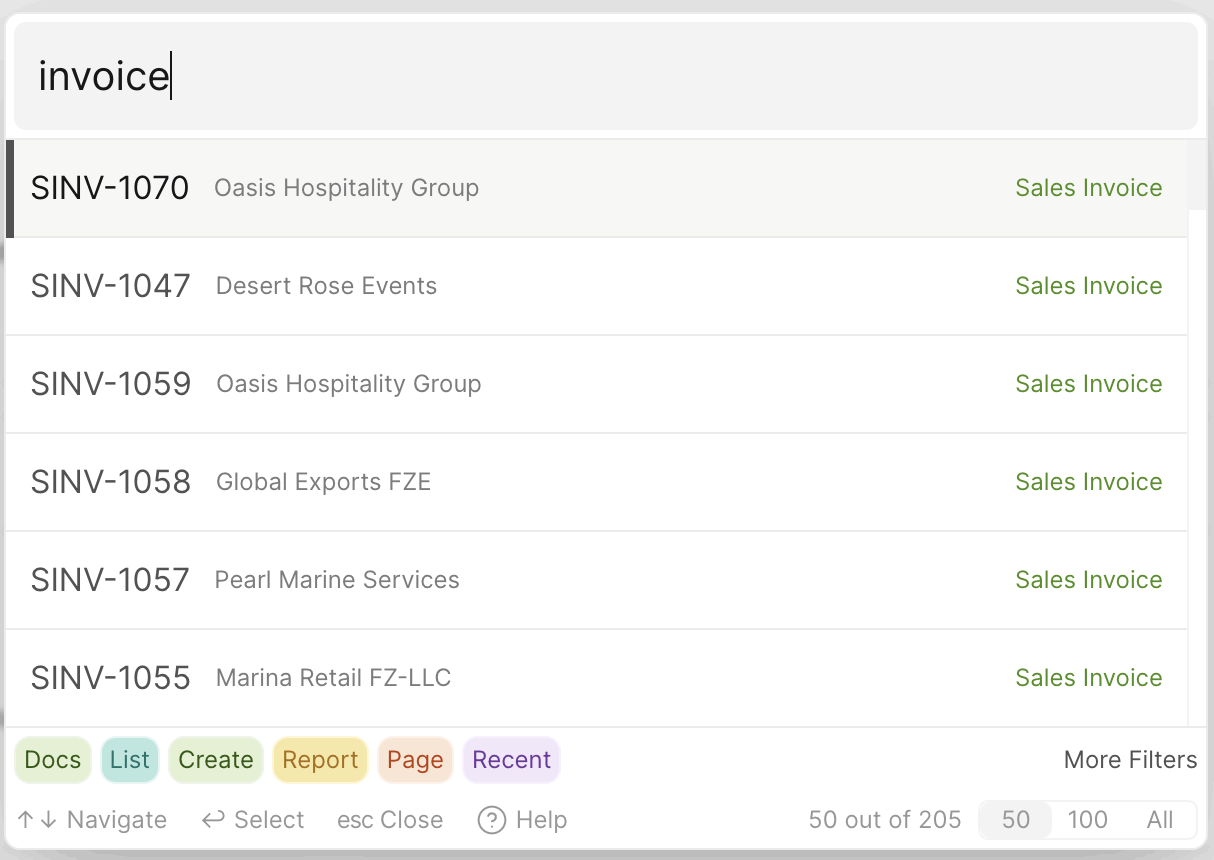
Each result row carries three pieces of information: the name of the thing on the left, a secondary detail in grey next to it, and the type on the right. For a sales invoice the row shows the invoice number, the customer it was raised for, and the label Sales Invoice.
Tip
The search is forgiving of spelling. You do not have to type a name exactly for it to be found, so a mistyped customer name still turns up the right record.
The order of your words does not matter either. Searching karen invoice and invoice karen return the same results, which means you can describe what you want rather than remembering how it is titled. This makes some useful queries possible in a few characters:
- every sales invoice raised for a particular customer
- every purchase invoice containing a particular item
- the payment recorded against a particular purchase invoice
- every payment received from a particular party
Result types
Every row belongs to one of six types, shown as a colour-coded chip along the bottom of the dialog. The type tells you what selecting the row will do.
- Docs — opens an individual record, such as an invoice or a payment. Rows of this type show what kind of record they are on the right-hand side, so you can tell an Item from a Purchase Invoice at a glance.
- List — opens a list view, such as Sales Items.
- Create — opens a blank form to create a new record of that kind.
- Report — opens a report, such as General Ledger.
- Page — opens a page, such as Dashboard.
- Recent — offers something you opened recently.
Because Create rows are searched alongside everything else, typing purchase invoice gives you both the existing purchase invoices and the option to start a new one. Read the type label before you press Enter.
Filters
The chips at the bottom left of the dialog are the filters. Each one corresponds to a result type, and all of them start switched on. Click a chip to switch that type off and remove it from the results; click it again to bring it back.
If you know you are looking for a record rather than a page, switch off everything except Docs and the noise disappears.
More Filters
More Filters, at the bottom right, expands the filter area to show the rest of the controls. The label changes to Less Filters; click it again to fold them away.
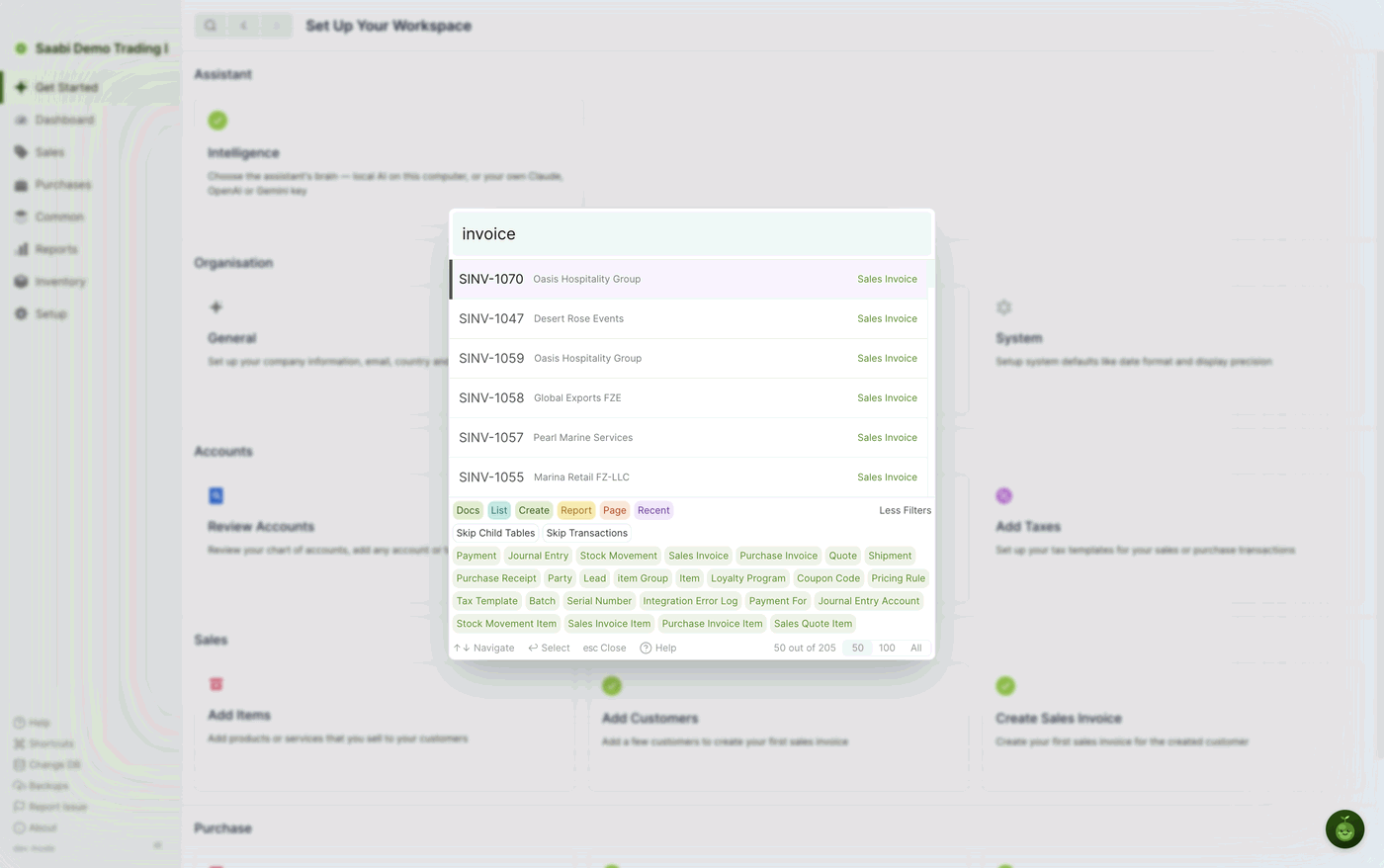
The expanded area adds two more kinds of control.
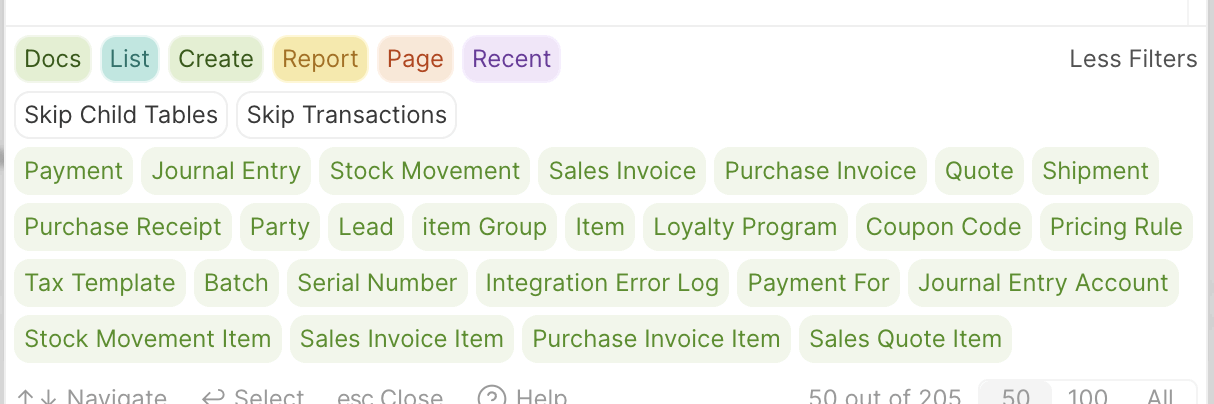
Skip Child Tables and Skip Transactions are shortcuts. Each one switches a whole set of the record filters below it on or off in a single click, so you do not have to work through them individually.
- Skip Child Tables excludes the tables that live inside other records — Sales Invoice Item, Purchase Invoice Item, Journal Entry Account and the rest. These are rarely what you want to open directly, and excluding them is usually a clear improvement.
- Skip Transactions excludes the transactional records — invoices, payments, journal entries, stock movements. Use it when you are looking for master data such as an item or a party and the transactions are burying it.
Beneath those sit the individual record filters — Payment, Journal Entry, Stock Movement, Sales Invoice, Purchase Invoice, Quote, Shipment, Purchase Receipt, Party, Lead, Item and so on. Click any of them to exclude that kind of record from the search. Switching off Payment, for instance, removes every payment from the results while leaving everything else in place.
Note
Filters exclude rather than include. A chip or a record filter that is switched off is being kept out of the results. If a search returns nothing you expected, check that you have not left a filter switched off from a previous search.
Keyboard navigation
Quick Search is built to be used without the mouse. The available keys are listed along the bottom of the dialog.
- ↑ and ↓ move between results.
- Enter opens the highlighted result.
- Esc closes the dialog.
- ? opens the help.
The whole sequence — open with Cmd/Ctrl + K, type a few letters, arrow to the row, press Enter — takes about as long as reading this sentence, and it works from any page in the application.
The result count
At the bottom right, next to the keyboard hints, SAABI reports how many results it is showing out of how many it found: 50 out of 205, for example. Next to that is a control offering 50, 100 and All.
It starts at 50, which keeps the dialog responsive. Raise it when you are scanning a large set of matches rather than looking for one known record — though at that point a filtered list view is usually the better tool, since it can be sorted and exported. Quick Search is for getting somewhere quickly, not for analysis.
Saabi Desktop User Manual 1.0 · covers Desktop 1.0.0 · Something wrong or missing? Tell us