
Chapter 29 · Shared records · 3 min read
Taxes
On this page
A tax template holds a tax rate together with the accounts the tax should be posted to. Attach a template to an item and it follows that item onto every invoice line, so the tax on a sale or a purchase is worked out without your having to think about it. A template also records how the tax is treated — whether it is charged at the standard rate or at zero, whether you can reclaim it, and whether the liability sits with you rather than the supplier.
The tax template list
Go to Setup > Tax Templates. The list shows every template in the company file by Name.
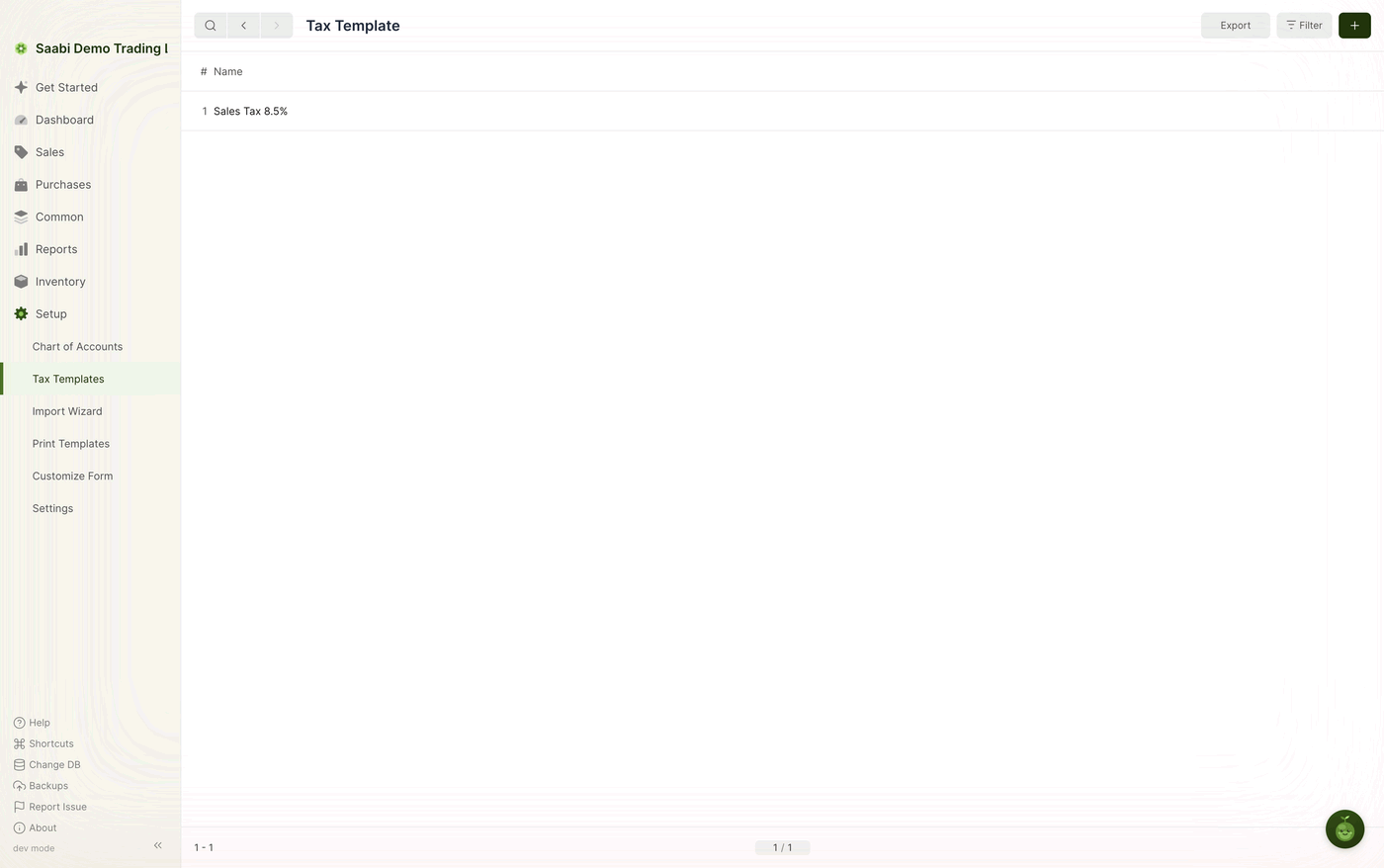
Give each template a name that says what it is, such as Sales Tax 8.5%. The name is what you will pick from a link field on an item, so a name that carries the rate saves a trip back to this page.
Creating a tax template
- Click the + button at the top right of the list.
- Enter the Name.
- In the Details grid, click Add Row and set the accounts and the rate.
- Set the tax treatment below the grid.
- Click Save.
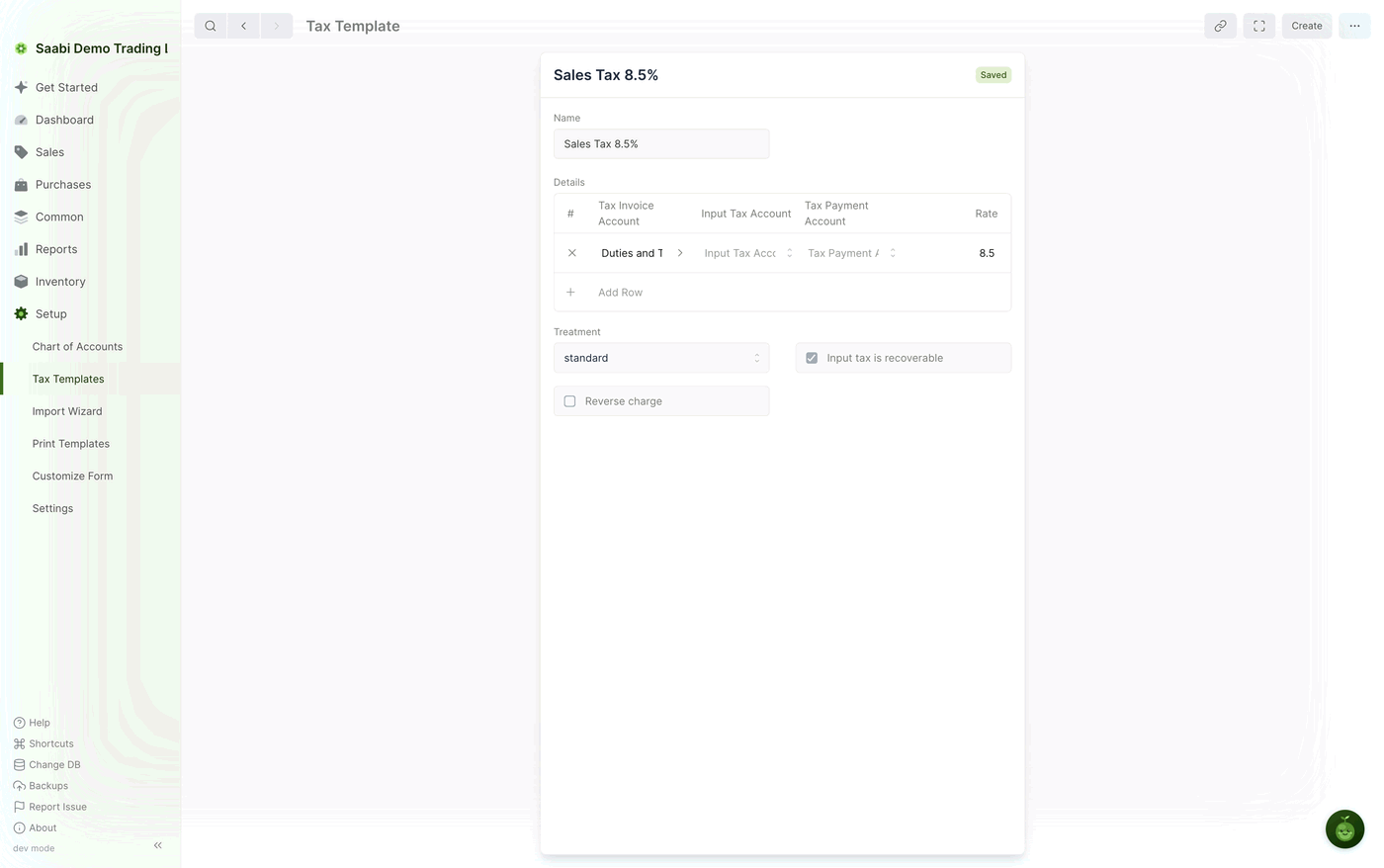
The Details grid
Each row in Details is one component of the tax. The columns are:
- Tax Invoice Account — the account the tax is posted to when you charge it on a sale.
- Input Tax Account — the account the tax is posted to when you are charged it on a purchase.
- Tax Payment Account — the account used when the tax is settled with the authority.
- Rate — the percentage, entered as a number.
8.5means 8.5 per cent.
Most taxes need one row. The grid takes several because a single tax can be made up of separate components, each with its own account and rate; add a row for each and SAABI applies them together.
Tax treatment
Below the grid, three fields describe how the tax behaves rather than what it costs.
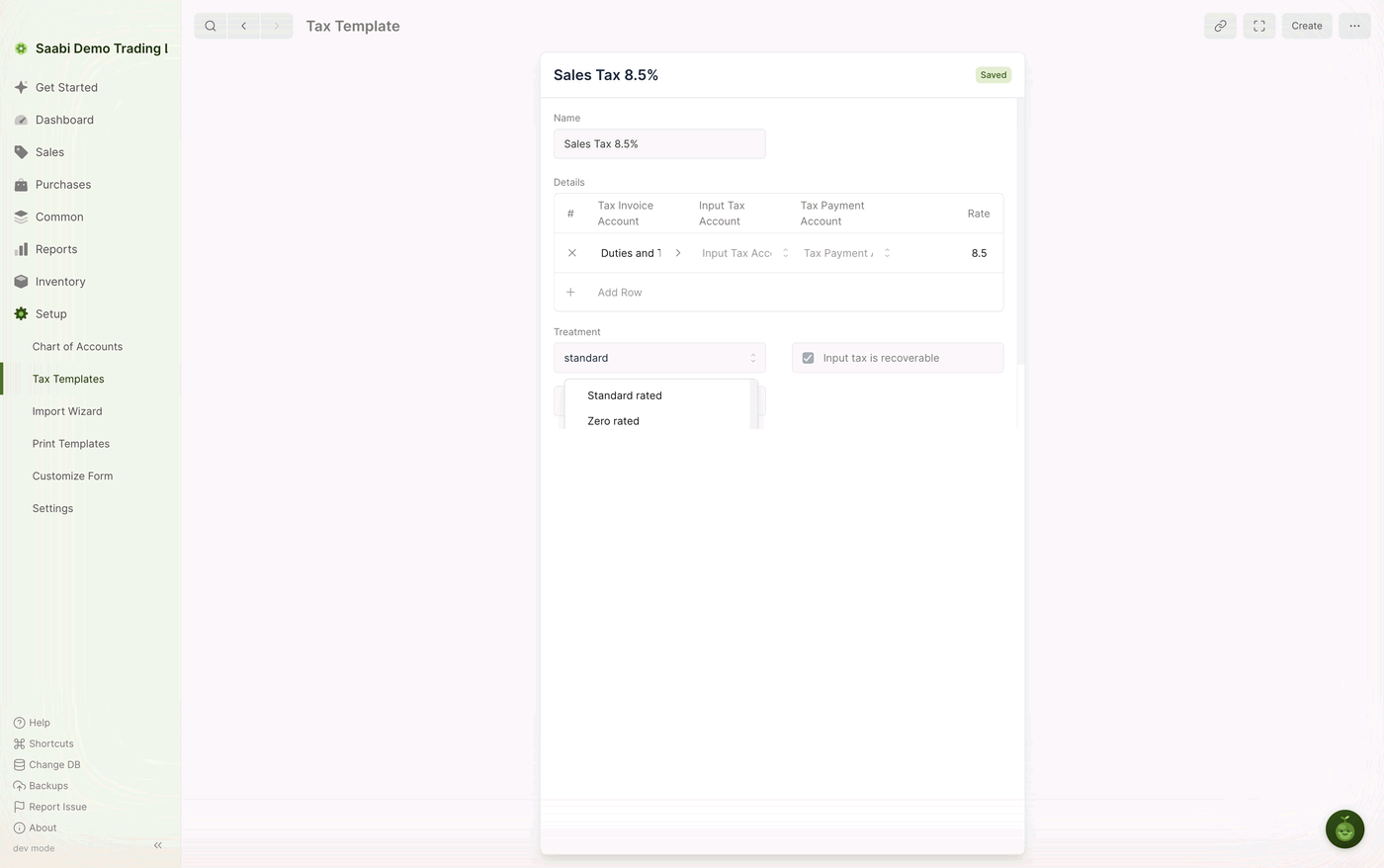
- Treatment —
Standard ratedfor a tax charged at its stated rate, orZero ratedfor supplies that are within the tax system but carry a rate of zero. The distinction matters for reporting: zero-rated supplies are still declared, but they are declared at nothing. - Input tax is recoverable — tick this when tax you have been charged on a purchase can be reclaimed rather than absorbed as a cost. With it cleared, the tax stays part of the expense.
- Reverse charge — tick this when the liability for the tax falls on you as the buyer rather than on the supplier, as it commonly does on imported services.
Note
These three fields do not change the arithmetic on the invoice. They describe how the tax is treated, which is what your tax reporting rests on. Set them when you create the template, not afterwards.
Attaching a template to an item
Open the item at Common > Items and set the Tax field in its Accounts section to the template. Save the item.
From then on the tax reaches the invoice on its own:
- You add a row to the Items grid of a sales or purchase invoice and select the item.
- SAABI fills the row's Tax cell with the item's template. You can change it on the row when a particular line is taxed differently.
- As the row's amount is worked out, the tax is calculated at the template's rate and posted to the account the template names.
- The Taxes grid under Tax and Totals collects the result, showing the Tax Account, the Tax Rate and the Tax Amount for the invoice as a whole.
- Grand Total is the net total plus that tax.
An item with no template attached leaves the row's Tax cell empty. Set it on the row when only some sales of that item are taxed.
Saabi Desktop User Manual 1.0 · covers Desktop 1.0.0 · Something wrong or missing? Tell us