
Chapter 58 · Reference · 3 min read
Appendix C: Getting help
The bottom of the sidebar holds the items you reach for when something is not going to plan: the documentation, the shortcut list, the place to report a problem, and the details of the licence SAABI is published under. This appendix covers what each one does, and sets out what SAABI is and is not responsible for.
The sidebar footer
- Help — opens the online documentation in your web browser.
F1does the same from anywhere in the app. - Shortcuts — opens the keyboard shortcut list. See Appendix A: Keyboard shortcuts.
- Change DB — closes the company and returns to the Welcome screen. See Chapter 51.
- Backups — makes and manages copies of the company file. See Chapter 50.
- Report Issue — opens the page where you report a problem with SAABI.
- About — shows the version, the licence and the scope of the software.
Help
Help opens the SAABI documentation in your browser rather than in the app, so you can keep the page open beside your books while you work. Use it when you want the current version of a procedure — the online documentation is updated between releases, while the copy on your computer is not.
Report Issue
Use Report Issue when SAABI does something the documentation does not describe: a screen that will not load, a total that does not add up, a button that does nothing. It is for faults in the software.
When you report a problem, say what you were doing, what you expected and what happened instead, and give the version number from Setup > Settings > System or from the About dialog.
Note
Report Issue is not the place for questions about how to record a transaction, or about how a figure should be treated in your accounts. For those, use the documentation or ask your accountant.
About
About opens a dialog with the version number, the licence and a short statement about what SAABI is for. Click Okay to close it.
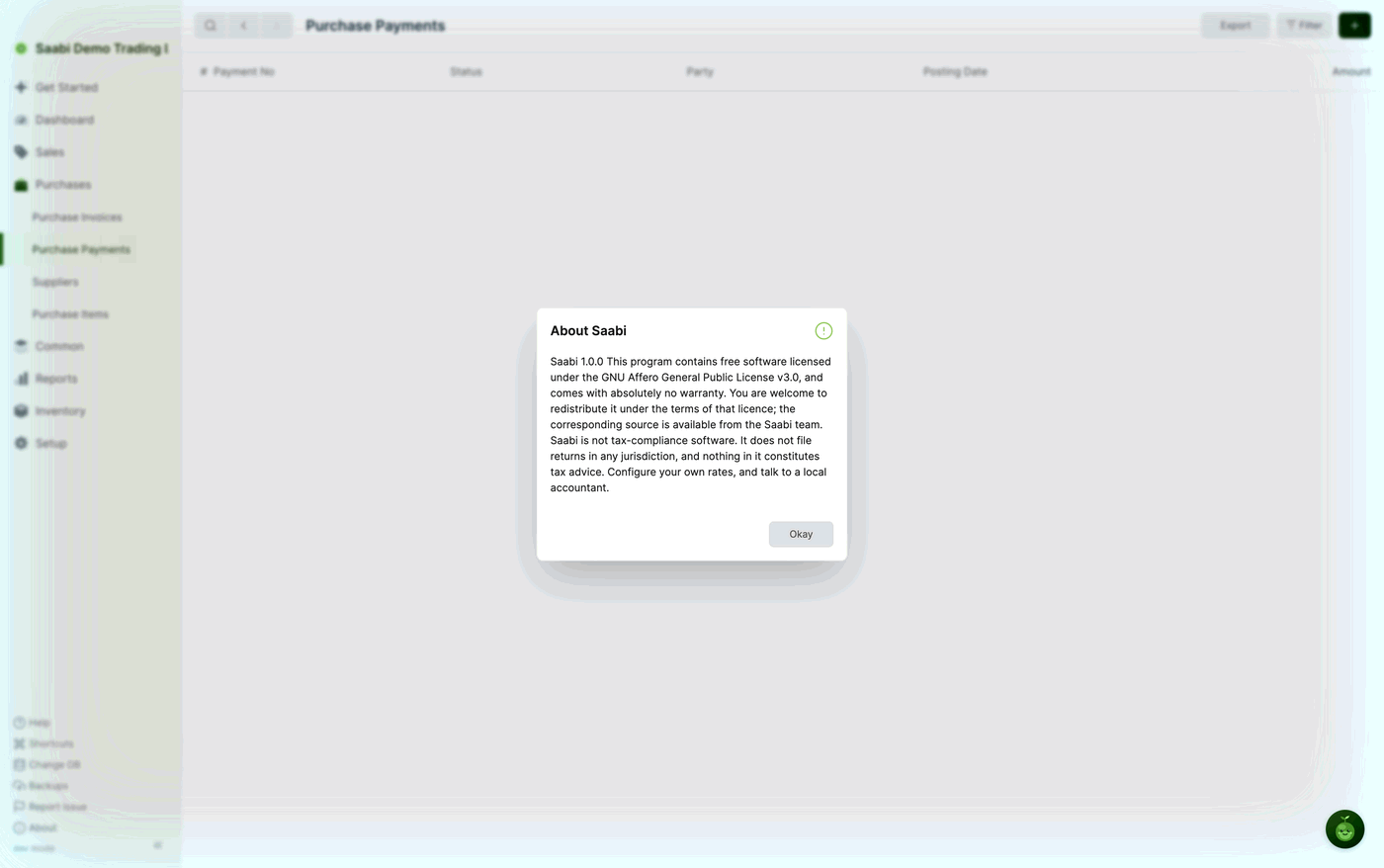
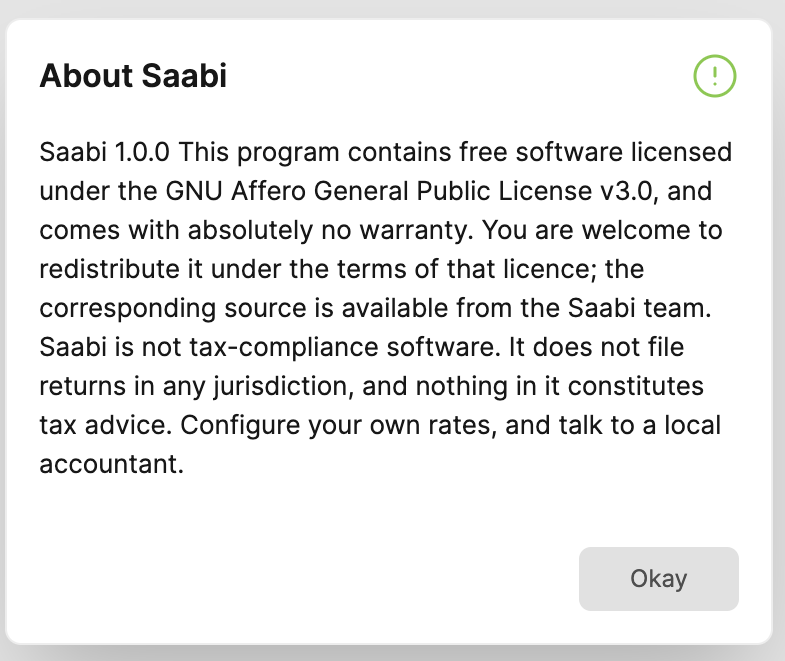
The dialog reads:
About Saabi
Saabi 1.0.0 This program contains free software licensed under the GNU Affero General Public License v3.0, and comes with absolutely no warranty. You are welcome to redistribute it under the terms of that licence; the corresponding source is available from the Saabi team. Saabi is not tax-compliance software. It does not file returns in any jurisdiction, and nothing in it constitutes tax advice. Configure your own rates, and talk to a local accountant.
Two things in that text are worth reading twice.
The licence. SAABI contains free software licensed under the GNU Affero General Public License v3.0. You may redistribute it under the terms of that licence, and the corresponding source is available from the SAABI team. It is provided with absolutely no warranty — you run it, and you keep your own backups.
The scope. SAABI records what you tell it and reports it back. It is not tax-compliance software.
Important
SAABI does not file returns in any jurisdiction, and nothing in it constitutes tax advice. The tax rates and templates in your company are the ones you configured — SAABI does not check them against the law where you trade, and it does not update them when rates change. Set your own rates, and talk to a local accountant about how your business should account for them.
Before you ask for help
Some checks answer the question faster than a report does:
- Reload SAABI with
⌘ Ron macOS orCtrl Ron Windows and Linux. Settings and form customisations often only take effect after a reload. - Check which company is open. The name at the top of the sidebar tells you which file you are looking at, and a figure that seems to be missing is often in the other company.
- Check the entry's status. A Not Submitted entry is not in your reports or totals yet, which explains most "the number is wrong" surprises. See Appendix B: Statuses and badges.
- Take a backup before trying anything that changes data.
Saabi Desktop User Manual 1.0 · covers Desktop 1.0.0 · Something wrong or missing? Tell us