
Chapter 30 · Shared records · 2 min read
Discounts
On this page
A discount is a deduction from the price of an item. SAABI applies discounts line by line, so a single invoice can carry a discount on one item and full price on another. Recording a discount properly matters for more than the total: with discount accounting turned on, the amount given away is posted to an account of its own, which means you can see at the year end what your discounting actually cost.
Enabling discount accounting
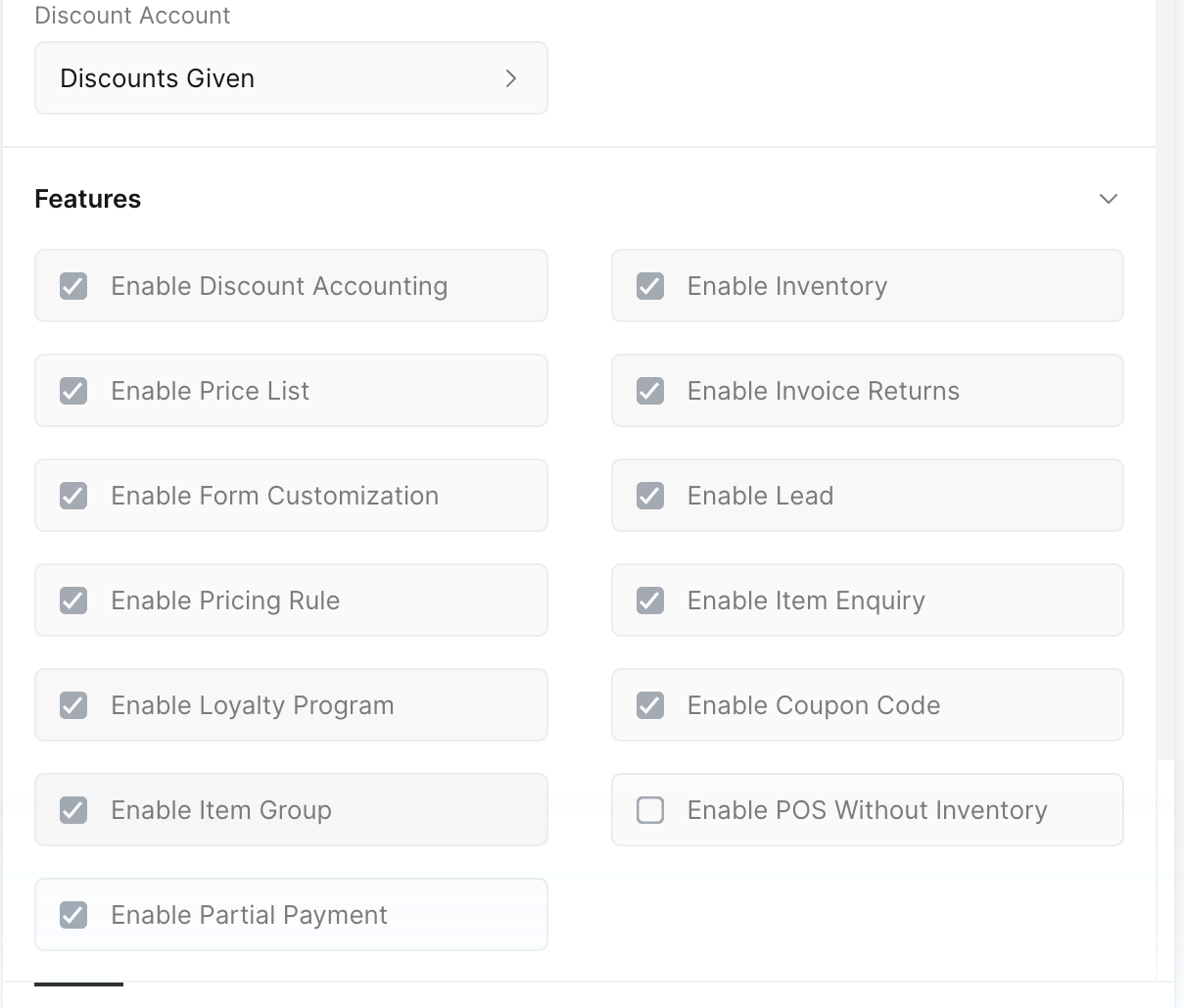
- Go to
Setup > Settings > General. - In the Features section, tick Enable Discount Accounting.
- In the Accounts section above, set the Discount Account.
- Save the settings and reload when SAABI asks.
Important
Once discount accounting has been enabled it cannot be disabled. Turn it on when you intend to use it.
The discount account
Discount Account is where the discounted amount is posted. It is an indirect income account — a discount reduces what you earn on a sale, so it belongs alongside your other income rather than among your expenses.
If you have no suitable account yet, create one from Setup > Chart of Accounts under the Income group, then come back and select it here. An account named for what it holds, such as Discounts Given, keeps the Profit and Loss readable.
Discounting a line on an invoice
Discounts are set on the invoice row, not on the invoice as a whole.
- Create or open a draft invoice and add the item rows as usual.
- Click the pencil at the end of the row you want to discount. The row panel opens on the right.
- Scroll to the discount fields at the foot of the panel.
- Enter a Discount Percent, or tick Set Discount Amount to type a cash figure instead.
- Close the panel. The row's Amount and the invoice totals update.
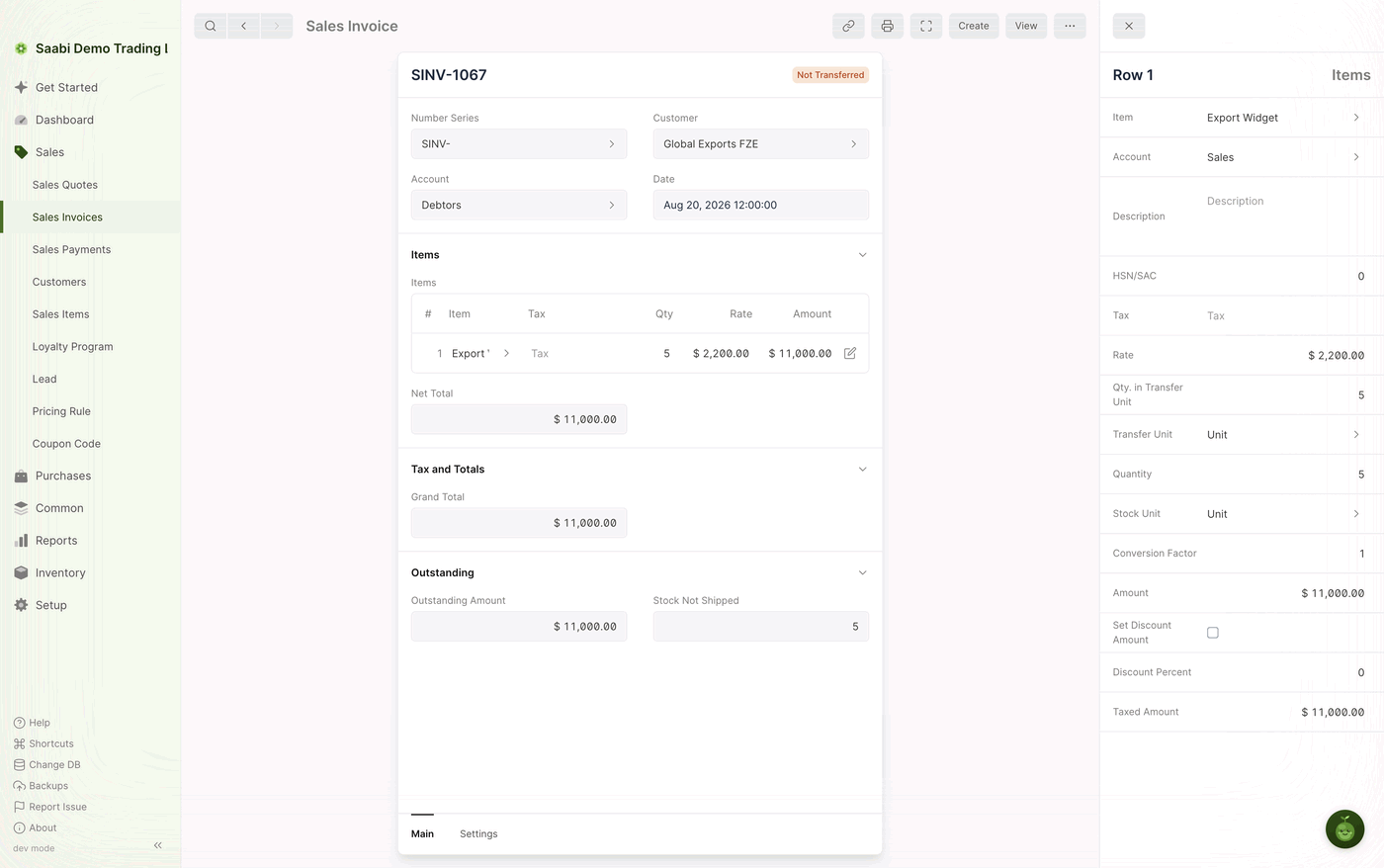
The two fields are alternatives:
- Discount Percent — the default. Enter
10to take ten per cent off the row. - Set Discount Amount — tick this to enter a currency figure instead, such as
$150.00off a line.
Repeat for each row that needs a discount. A row you leave alone stays at full price.
Applying the discount after tax
By default SAABI takes the discount off the row first and calculates tax on what remains. If your tax rules require the tax to be worked out on the undiscounted amount and the discount taken afterwards, change it per invoice.
- Open the invoice.
- Click the Settings tab at the foot of the form card.
- Tick Apply Discount After Tax.
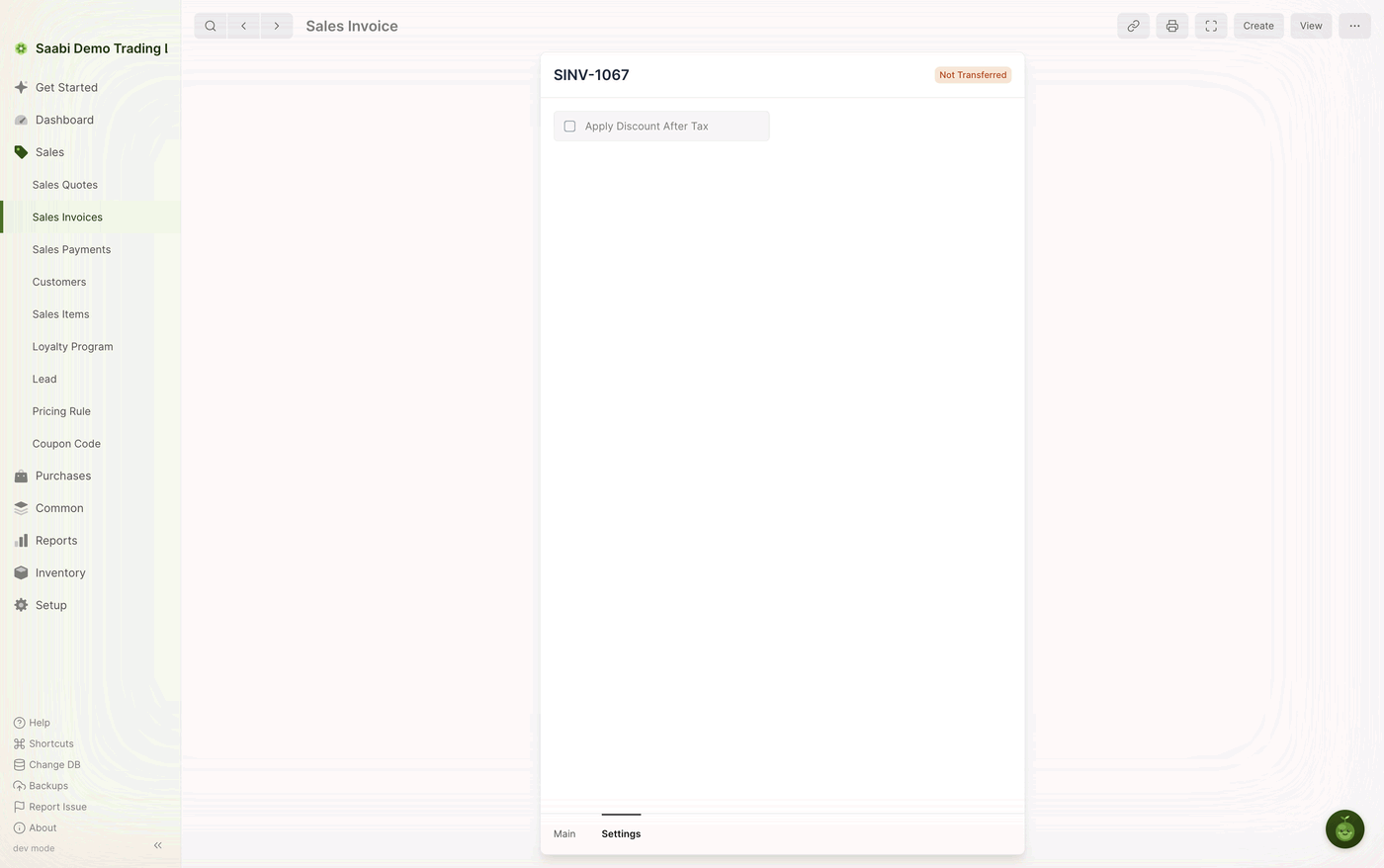
The setting belongs to the individual invoice, so it does not change anything you have already recorded. Set it before submitting, since a submitted invoice can no longer be edited.
Note
Discounting before tax and discounting after tax produce different tax amounts and different grand totals on the same figures. Decide which your tax rules require, and apply it consistently.
Saabi Desktop User Manual 1.0 · covers Desktop 1.0.0 · Something wrong or missing? Tell us