
Chapter 21 · Purchases · 4 min read
Purchase Invoices
On this page
A purchase invoice is the bill a supplier sends you when you buy goods or services. Recording one tells SAABI what you owe, to whom, and which expense accounts the purchase belongs to. A purchase invoice follows the same life cycle as a sales invoice — you create a draft, save it, submit it, and then record a payment against it — with the money moving in the opposite direction. Use a purchase invoice for every supplier bill you intend to pay.
Opening the purchase invoice list
Go to Purchases > Purchase Invoices. The list shows every purchase invoice recorded in the company file, with the most recent at the top.
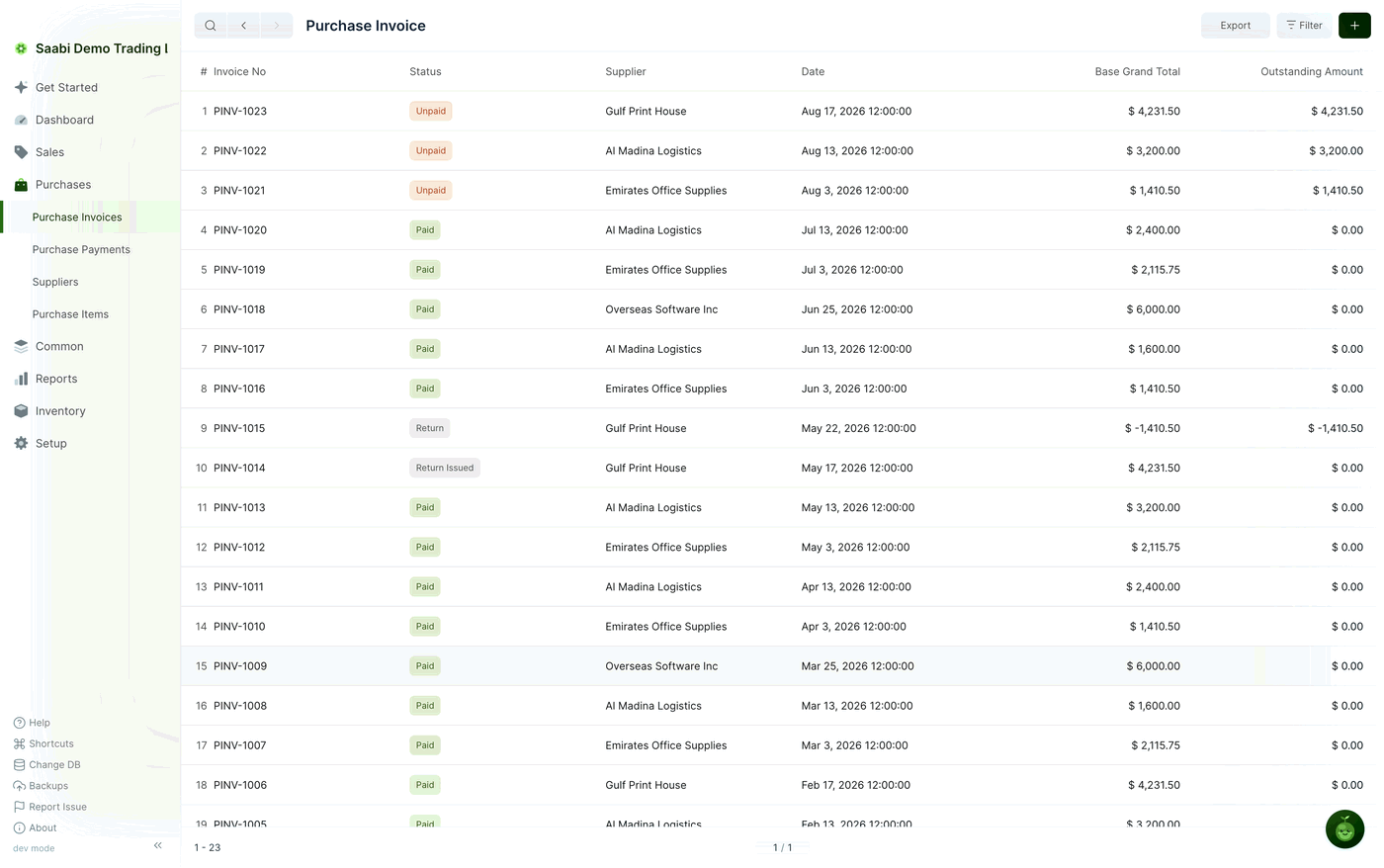
Each row shows:
- Invoice No — the number SAABI assigned from the
PINV-series. - Status — where the invoice stands: Unpaid, Paid, Return or Return Issued.
- Supplier — the party who sent the bill.
- Date — the date on the invoice.
- Base Grand Total — the invoice total in your company currency.
- Outstanding Amount — what remains to be paid.
Use Filter to narrow the list to one supplier or status, and Export to save the current view. The footer shows the row range and the page controls.
Creating a purchase invoice
- On the Purchase Invoice list, click the + button at the top right.
- Select the Supplier you are buying from. SAABI fills Account with the payable account for that supplier, usually
Creditors. - Check the Date. It defaults to today, so change it to the date printed on the supplier's bill.
- In the Items section, click Add Row and select the Item being purchased. If the item has a tax template attached, it is pulled into the Tax cell for you.
- Enter the Qty. The Rate comes from the item record and can be changed on the row; Amount is calculated for you.
- Add a row for each further line on the bill.
- Click Save, then confirm the entry when SAABI asks.
The saved invoice keeps its own page, where you can review the totals before committing to them.
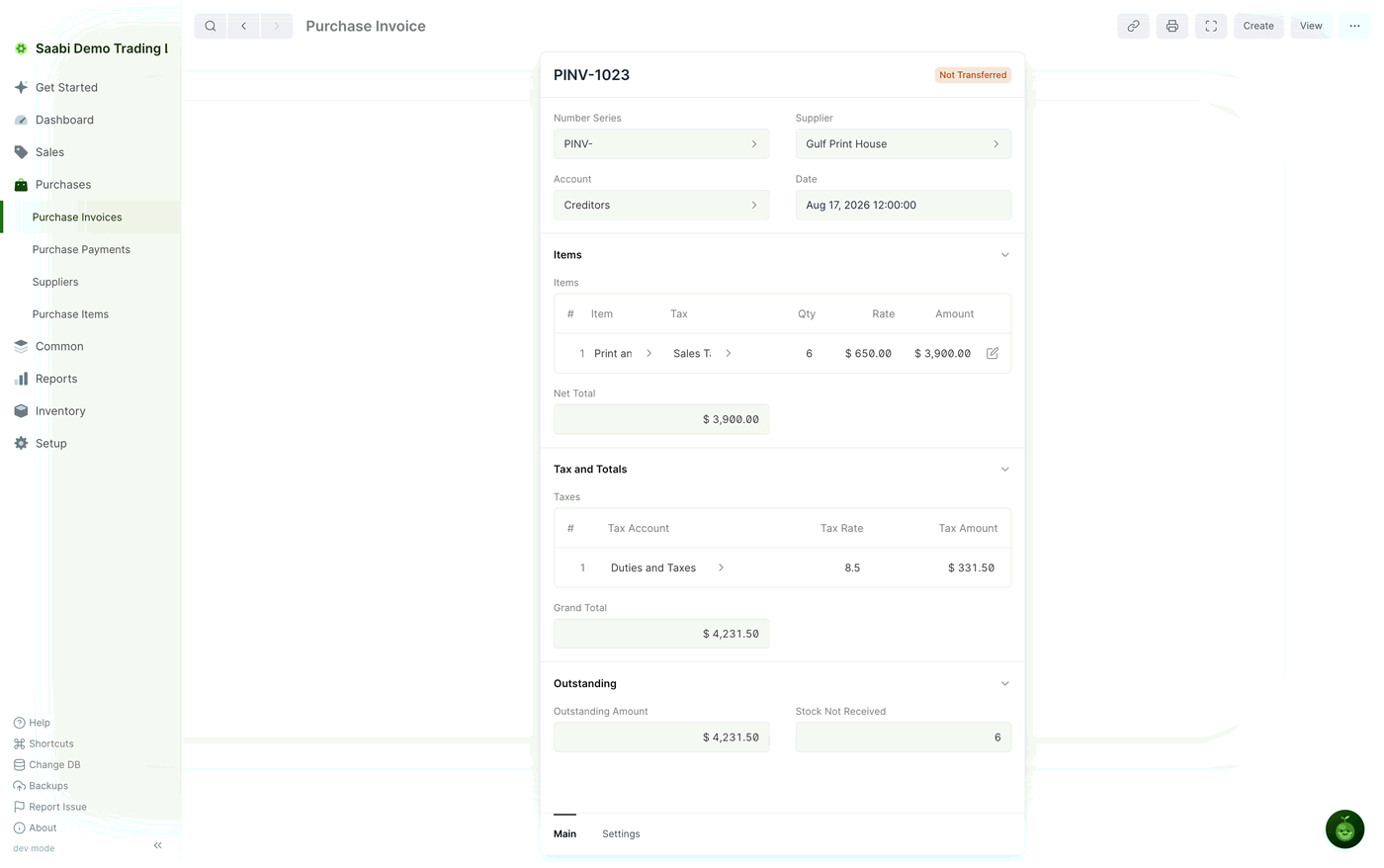
The form is arranged in sections:
- Items — the grid of lines (Item, Tax, Qty, Rate, Amount) followed by Net Total. The pencil at the end of a row opens the full row panel.
- Tax and Totals — the Taxes grid (Tax Account, Tax Rate, Tax Amount) and the Grand Total.
- Outstanding — Outstanding Amount and Stock Not Received.
Two tabs sit at the foot of the form card: Main, which holds everything above, and Settings.
Submitting the invoice
Click Submit and confirm. SAABI posts the ledger entries: the expense and tax accounts are debited, and the supplier's payable account is credited. The status becomes Unpaid and the Outstanding Amount shows the full grand total.
Note
A submitted invoice cannot be edited. If a submitted invoice is wrong, cancel it from the … menu and record a corrected one.
Paying a supplier from the invoice
Open the submitted purchase invoice and click Create > Payment. The payment panel opens beside the invoice with the outstanding amount already filled in and Payment Type set to Pay; set the From Account — the bank or cash account the money leaves — and click Save, and SAABI saves and submits the payment in one step. The full procedure and the payment fields are described in Chapter 22.
The payment reduces what you owe the supplier and reduces the balance of the account it came from. The invoice's Outstanding Amount falls by the amount paid. Once it reaches 0.00, the status changes from Unpaid to Paid.
Stock Not Received
Stock Not Received, in the Outstanding section, counts the item units you have been billed for but have not yet taken into stock. It stays above zero until a purchase receipt (Chapter 40) records the goods arriving, which makes it a quick check on what is still in transit from a supplier.
Returns
When you send goods back, record the return against the original bill rather than editing it. Returns are available when Enable Invoice Returns is ticked in Setup > Settings > General.
- Open the original purchase invoice.
- Click Create > Return. The supplier and the item lines are copied across.
- Set the quantities being returned as negative numbers, and remove any line that is not coming back.
- Click Save, then Submit.
The return posts ledger entries that reverse the original ones for the quantities returned. In the list, the return document carries the Return badge and shows negative figures; the invoice it was raised against is marked Return Issued.
Saabi Desktop User Manual 1.0 · covers Desktop 1.0.0 · Something wrong or missing? Tell us