
Chapter 43 · Inventory · 2 min read
Batches
On this page
Where serial numbers follow one unit at a time, batches follow a group. A Batch is a uniquely identified collection of units of an item — one production run, one delivery, one lot with a common expiry date. Batch tracking suits food, chemicals, cosmetics, pharmaceuticals and anything else where you need to know which lot a customer received. Use this chapter to switch batches on, to mark an item as batched, and to record a batch as goods move.
Enabling batches
Batches are an optional inventory feature and are off until you turn them on.
- Go to
Setup > Settingsand click the Inventory tab. - In the Features section, check Enable Batches.
Tracked items then gain a Has Batch option, and the Batch record becomes available in SAABI. There is no Batch entry in the sidebar; to reach the list, open Quick Search, type batch list and choose the first result.
Marking an item as batched
As with serial numbers, two boxes have to be checked on the item record, in order.
- Open the item at
Common > Items, or create it at the point you add it. - Check Track Item.
- Check Has Batch.
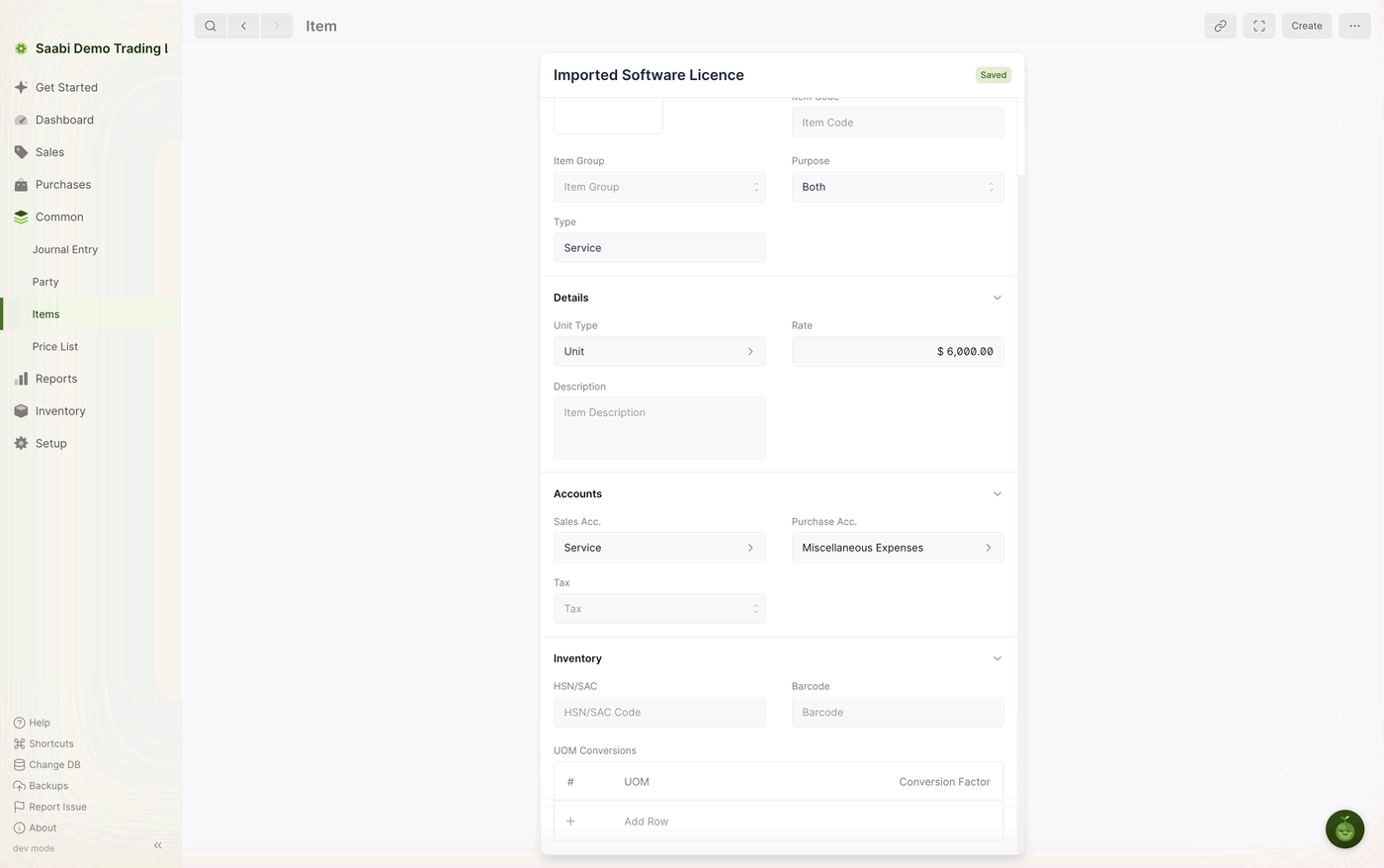
Important
Has Batch can be set only if Track Item is set, and Track Item can be set only while the item is being created. To batch an item that already exists without tracking, create a new item record for it.
The Batch record
Each batch you handle gets its own record. It holds:
- Batch Number — the identifier you or your supplier give the lot. This is what appears on transactions and in the reports, so use whatever your labels and delivery notes already show.
- Manufacture Date — the date the batch was produced.
- Expiry Date — the date the batch ceases to be usable or saleable.
Create the batch before, or at the point of, receiving the goods it describes.
Tip
Keep Batch Number consistent with the number printed on the goods. A batch record is only useful if someone holding the physical item can find it again.
Entering a batch on a transaction
Once an item is batched, every transaction that changes its stock — Stock Movements, Shipments and Purchase Receipts — must say which batch is moving. As with serial numbers, this goes in through the row panel rather than the grid.
- In the Items grid, click the pencil at the end of the row.
- Find the batch field in the panel that opens and choose the batch.
- Close the panel and finish the entry as usual, then Save and Submit.
A row carries one batch. Where a despatch draws on two lots of the same item, add a row for each batch and split the quantity between them.
Batches in the reports
With batches enabled, both inventory reports gain a column naming the batch each line belongs to, so the Stock Ledger shows which lot moved and the Stock Balance shows how much of each lot is left. Both reports also accept a batch filter, which narrows the report to a single batch — the quickest way to answer where a particular lot went.
Saabi Desktop User Manual 1.0 · covers Desktop 1.0.0 · Something wrong or missing? Tell us