
Chapter 51 · Looking after your data · 4 min read
Working with more than one company
On this page
SAABI keeps each company in a single database file on your own computer. If you run two businesses, keep separate books for a branch or a holding company, or look after the books of more than one client, you create one company file for each and move between them from inside the app. This chapter explains how those files are organised, how to switch between them, and which settings belong to a company and which belong to the computer.
One company, one file
Every company you create is one .db file. The Welcome screen shows the path of each file it knows about, for example ~/Documents/Saabi/Saabi Demo Trading LLC.books.db.
Everything that company knows lives inside that one file:
- The chart of accounts, tax templates and opening balances.
- Customers, suppliers, items and price lists.
- Every invoice, payment, journal entry and stock entry.
- All of Settings, including the number series, terms and print customisations.
- Print templates and any form customisations.
Nothing is shared between files, and SAABI has one company open at a time. Two companies never see each other's accounts, parties or documents, even when both files sit in the same folder.
Note
Because a company is a single file, you can move or copy it like any other document. Copying the file copies the whole company with it. Use Backups in the sidebar footer (Chapter 50) to keep spare copies.
Switching to another company
Change DB in the sidebar footer closes the company you are in and takes you back to the Welcome screen.
- Click Change DB at the bottom of the sidebar.
- SAABI closes the current company and shows Welcome to Saabi.
- Choose the company you want, or create a new one.
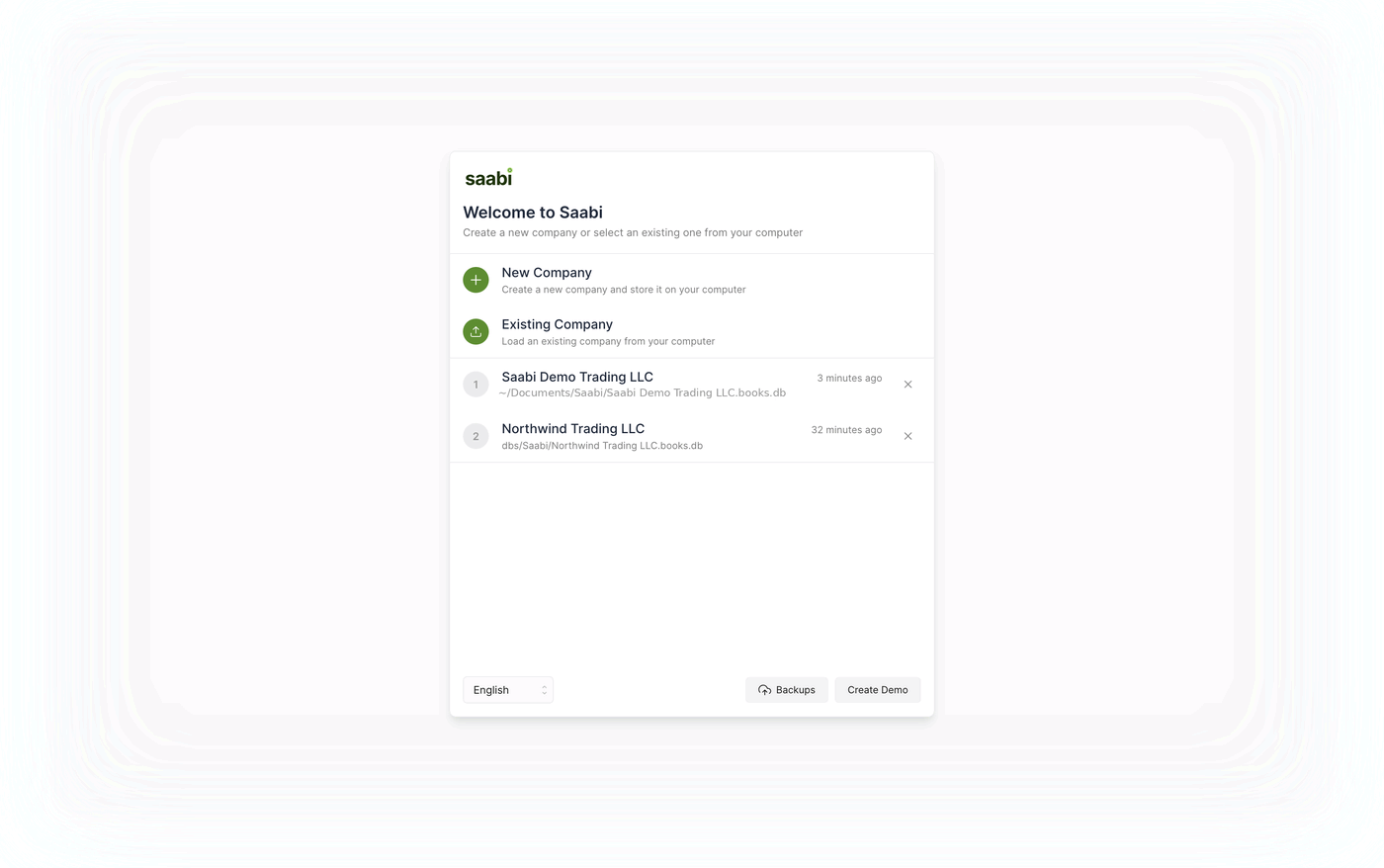
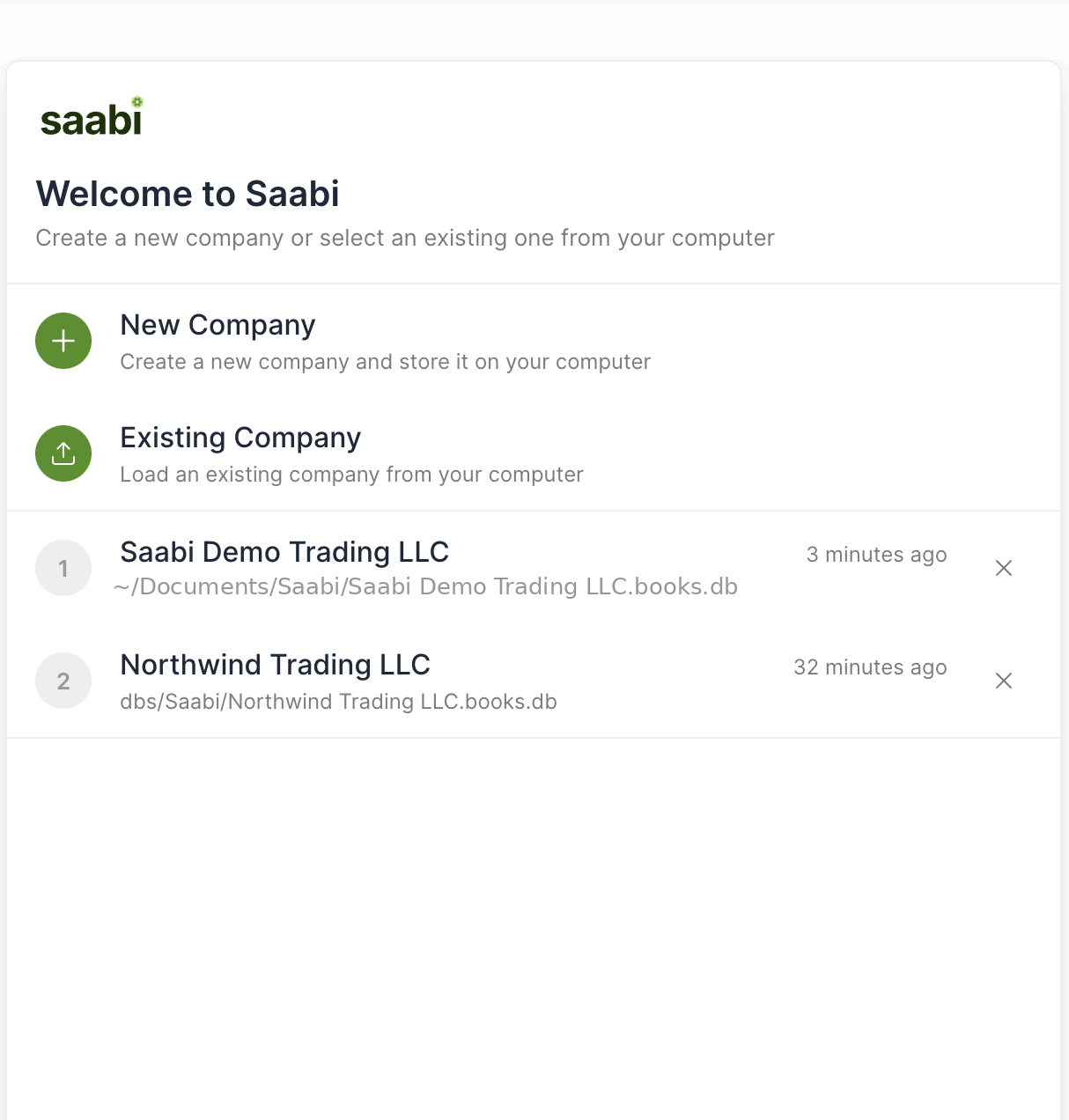
The Welcome screen is described in Chapter 1. It holds New Company, Existing Company — for a company file that is on your computer but not in the list, for example one you have copied from another machine — and the list of companies you have opened before, each with its file path and when it was last opened; click a row to open that company. Along the bottom are the language selector, Backups, and Create Demo.
Creating another company
- Click Change DB, then New Company.
- Work through the setup wizard (Chapter 2): your name, the company name, country, currency, bank name and email.
- Choose where to save the file and confirm.
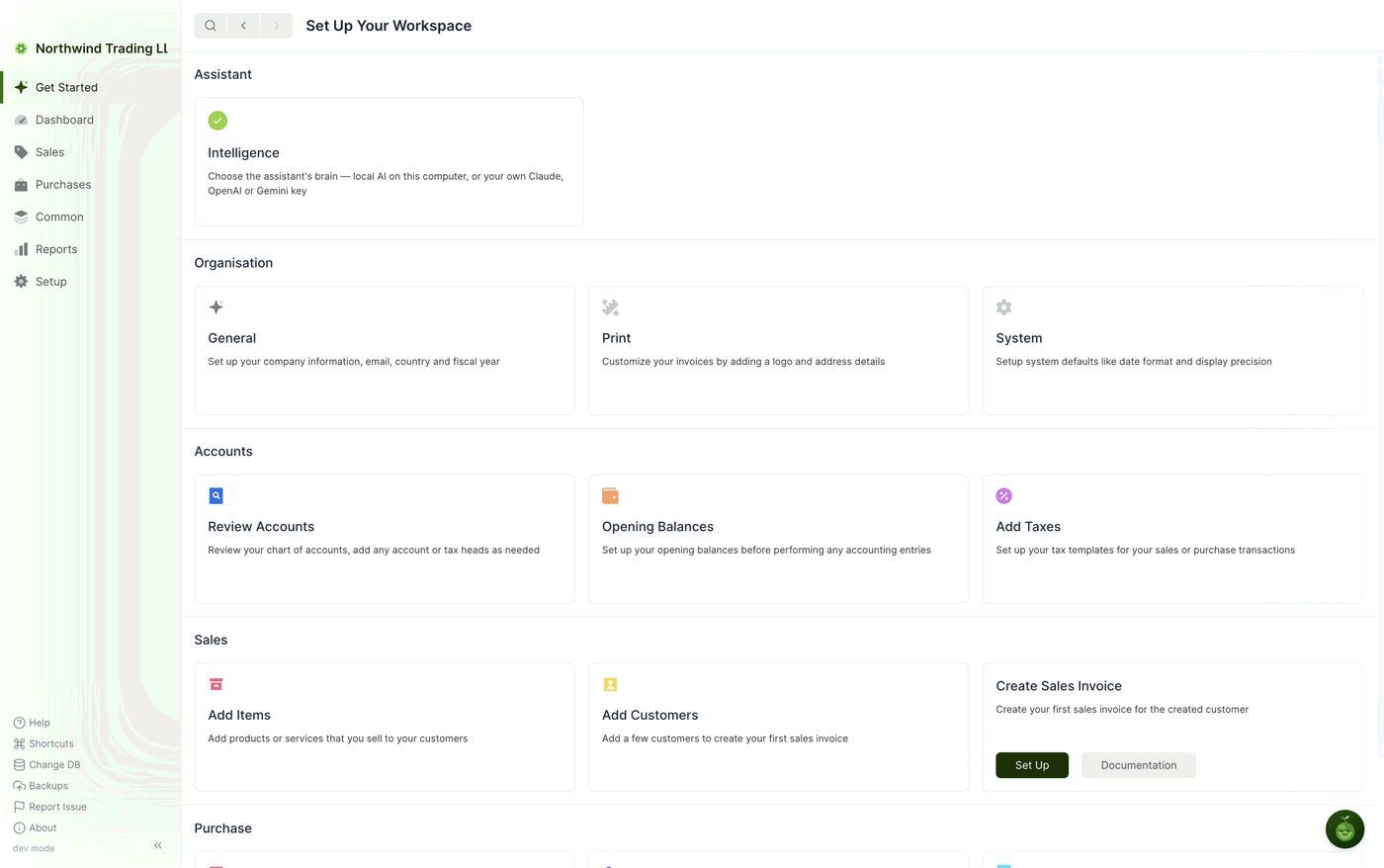
SAABI creates the file, opens the new company and lands on Get Started. The new company begins with a chart of accounts for its country and nothing else — no customers, no items, no history.
Opening a company that is not in the list
Use Existing Company when the file exists but SAABI has not opened it before — a company copied from another computer, restored from a backup, or kept in a shared folder.
- Click Change DB, then Existing Company.
- Select the
.dbfile.
SAABI opens it and adds it to the list for next time.
Removing a company from the list
The ✕ at the right of a row removes that company from the Welcome screen list.
Important
✕ removes the entry from the list only. The .db file stays where it is and the company's data is untouched. To open the company again, use Existing Company and select the file. To delete a company for good, delete its file in your operating system's file manager — and keep a backup first, because there is no way to undo it.
What belongs to the company, and what belongs to the computer
Almost everything in SAABI is stored per company. When you change any of the following, you change it for the company that is open and for no other:
- The identity fields, accounts, feature switches and fiscal year on Settings > General.
- Inventory settings, defaults, number series and terms.
- Print settings — logo, colour, font and the invoice display options.
- The chart of accounts, tax templates, print templates and form customisations.
One setting is different. The assistant's Intelligence provider — whether the assistant runs on local AI on this computer or on your own Claude, OpenAI or Gemini key — is set once for the computer. Every company you open on that machine uses the same provider, which is why the Intelligence card on the Get Started page of a brand-new company is already ticked.
Tip
Company files are portable, but the Intelligence setting is not stored in them. If you move a company file to another computer, set the assistant's provider again on that machine.
Saabi Desktop User Manual 1.0 · covers Desktop 1.0.0 · Something wrong or missing? Tell us