
Chapter 16 · Sales · 3 min read
Leads
On this page
A lead is a potential customer — someone who has shown interest in what you sell but has not bought anything yet. Keeping leads in SAABI means the enquiry, the quote you sent and the first invoice all sit on one trail, and it keeps people who have not bought anything out of your customer list and out of your receivables. When a lead does buy, you convert the record into a customer and nothing has to be retyped.
The Lead list
Open Sales > Lead. Each row shows the lead's name, its status, and the email and mobile number you have for them.
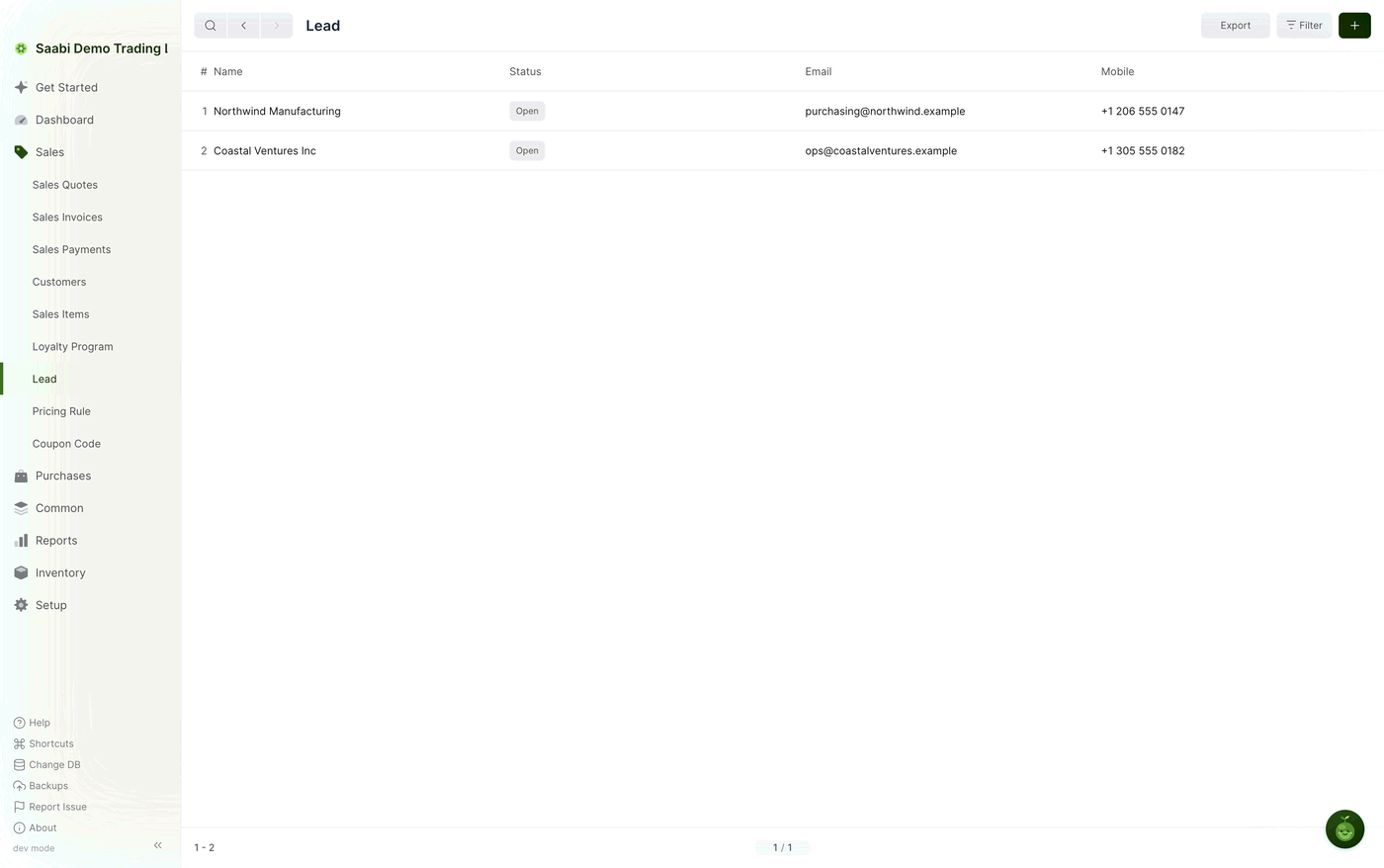
Use Filter to work one status at a time, for example to pull up everyone marked Interested before a round of follow-up calls.
Creating a lead
- Go to
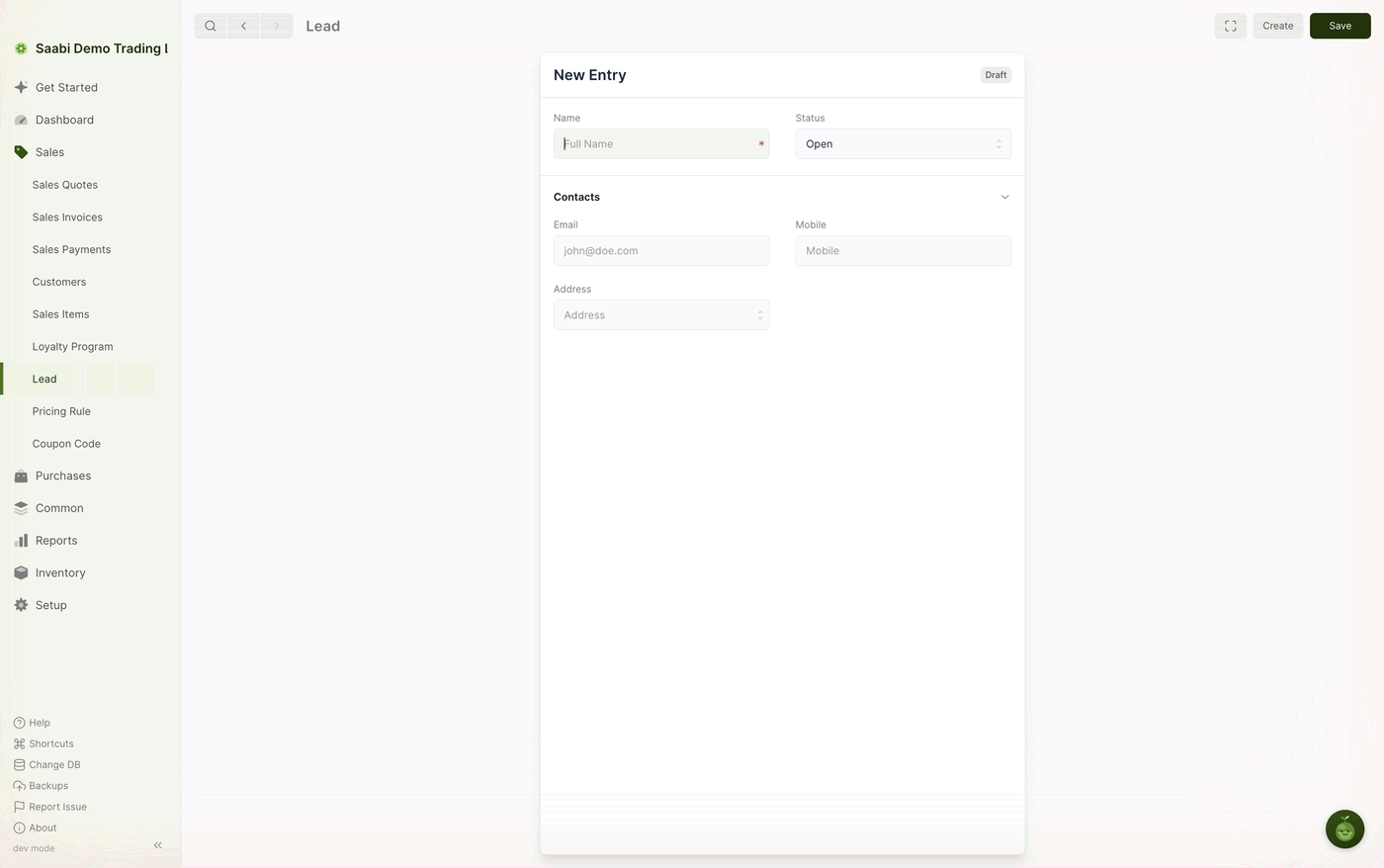
Sales > Leadand click +. - Enter the Name. This is the only required field.
- Leave Status on
Openfor a new enquiry. - Under Contacts, add the Email, Mobile and Address you have.
- Click Save.
Lead fields
- Name — the lead's full name. It has to be unique, since it identifies the record.
- Status — where the lead has reached. SAABI moves it on for you as you act on the lead, and you can set it by hand at any time.
- Email — the address you correspond on, which carries over when the lead becomes a customer.
- Mobile — a number for quick contact.
- Address — the postal address, for correspondence and for the customer record later.
Lead statuses
| Status | What it means |
|---|---|
| Open | Newly created and not yet engaged. |
| Replied | The lead has replied to your first approach. |
| Interested | The lead has shown interest in the product or service. |
| Quotation | A quote is to be sent. |
| Opportunity | There is a real opportunity for business. |
| Converted | The lead has become a customer. |
| Do not Contact | The lead has asked not to be approached again. |
Note
Keep the status current as the lead moves along. It is what the list is filtered and read by, and a list of leads all marked Open tells you nothing about which ones to chase.
Quoting a lead
A saved lead has a Create menu in its toolbar, which raises a sales quote against the lead and links the quote back to it. The quote is the priced offer described in Chapter 11; raising it from the lead means you do not have to create a customer for someone who has not yet agreed to buy.
Converting a lead into a customer
When the lead agrees to buy, use Create on the lead and choose to create the customer. SAABI carries the name and contact details across into a new customer record, sets the lead's status to Converted, and records the link on the customer under References > From Lead.
From that point on you invoice the customer record in the usual way. The lead stays on file as the origin of the relationship, which is what lets you see later where a customer first came from.
Tip
Leads are switched on by Enable Lead at Setup > Settings > General, in the Features section. If Lead is not in your sidebar, turn it on there.
Saabi Desktop User Manual 1.0 · covers Desktop 1.0.0 · Something wrong or missing? Tell us