
Chapter 28 · Shared records · 2 min read
Price Lists
On this page
A price list is a named set of item rates. An item can be worth one figure to a retail customer and another to a wholesaler, one figure in a sale season and another outside it, and a different figure again when you are buying it rather than selling it. Rather than typing the right rate onto every invoice line, group the rates into a price list and select that list on the invoice — SAABI then fetches each item's rate from it as you add rows.
Enabling price lists
Price lists are off until you turn them on.
- Go to
Setup > Settings > General. - In the Features section, tick Enable Price List.
- Save the settings and reload when SAABI asks.
Price List now appears in the sidebar under Common, and as a field on the sales and purchase invoice forms.
Creating a price list
Go to Common > Price List. The list shows each price list you have created, whether it is Enabled, and what it is Enabled For.
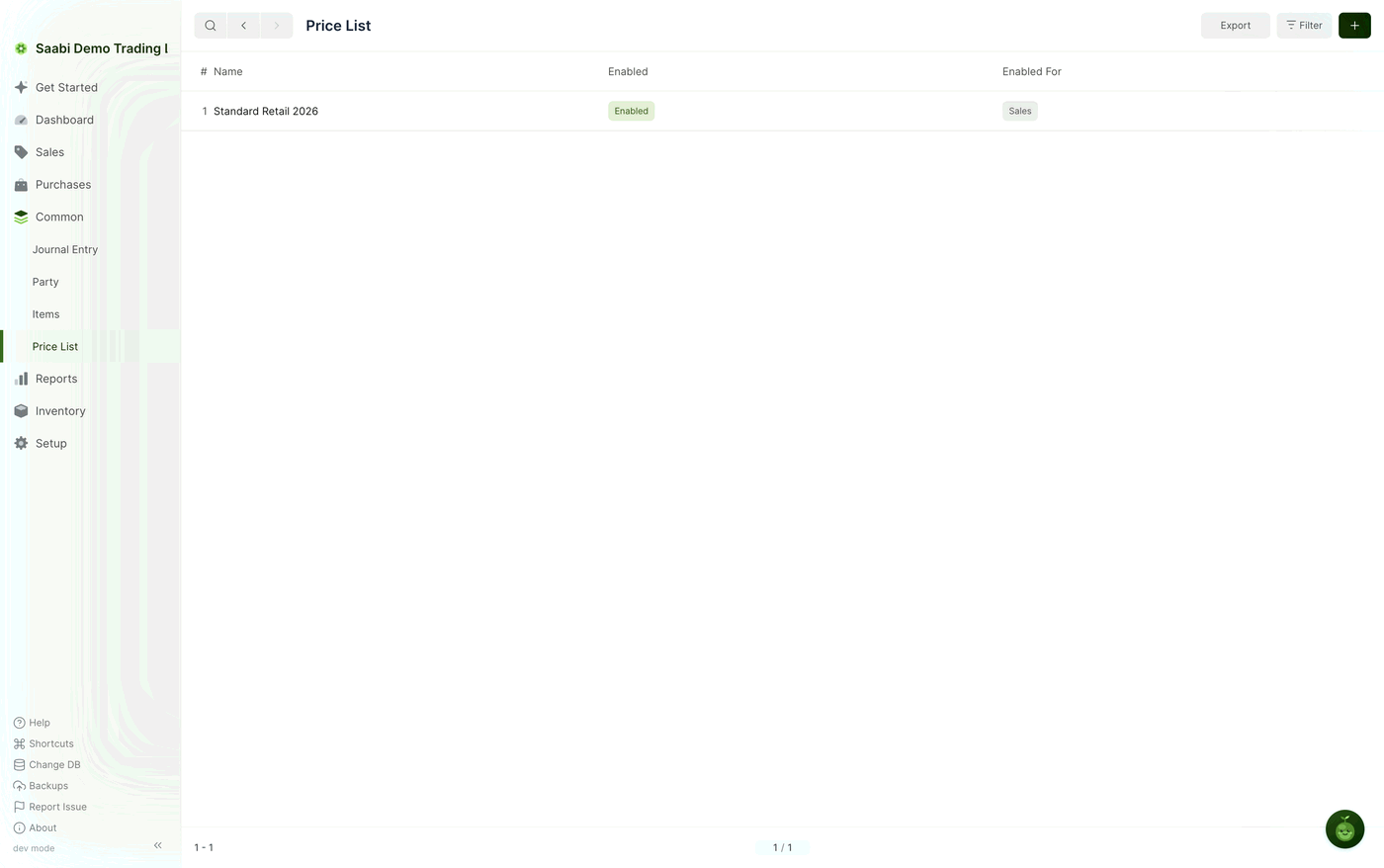
- Click the + button at the top right.
- Enter a Name that says what the list is for, such as
Standard Retail 2026. - Tick Is Price List Enabled.
- Tick For Sales, For Purchase, or both.
- In the Item Prices grid, click Add Row for each item, select the Item, set the Unit Type, and enter the Rate.
- Click Save.
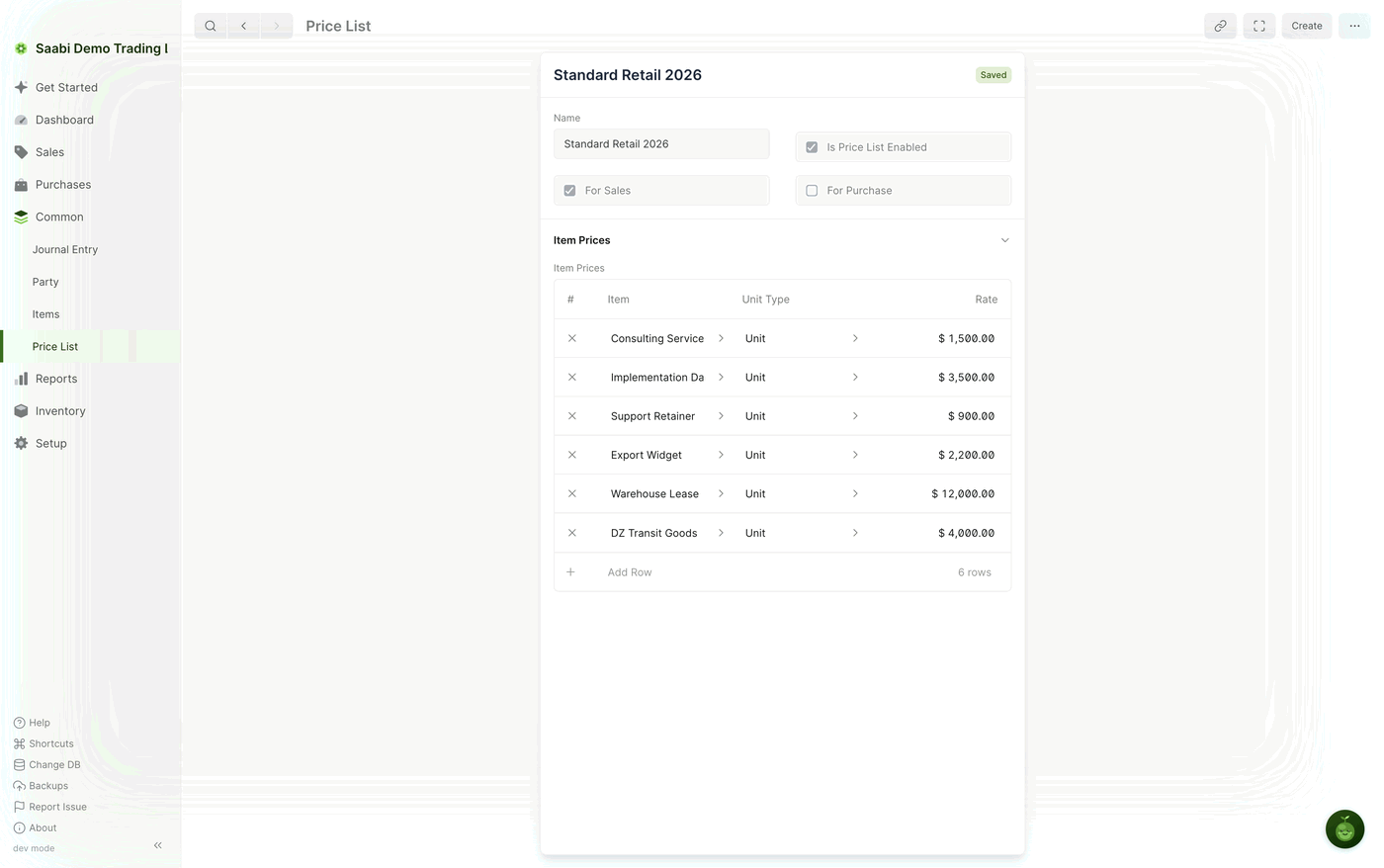
Price list fields
- Is Price List Enabled — makes the list usable. A list with this cleared stays in place but cannot be selected on an invoice, which is how you retire last season's rates without deleting them.
- For Sales — allows the list to be selected on sales invoices.
- For Purchase — allows the list to be selected on purchase invoices.
- Item Prices — the grid of rates. Each row holds an Item, a Unit Type and a Rate.
Note
You can add more than one price for the same item, one per unit. When SAABI fetches a price, it takes the first row whose Unit Type matches the unit on the invoice line.
Using a price list on an invoice
- Create a new sales or purchase invoice.
- Select the party as usual.
- Set the Price List field to the list you want to apply.
- Add the item rows.
Each item you add from that point takes its Rate from the price list instead of from the item record. Rows added before the price list was selected keep the rate they already had, so set the price list before you start adding items.
The rate is still a starting point rather than a rule. Type over it on any row where you have agreed something else — the price list decides what SAABI proposes, not what the invoice has to say.
Tip
Keep one list per pricing situation rather than editing a single list as rates change. A dated name such as Standard Retail 2026 leaves you able to see, on an old invoice, which set of rates it was written under.
Saabi Desktop User Manual 1.0 · covers Desktop 1.0.0 · Something wrong or missing? Tell us