
Chapter 41 · Inventory · 4 min read
Shipments
On this page
A Shipment records stock leaving for a customer after a sale. It is the stock-side counterpart of the sales invoice: the invoice records the revenue and what the customer owes, the shipment records the goods physically going out of a Location. Because a shipment is an outward movement, it can only go through if the Location holds enough of each item.
To see the shipments you have already made, go to Inventory > Shipment.
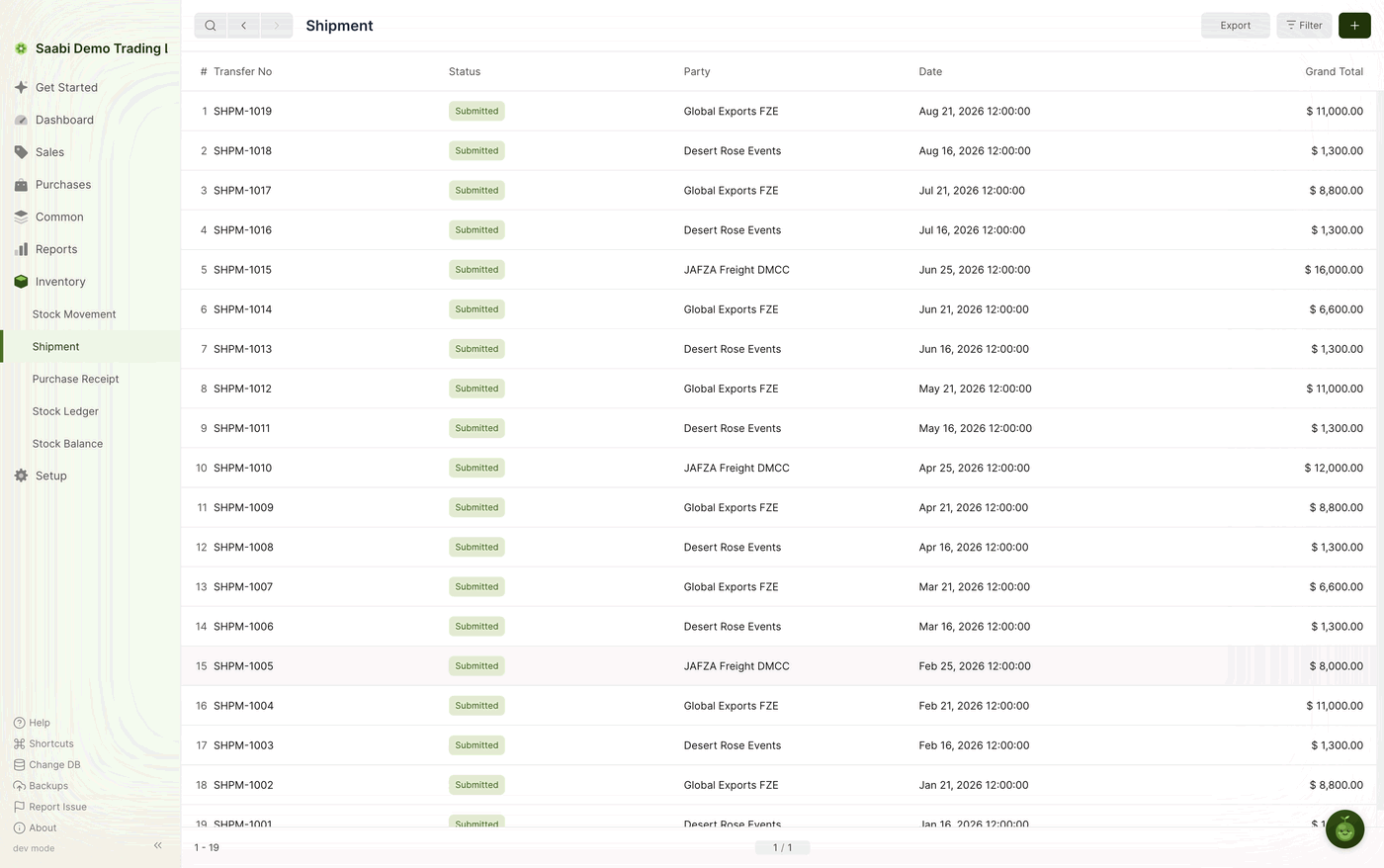
The list shows the Transfer No, the Status, the Party the goods went to, the Date and the Grand Total. Use Filter to narrow it to one customer or one period, and Export to take the rows out of SAABI.
Two ways to create a shipment
You can start a shipment from the sales invoice it belongs to, or on its own from the list. The first way links the two records together; the second does not.
From a sales invoice
This is the usual route, because goods normally go out against a sale you have already invoiced.
- Open the submitted sales invoice at
Sales > Sales Invoices. - Click Create in the toolbar.
- Choose Shipment from the menu.
- Check the rows SAABI has filled in against what is actually going out, and correct any quantity that differs.
- Click Save, then Submit.
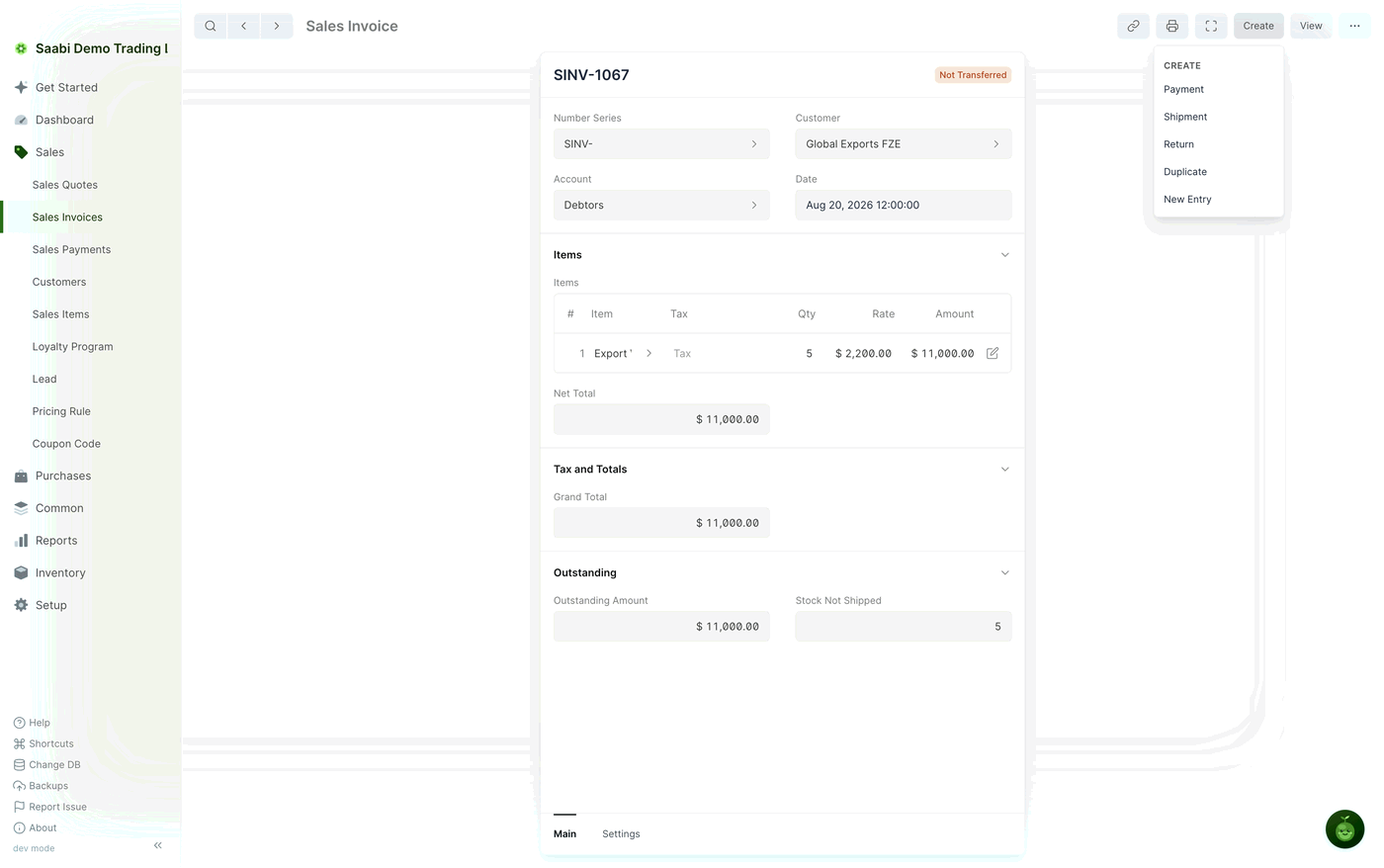
The Create menu also offers Payment, Return, Duplicate and New Entry. Choosing Shipment opens a new Shipment with the customer, the items and the quantities already filled in from the invoice, and keeps a reference back to it, so you can open the invoice later and see every shipment raised against it.
From the list view
- Go to
Inventory > Shipmentand click the + button in the title bar. - Enter the details yourself, as you would for any other entry.
- Click Save, then Submit.
Note
A shipment created this way is an isolated entry. It moves the stock correctly but carries no link to any sales invoice, so the invoice's Stock Not Shipped quantity is unaffected. Use this route for goods that leave without a sales invoice behind them in SAABI.
Stock Not Shipped
A submitted sales invoice whose goods have not yet gone out carries the Not Transferred status badge beside the entry name. The quantity involved is in the Outstanding section of the invoice, in the Stock Not Shipped field, next to Outstanding Amount.
Read the two fields as a pair. Outstanding Amount is what the customer still owes you in USD; Stock Not Shipped is how many units you still owe the customer. In the invoice shown above, SINV-1067 is for five units and all five are still to go out, so Stock Not Shipped reads 5. Each shipment you raise against the invoice brings that figure down, and it reaches zero when the last unit leaves.
Tip
Where an order goes out in more than one despatch, create one Shipment per despatch and enter only the quantity actually leaving. Stock Not Shipped then tells you what is still to follow.
The Shipment form
Both routes lead to the same form. If you came from a sales invoice the rows are filled in for you; otherwise you enter them yourself.
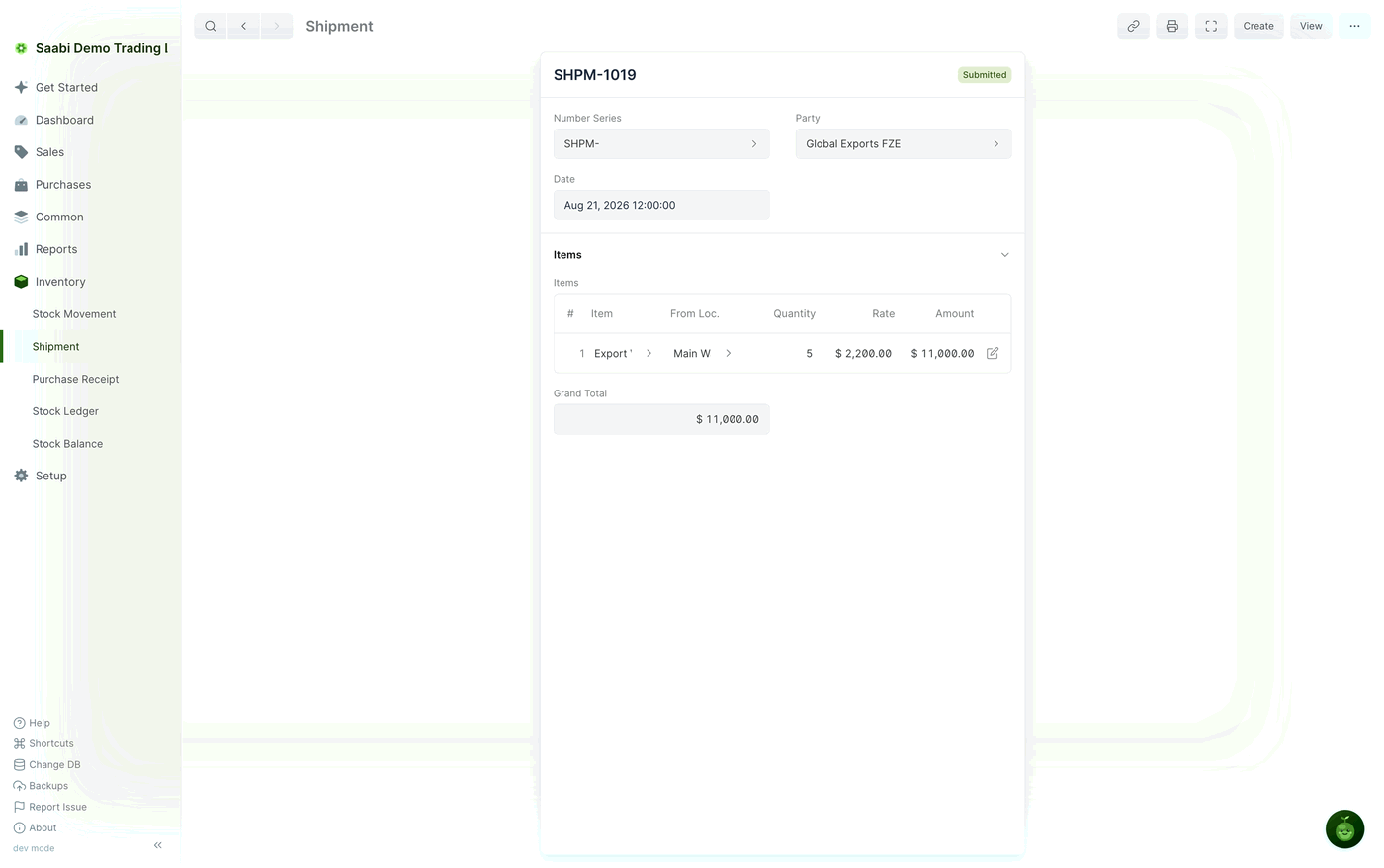
The fields above the grid are:
- Number Series — the prefix for the entry number,
SHPM-in the demo file. - Party — the customer the goods are going to.
- Date — the date the goods left. Backdate it if the despatch was earlier than the entry.
Each row of the Items grid holds:
- Item — the tracked item being shipped.
- From Loc. — the Location the goods leave. SAABI offers the Default Location from Settings, and you can change it row by row when an order is picked from more than one Location.
- Quantity — how many units are going out.
- Rate — the value of one unit, in USD.
- Amount — quantity multiplied by rate, calculated for you.
Grand Total below the grid adds up every row.
Important
A shipment is refused if the From Loc. does not hold enough of an item on the date of the entry. Check the Stock Balance report to find a Location with enough stock, or record the inward movement that was missed before submitting the shipment again.
After you submit
Submitting a Shipment writes lines into the Stock Ledger, reduces the quantity in the Stock Balance for the Locations you shipped from, and charges the value of the goods to the Cost Of Goods Sold Acc. set on the Inventory tab of Settings. To see exactly what was written, open the submitted shipment and pick the ledger you want from the View menu in the toolbar.
If you would rather SAABI raised these shipments for you, set Shipment Location under Auto Stock Transfer on the Defaults tab of Settings (Chapter 38).
Saabi Desktop User Manual 1.0 · covers Desktop 1.0.0 · Something wrong or missing? Tell us