
Chapter 53 · Configuration · 3 min read
Number series
On this page
Every transactional entry in SAABI is named from a number series: a prefix followed by a number that counts up, such as SINV-1067. The series is what lets you quote an invoice on a payment, find it in a list and refer to it in a conversation with a customer. SAABI ships with one series for each type of entry, and you can add your own when you need to keep entries apart — one series per branch, per year, or per line of business.
Where number series are set
Navigate to Setup > Settings and open the Defaults tab. The Number Series block holds one field for each type of entry.
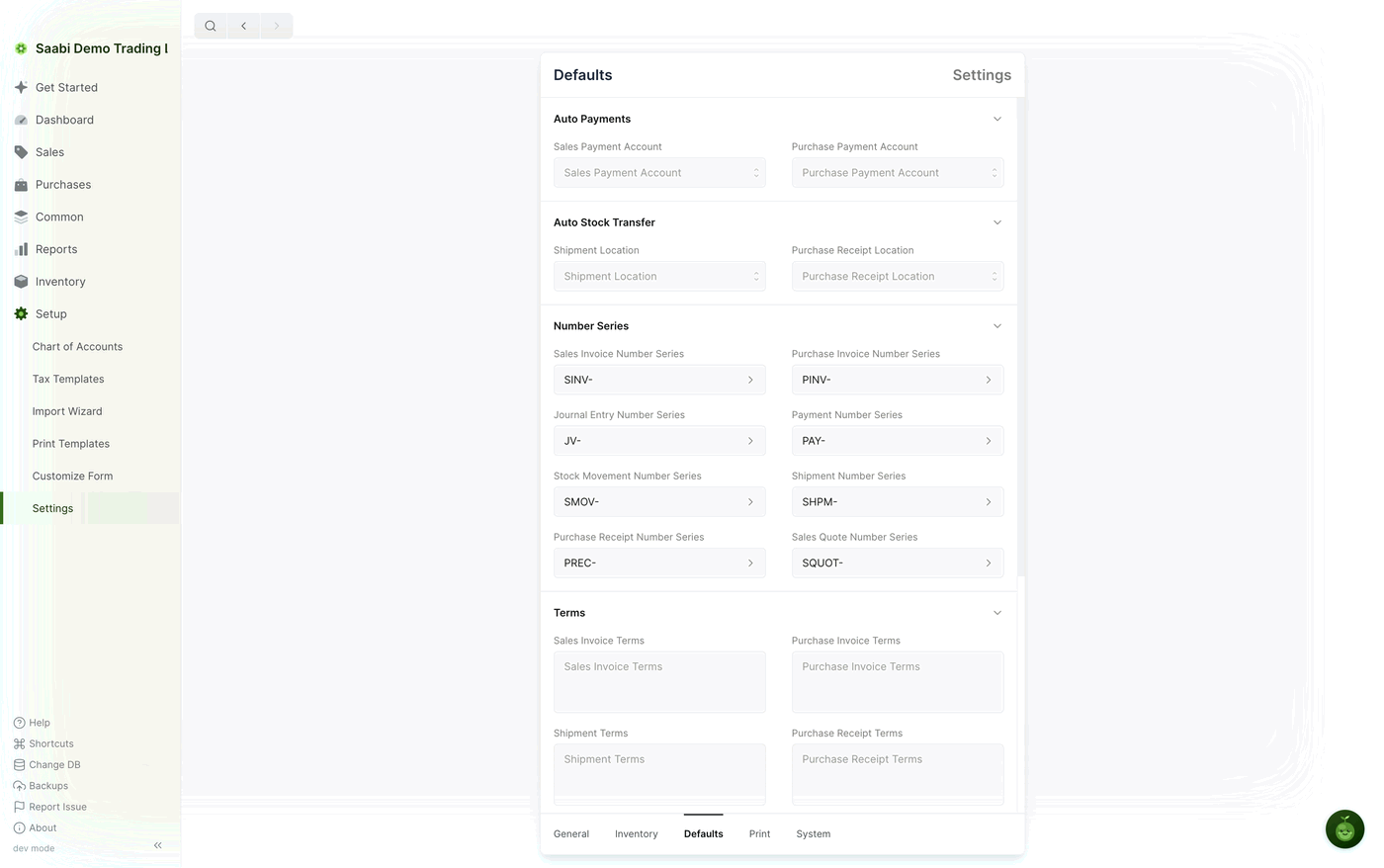
Whatever is set here is filled into the Number Series field when you create a new entry of that type. You can still choose a different series on the entry itself, up until you save it.
The default series
A new company comes with one series for each type of transactional entry:
| Entry type | Field on the Defaults tab | Default prefix |
|---|---|---|
| Sales Invoice | Sales Invoice Number Series | SINV- |
| Purchase Invoice | Purchase Invoice Number Series | PINV- |
| Journal Entry | Journal Entry Number Series | JV- |
| Payment | Payment Number Series | PAY- |
| Stock Movement | Stock Movement Number Series | SMOV- |
| Shipment | Shipment Number Series | SHPM- |
| Purchase Receipt | Purchase Receipt Number Series | PREC- |
| Sales Quote | Sales Quote Number Series | SQUOT- |
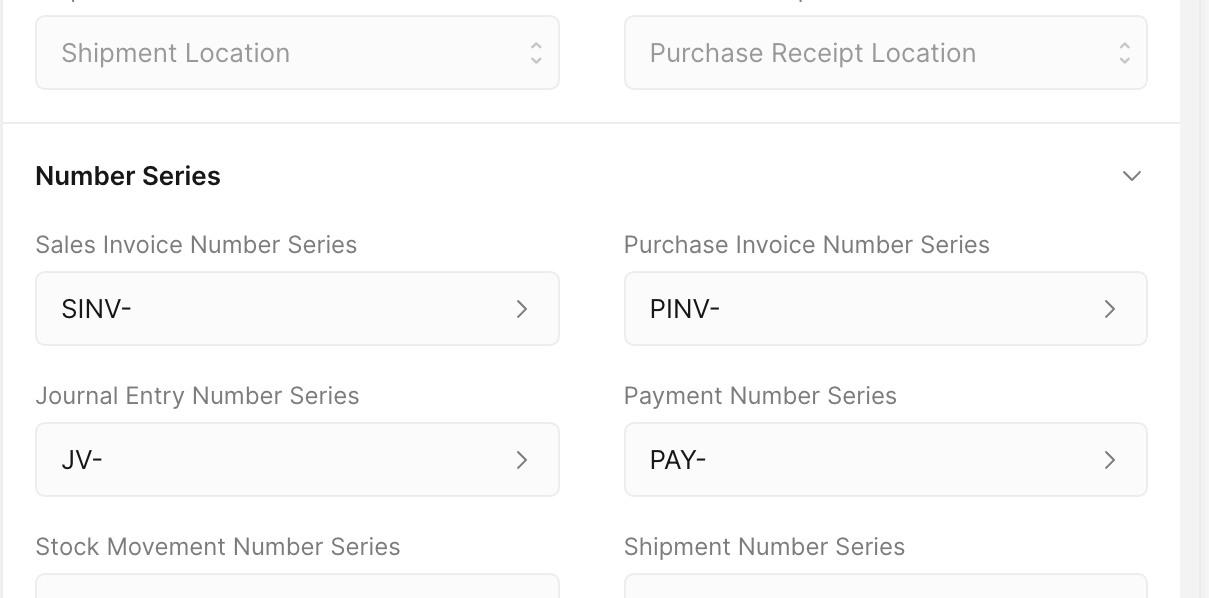
These prefixes are enough for most businesses. Change them only if you have a naming scheme you have to keep to — a numbering pattern carried over from older books, or one your accountant asks for.
Creating a new series
You create a series from the entry that will use it, not from a list of its own.
- Open a new entry of the type you want a series for, for example
Sales > Sales Invoicesand then +. - Click the Number Series field and type the prefix you want, such as
BRANCH-SINV-. - Choose Create BRANCH-SINV- from the list that appears under the field.
- The quick edit panel for the new series opens. Set its fields, then click Save.
The new series is now available on every entry of that type, and you can make it the standard one by selecting it on the Defaults tab.
The fields of a series
- Prefix — the text at the front of every name, for example
SINV-. - Reference Type — the type of entry the series belongs to. A sales invoice series cannot be used on a payment.
- Start — the number given to the first entry named from the series.
- Pad Zeros — how many digits the number part is padded to.
With a prefix of SALES-PAY-, a Start of 0 and Pad Zeros of 3, entries are named SALES-PAY-000, SALES-PAY-001, SALES-PAY-002, and so on.
How a series behaves once it is used
Important
The number series of an entry cannot be changed once you click Save. The name is how payments, returns and reports refer to that entry, so SAABI fixes it at the moment the entry is stored. If you picked the wrong series, cancel the entry and make a new one on the right series.
A few other things to expect:
- The counter only moves forward. Each new entry takes the next number in its series.
- A cancelled entry keeps the name it was given. The number is not handed to the next entry, so gaps in a series are normal and are not a sign that anything is wrong.
- Series are per company. Two companies can both use
SINV-without their invoices colliding, because each company counts inside its own file.
Tip
If you want a new series each year, create it before you raise the first entry of the year — for example SINV-2026- — and set it on the Defaults tab at the same time. Entries already named from the old series keep their names.
Saabi Desktop User Manual 1.0 · covers Desktop 1.0.0 · Something wrong or missing? Tell us