
Chapter 56 · Reference · 2 min read
Appendix A: Keyboard shortcuts
On this page
SAABI can be driven from the keyboard for the things you do most: finding an entry, saving it, printing it and starting the next one. The full list is in the app — click Shortcuts in the sidebar footer — and it is repeated here with the keys for both macOS and Windows or Linux.
Note
The Shortcuts dialog shows the macOS keys. On Windows and Linux, ⌘ is Ctrl, and the key the dialog marks delete is Backspace.
Global
These work anywhere in SAABI.
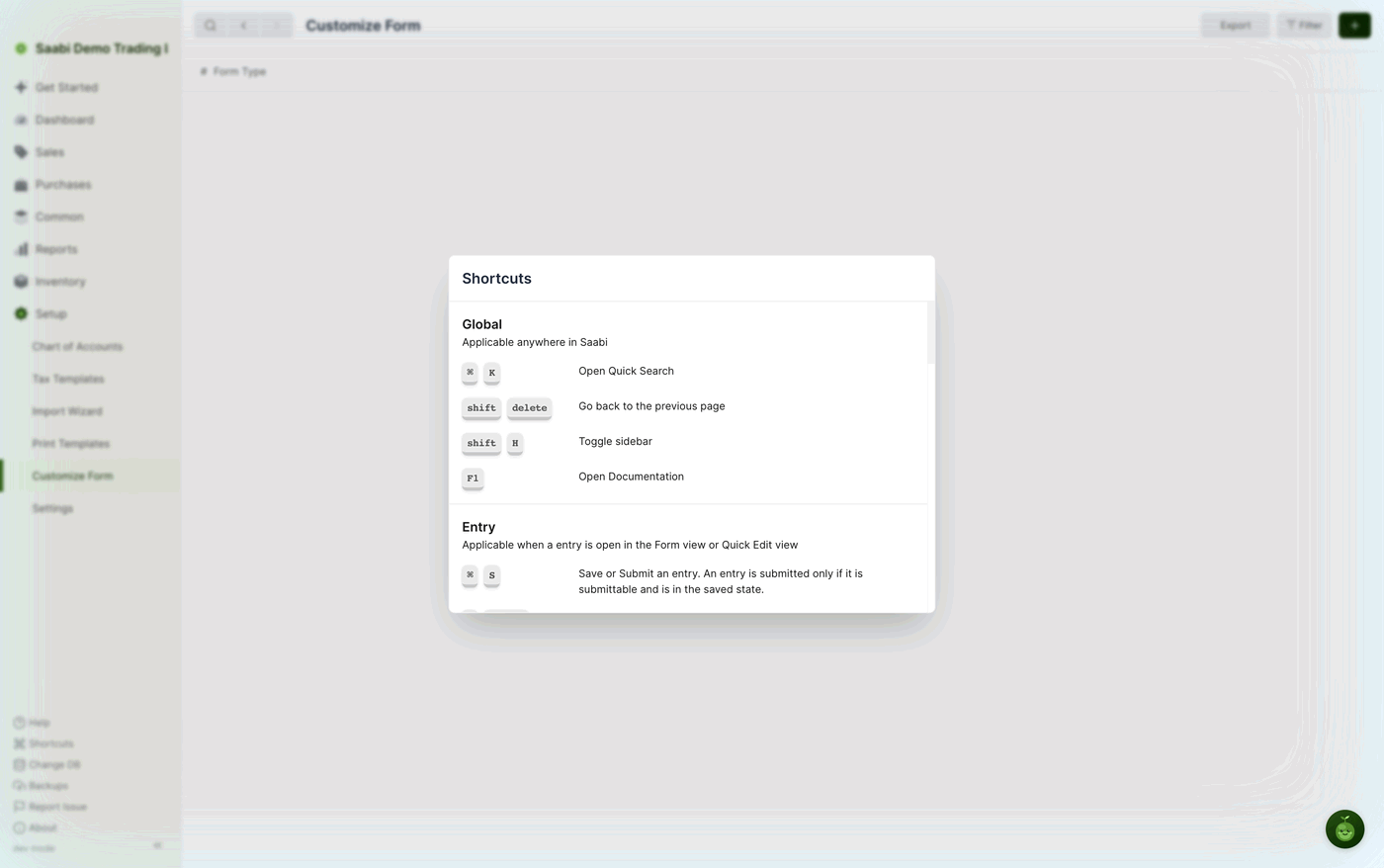
| Action | macOS | Windows / Linux |
|---|---|---|
| Open Quick Search | ⌘ K | Ctrl K |
| Go back to the previous page | Shift Delete | Shift Backspace |
| Toggle sidebar | Shift H | Shift H |
| Open Documentation | F1 | F1 |
Entry
These work when an entry is open, either in the form view or in the quick edit panel.
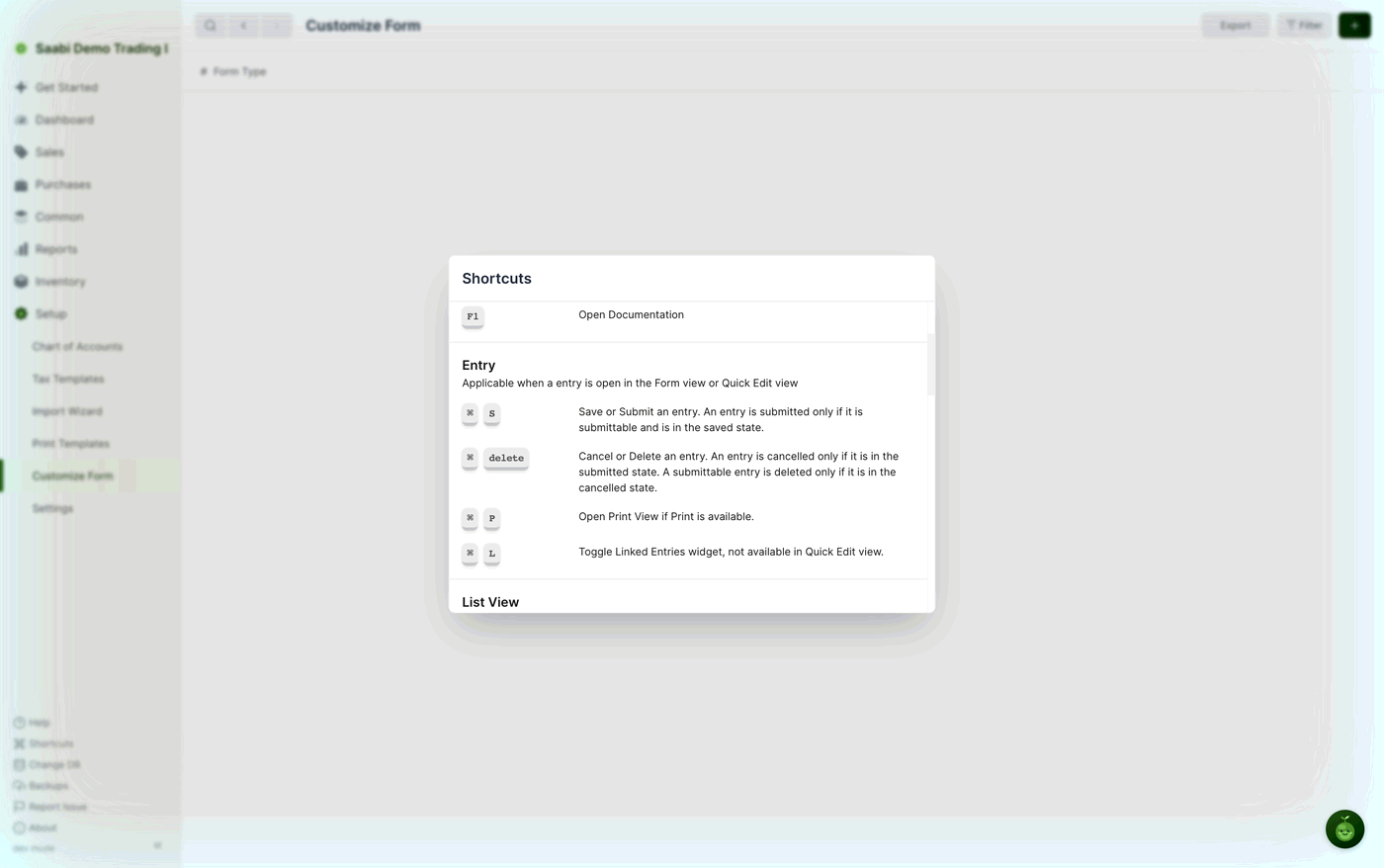
| Action | macOS | Windows / Linux |
|---|---|---|
| Save or Submit an entry | ⌘ S | Ctrl S |
| Cancel or Delete an entry | ⌘ Delete | Ctrl Backspace |
| Open Print View | ⌘ P | Ctrl P |
| Toggle Linked Entries | ⌘ L | Ctrl L |
The two shortcuts that change an entry's state follow the same rules as the buttons:
- Save or Submit saves a new or edited entry. It submits the entry only if that entry type can be submitted and it is already in the saved state — so the same keystroke saves first, then submits.
- Cancel or Delete cancels an entry only if it is in the submitted state. A submittable entry is deleted only once it has been cancelled.
- Open Print View works where printing is available for that entry type.
- Toggle Linked Entries opens and closes the linked entries panel. It is not available in the quick edit panel.
List view
These work when the list view of an entry type is open.
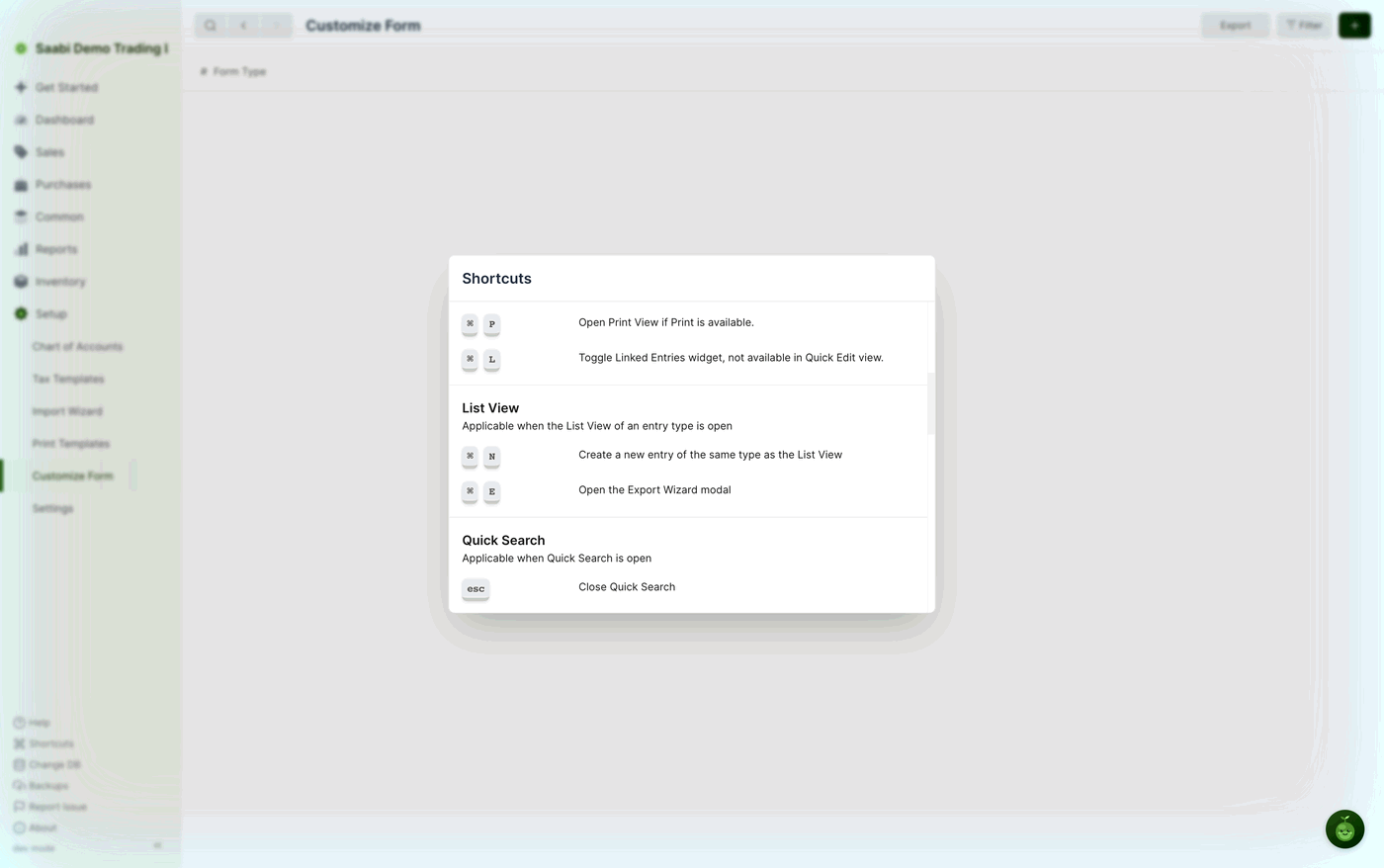
| Action | macOS | Windows / Linux |
|---|---|---|
| Create a new entry of the same type as the list | ⌘ N | Ctrl N |
| Open the Export Wizard | ⌘ E | Ctrl E |
Quick Search
This works while Quick Search is open.
| Action | macOS | Windows / Linux |
|---|---|---|
| Close Quick Search | Esc | Esc |
Tip
Reloading SAABI — ⌘ R on macOS, Ctrl R on Windows and Linux — is not in the dialog but works anywhere in the app. Several settings changes ask you to reload before they show up.
Saabi Desktop User Manual 1.0 · covers Desktop 1.0.0 · Something wrong or missing? Tell us