
Chapter 55 · Configuration · 2 min read
Customising forms
On this page
SAABI's forms carry every field the app can use, which is more than most businesses need. Customize Form lets you tailor a form to the way you work: hide the fields you never fill in, and make the ones that matter mandatory so an entry cannot be saved without them. Use it once your bookkeeping has settled into a routine and you know which fields you use — a shorter form is quicker to fill in and harder to get wrong.
Enabling Form Customization
Form customisation is off until you switch it on.
- Navigate to
Setup > Settingsand stay on the General tab. - Scroll to Features and tick Enable Form Customization.
- Click Save.
- SAABI asks Reload Saabi?. Click Yes.
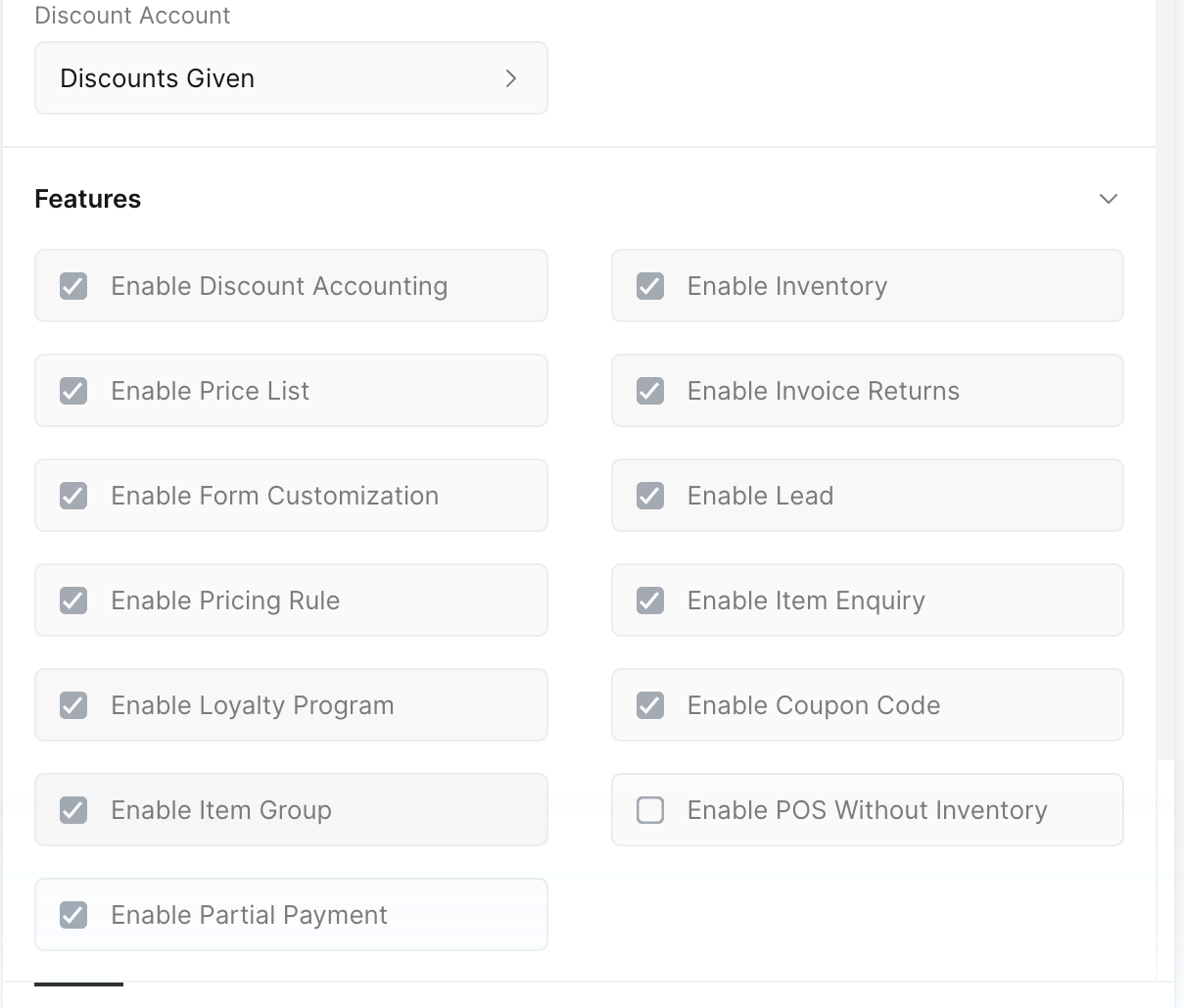
After the reload, Customize Form appears under Setup in the sidebar. If you skipped the reload prompt, reload the app with ⌘ R on macOS or Ctrl R on Windows and Linux.
Note
Turning Enable Form Customization off again hides Customize Form from the sidebar and the Quick Search. It does not undo the customisations you have already made — those stay in force until you delete the records that hold them.
Creating a Customize Form record
Each form type is customised through one record of its own.
- Navigate to
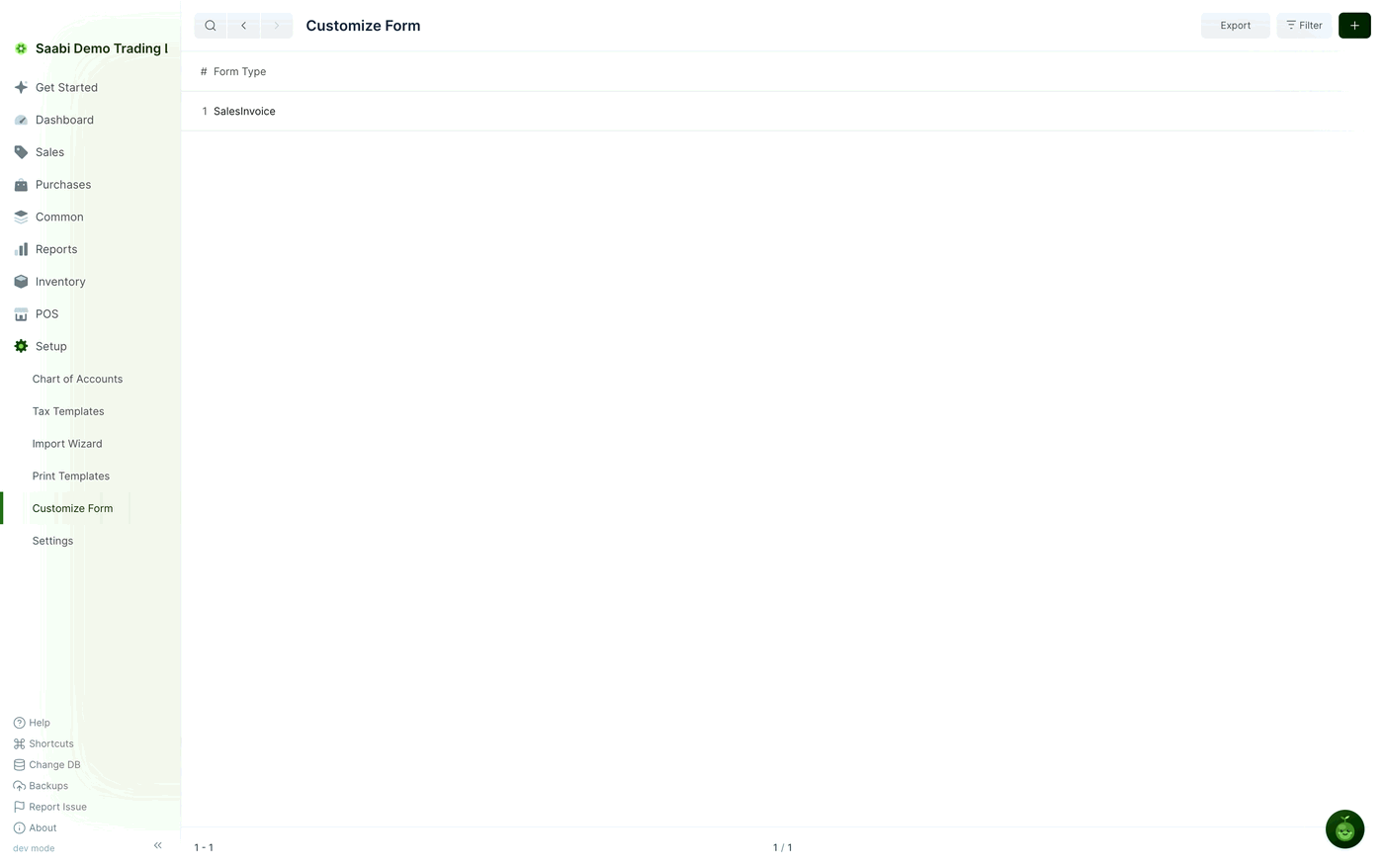
Setup > Customize Form. - The list is empty in a new company. Click Make Entry, or + at the top right.
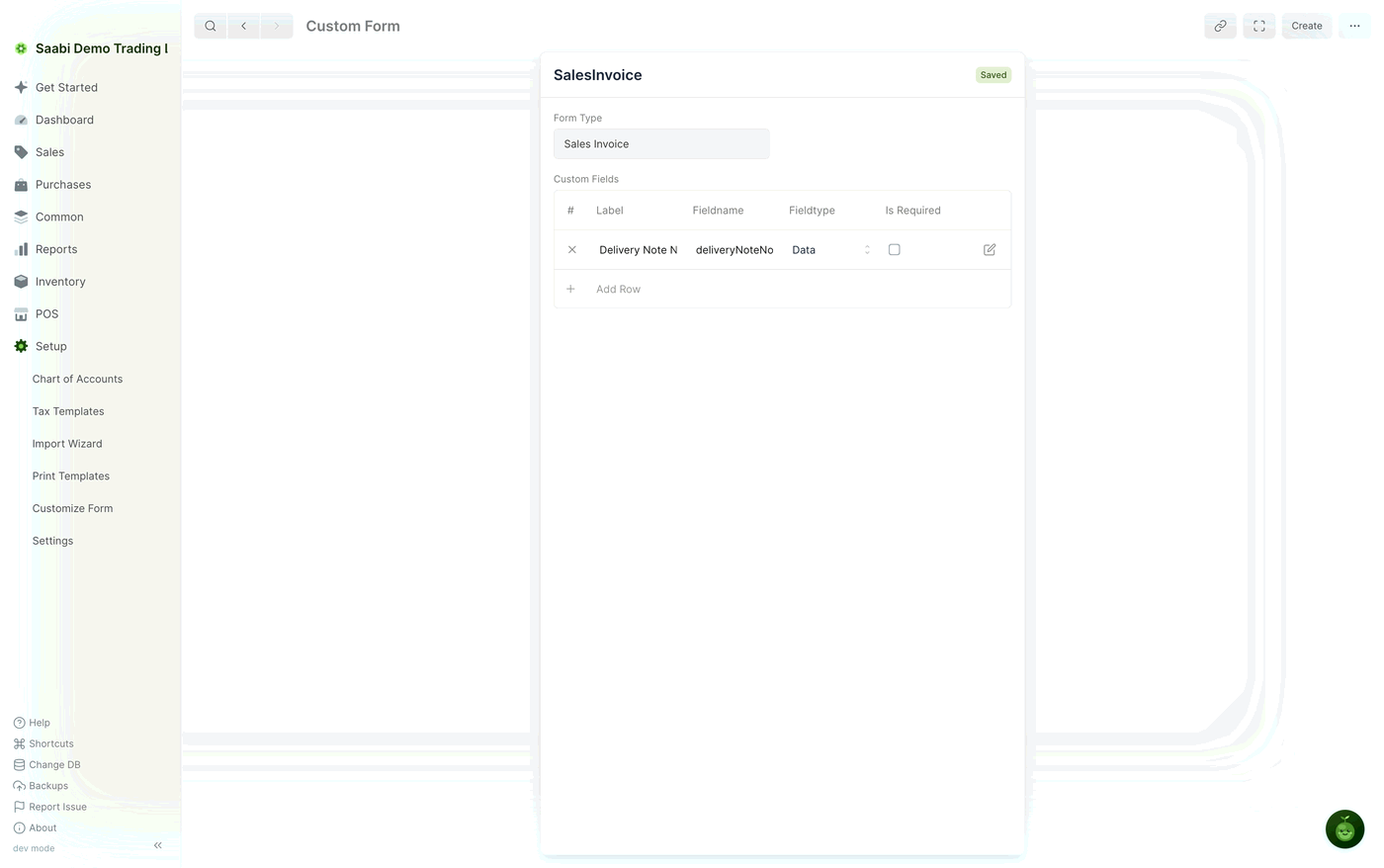
- Choose the Form Type you want to customise — Sales Invoice, Item, Party, and so on.
- Make your changes, then click Save.
Note
A form type can have only one Customize Form record. When you come back to change something, open the existing record rather than creating a second one.
Hiding fields and making fields mandatory
A Customize Form record holds two kinds of change: how the form's existing fields behave, and any extra fields you want that form type to carry. For each field you can:
- Hide it, so it no longer appears on the form or in the quick edit panel. Hiding a field does not remove anything SAABI needs — hidden fields keep whatever value they had.
- Make it mandatory, so the entry cannot be saved until the field has a value. This is the way to enforce a rule of your own, such as every customer needing a tax registration number, or every item row needing a description.
Click Save when you are done.
Important
Reload SAABI after saving a Customize Form record. Forms are built when the app starts, so a field you hid or made mandatory only changes on screen after a reload.
Removing customisations
To put a form type back to how it started, open its Customize Form record and delete it, then reload SAABI.
Important
Deleting a Customize Form record also deletes any data that was held only in the extra fields that record defined. Fields that were merely hidden or made mandatory are unaffected — they return to their normal behaviour with their values intact.
Saabi Desktop User Manual 1.0 · covers Desktop 1.0.0 · Something wrong or missing? Tell us