
Chapter 11 · Sales · 3 min read
Sales Quotes
On this page
A sales quote is a priced offer you send to a customer before the sale is agreed. It lists the items, the quantities, the rates and the tax, and gives the customer a figure to accept or decline. A quote does not touch your accounts: no income is booked and no receivable is created while the offer is open. When the customer accepts, you carry the quote forward into a sales invoice, and the sale is recorded at that point.
The Sales Quotes list
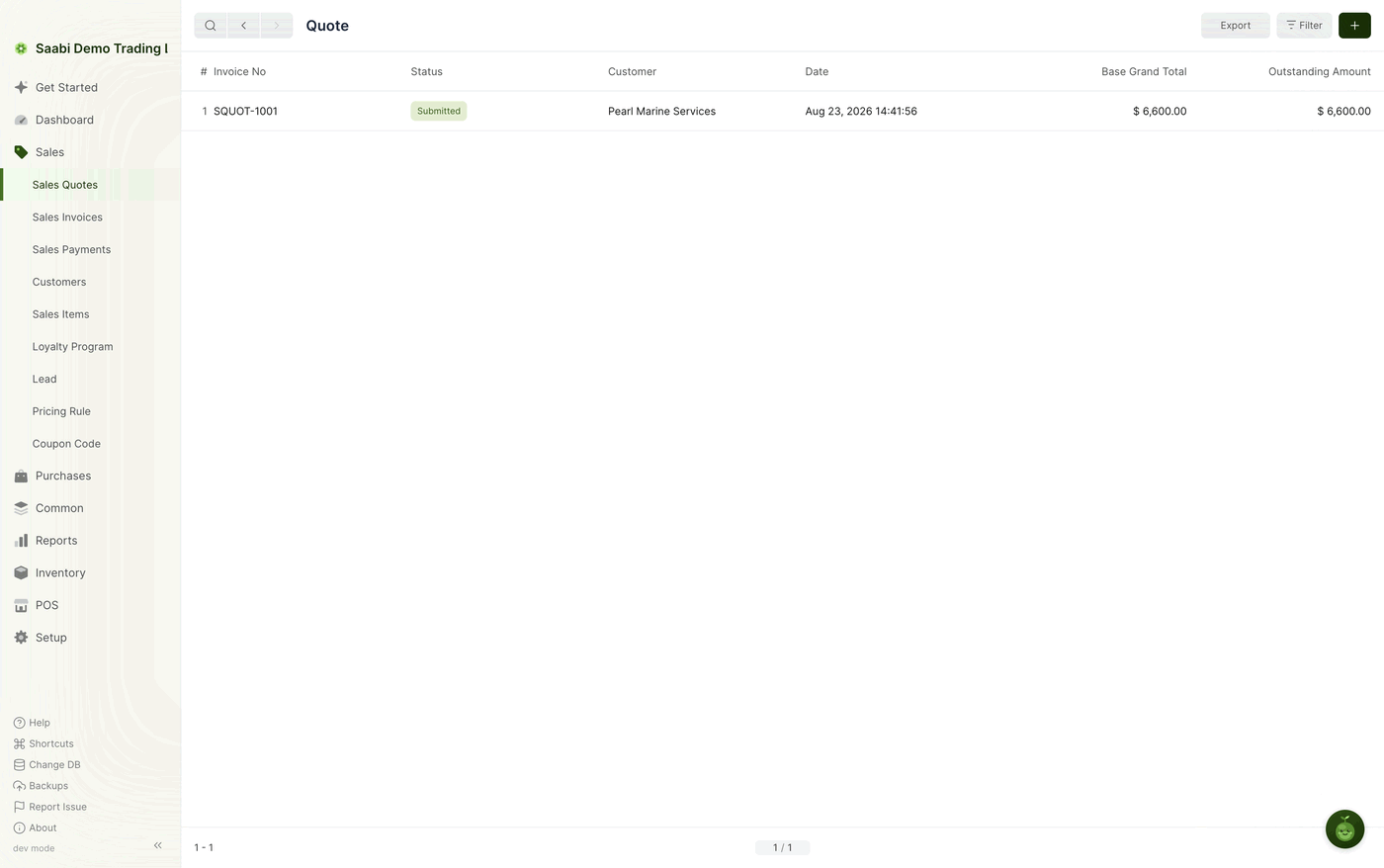
Quotes live at Sales > Sales Quotes. Each row shows the quote number, its status, the customer, the date, the grand total and the outstanding amount. Export takes the list out of SAABI, Filter narrows it to the rows you want, and the + button at the top right starts a new quote. On a company file with no quotes yet, the list shows No entries found and a Make Entry button, which does the same as +.
Creating a quote
- Go to
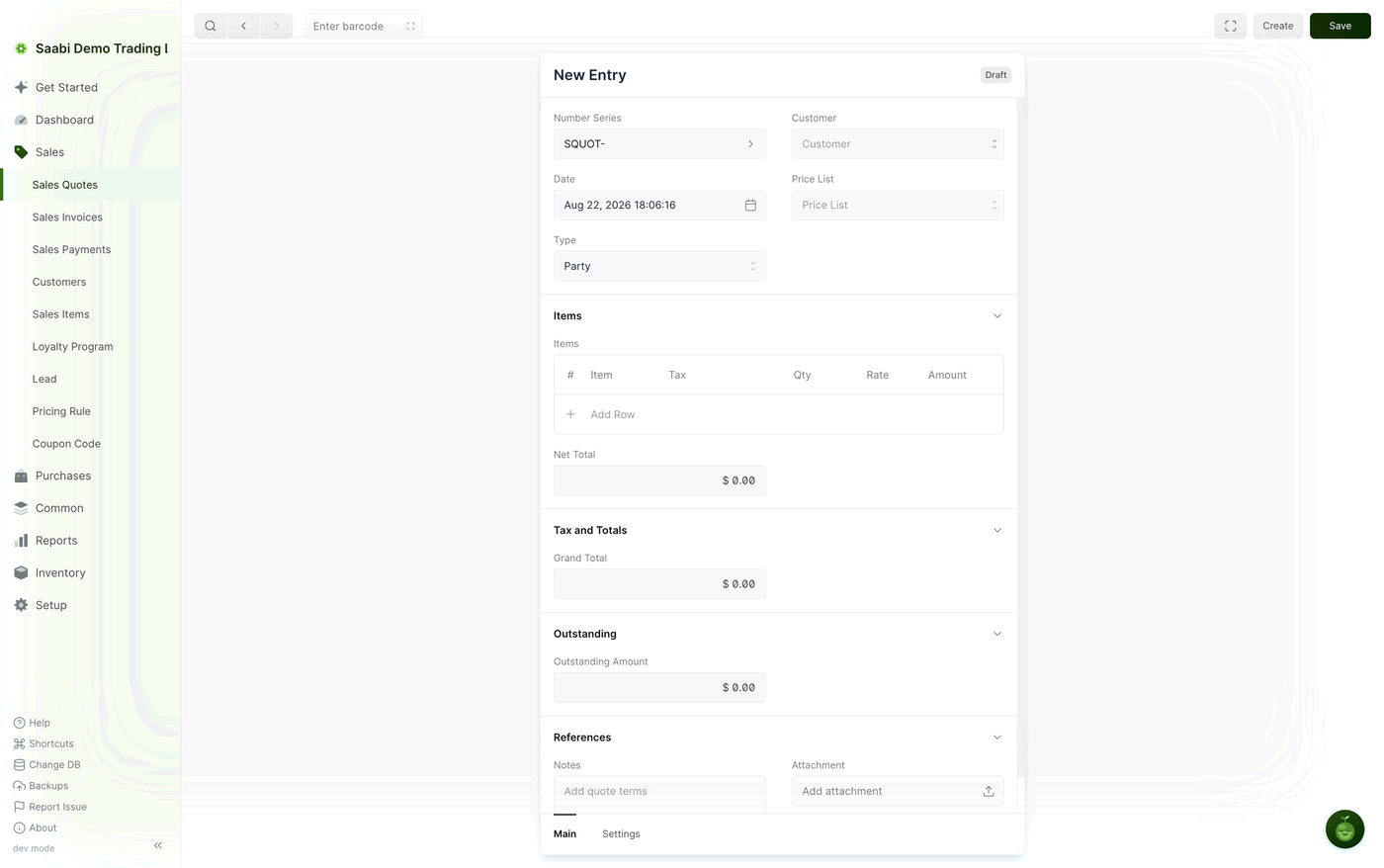
Sales > Sales Quotesand click +. A blank quote opens with a Draft badge. - Leave Number Series on
SQUOT-unless you keep more than one series for quotes. - Click Customer and start typing the customer's name. The field completes as you type; if the customer is not on your books yet, the list offers Create with the text you typed, so you can add them without leaving the form.
- Check the Date. SAABI fills in the current date and time, which you can change.
- In the Items section, click Add Row, choose the item, and set Qty. The rate and the item's default tax are fetched from the item record, and you can change either on the row.
- Add more rows if the offer covers several items.
- Click Save, then click Yes in the confirmation dialog.
What is on the quote form
The quote uses the same form shape as a sales invoice, so anything you have learned about invoices applies here.
- Number Series — the prefix the quote number is drawn from,
SQUOT-by default. - Customer — the party the offer is addressed to.
- Date — the date on the offer.
- Price List — an optional price list to draw rates from instead of the item's own rate.
- Type — set to
Partyby default; it determines the kind of record the quote is addressed to. - Items — the grid of what is being offered: Item, Tax, Qty, Rate and Amount, with Add Row at the bottom and a row edit button on each line.
- Net Total — the total of the item amounts before tax.
- Tax and Totals — the taxes the item rows attract, and the Grand Total the customer is being asked to pay.
- References — free-text Notes for your quote terms, and an Attachment slot.
Turning a quote into an invoice
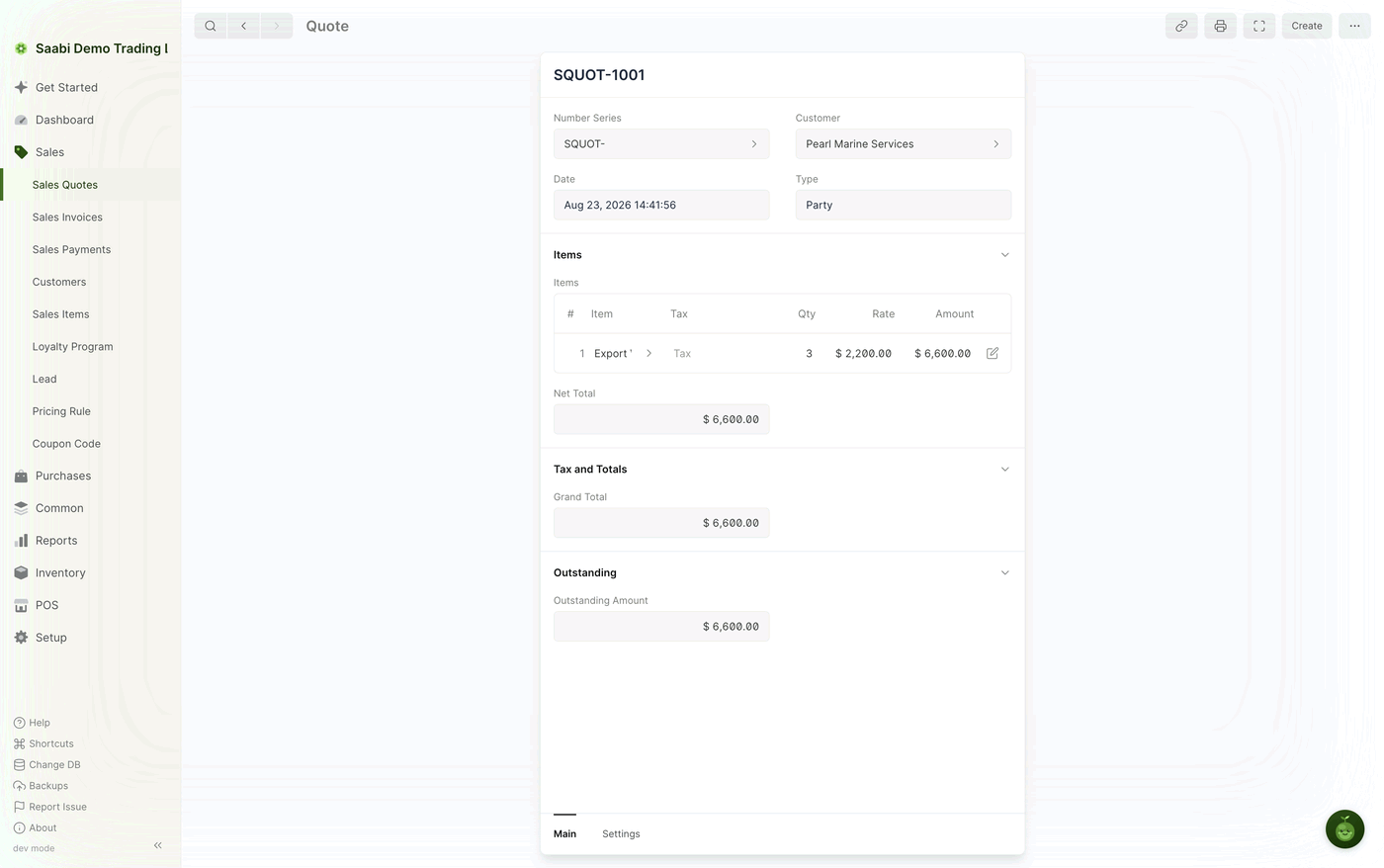
When the customer accepts, open the saved quote and use Create in the toolbar to raise a sales invoice from it. The customer and the item rows carry across, so you review the figures, save and submit the invoice in the usual way. The invoice is the entry that books the income and creates the receivable — see Chapter 12 for the full life cycle.
Note
A quote that is never accepted needs no further handling. Leave it in the list as a record of what was offered, or filter it out of view.
Tip
If the customer is not yet a customer at all, record them under Sales > Lead first (Chapter 16). A lead can be turned into a quote and later into a customer, which keeps the trail from first contact to first invoice in one place.
Saabi Desktop User Manual 1.0 · covers Desktop 1.0.0 · Something wrong or missing? Tell us