
Chapter 4 · Getting started · 5 min read
The Chart of Accounts
On this page
The Chart of Accounts is the structure your books are built on: every account SAABI can post to, arranged as a tree. Every invoice, payment and journal entry ends up in one of these accounts, and every report is assembled from them. SAABI builds the whole tree when you set up the company, from the country you chose, so most of the time you are reading it rather than editing it. This chapter covers how to read it, and how to add to it.
Open it from the sidebar: Setup > Chart of Accounts.
Ledger accounts and groups
There are two kinds of account in the tree, and the difference governs what you can do with each.
- A ledger account is an account you post to. It appears in the General Ledger, it can be selected on an invoice or a journal entry, and it carries a balance of its own. In the tree it is marked with a small circle.
- A group account is a container. It holds other groups and ledger accounts and exists to organise them. You cannot post to a group. In the tree it is marked with a folder.
The practical rule: if you want to record transactions against something, it has to be a ledger account; a heading that gathers several accounts in your reports is a group.
The root groups
The tree opens collapsed, showing only the root groups — the top-level containers everything else sits beneath.
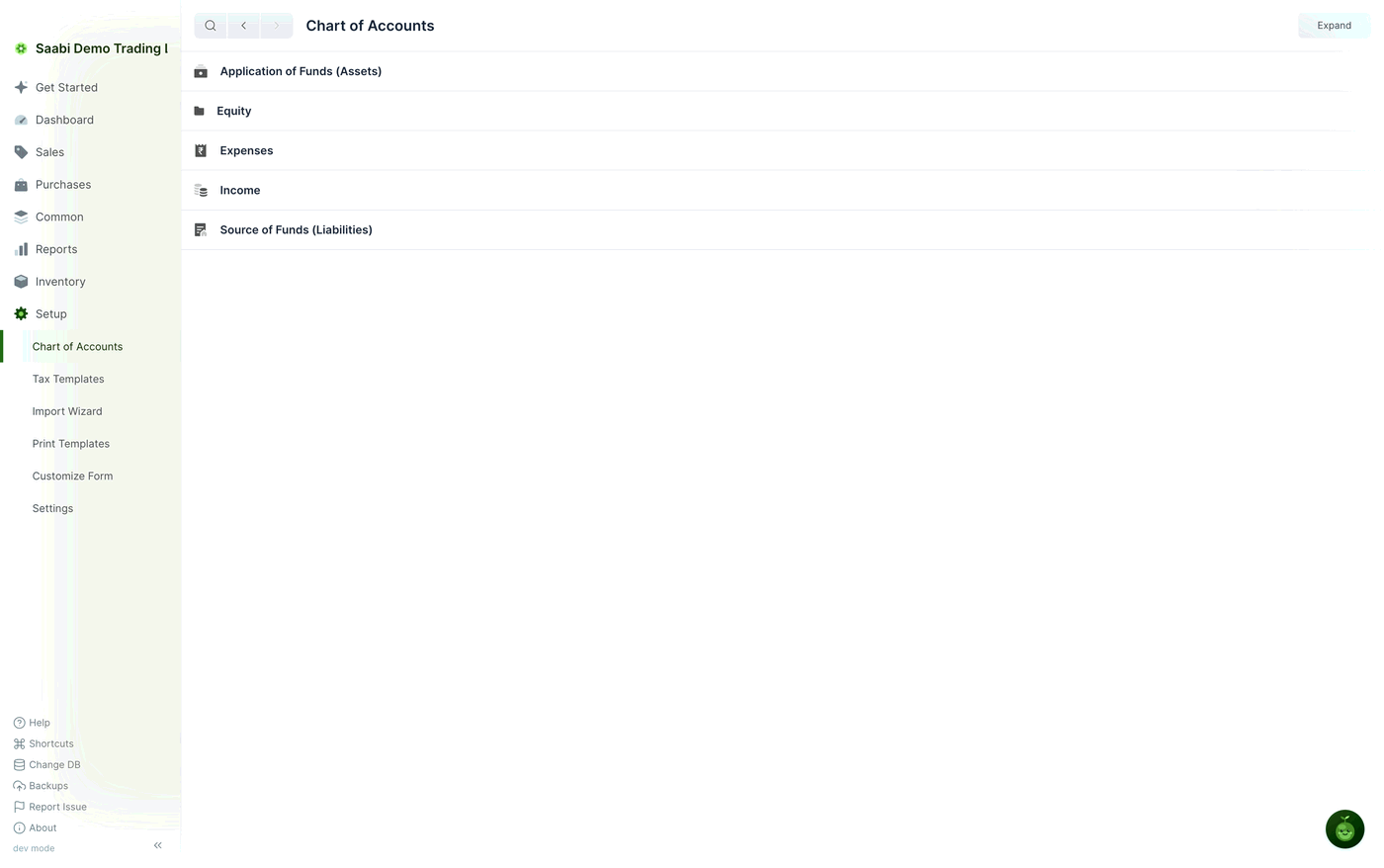
A chart of accounts built from the Standard Chart of Accounts has five root groups.
- Application of Funds (Assets) — what the business owns: bank accounts, cash, money owed to you by customers, stock and fixed assets.
- Equity — the owners' stake in the business.
- Expenses — what the business spends.
- Income — what the business earns.
- Source of Funds (Liabilities) — what the business owes: suppliers, taxes, loans.
Note
The number of root groups depends on your country's chart of accounts — some have four rather than five, and the names may differ. The principle is the same: the roots divide the books into assets, claims against them, and the income and expenses that move them.
Each root group is either a debit or a credit account, and every account beneath it inherits that side. A balance under Expenses therefore behaves the way an expense should, at whatever depth.
Expanding and collapsing
The control at the top right opens and closes the whole tree at once. It reads Expand while the tree is collapsed; click it and the structure unfolds and the control becomes Collapse.
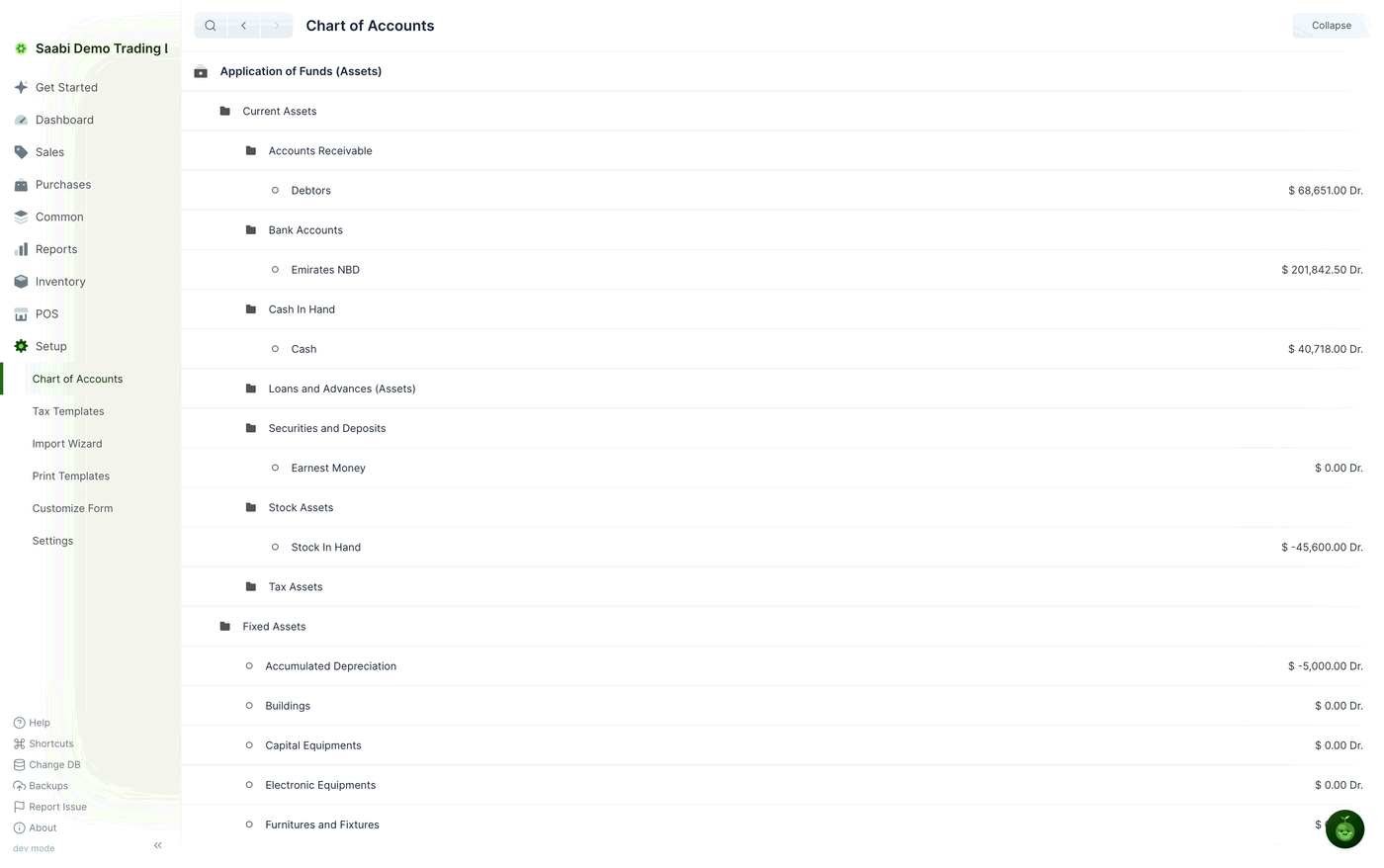
To open one branch rather than all of them, click the group row itself. Clicking a group toggles only that group, which is the better way to work once the tree is large.
Clicking a ledger account opens its quick edit form, where you can see and change the account's details.
Reading balances
Balances appear at the right-hand end of each ledger account row, formatted in your company currency and followed by Dr. or Cr. — debit or credit.
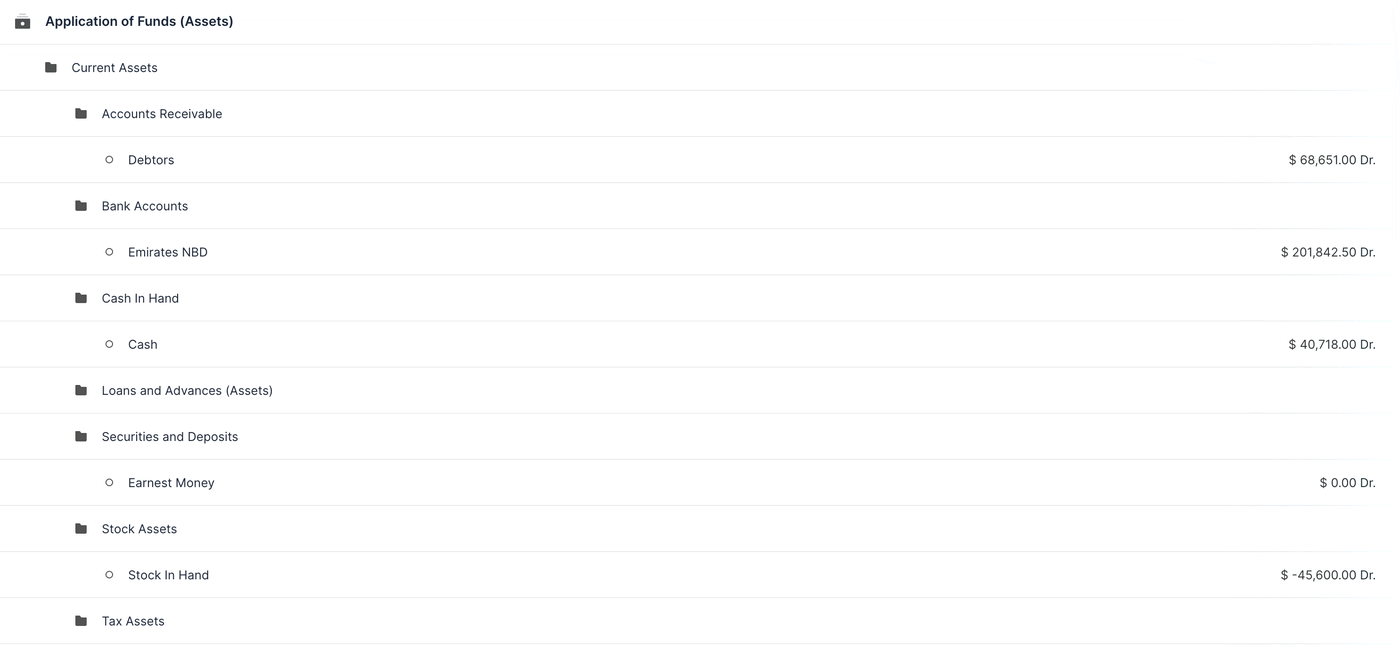
Reading a balance takes a moment of care.
- The figure is the account's balance as it stands now, not a movement over a period.
- A negative amount means the balance has landed on the opposite side to the one the account normally sits on — a negative debit balance on a stock account means stock has been issued that was never received.
- Group rows do not carry a balance of their own. To see a group's total, use the Trial Balance or Balance Sheet report under
Reports.
Tip
The Chart of Accounts tells you what an account holds, not how it got there. To see the entries behind a balance, open Reports > General Ledger and filter on the account.
Adding an account or a group
You add accounts by hovering the group that should contain them, which reveals three actions to the right of its name.
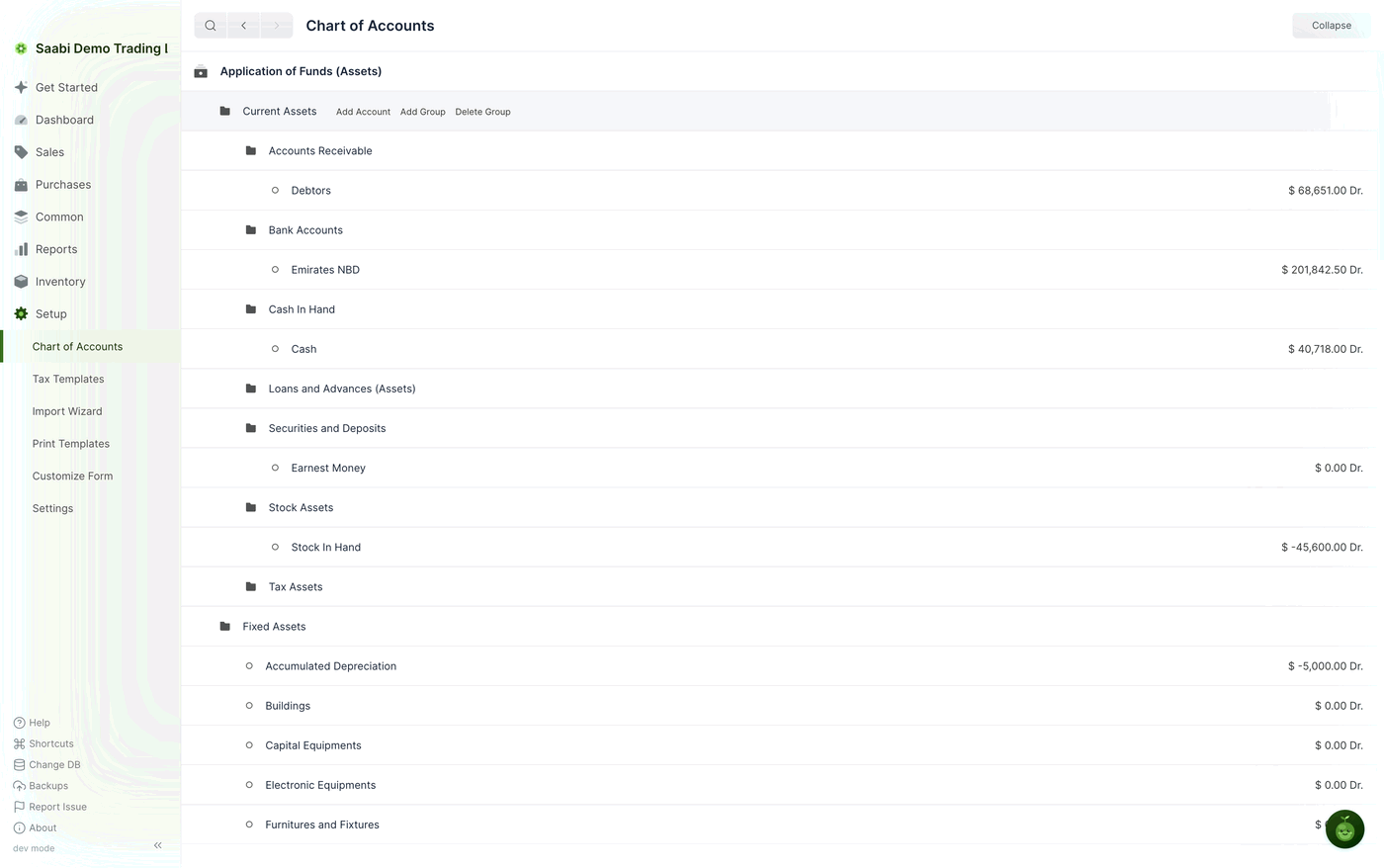

- Add Account creates a ledger account inside this group — something you will post to.
- Add Group creates another group inside this group — a container for further accounts.
- Delete Group removes the group.
Decide which one you want before you click. An account created as a ledger cannot later become a group, or the reverse.
To add a bank account, for example:
- Open
Setup > Chart of Accounts. - Expand
Application of Funds (Assets) > Current Assets > Bank Accounts. - Hover the Bank Accounts row and click Add Account.
- Type the name of the account in the new row, for example
Second Business Account. - Click Save.
A new row appears inside the group with the placeholder New Account, the cursor already in it, and Save and Cancel beside it.
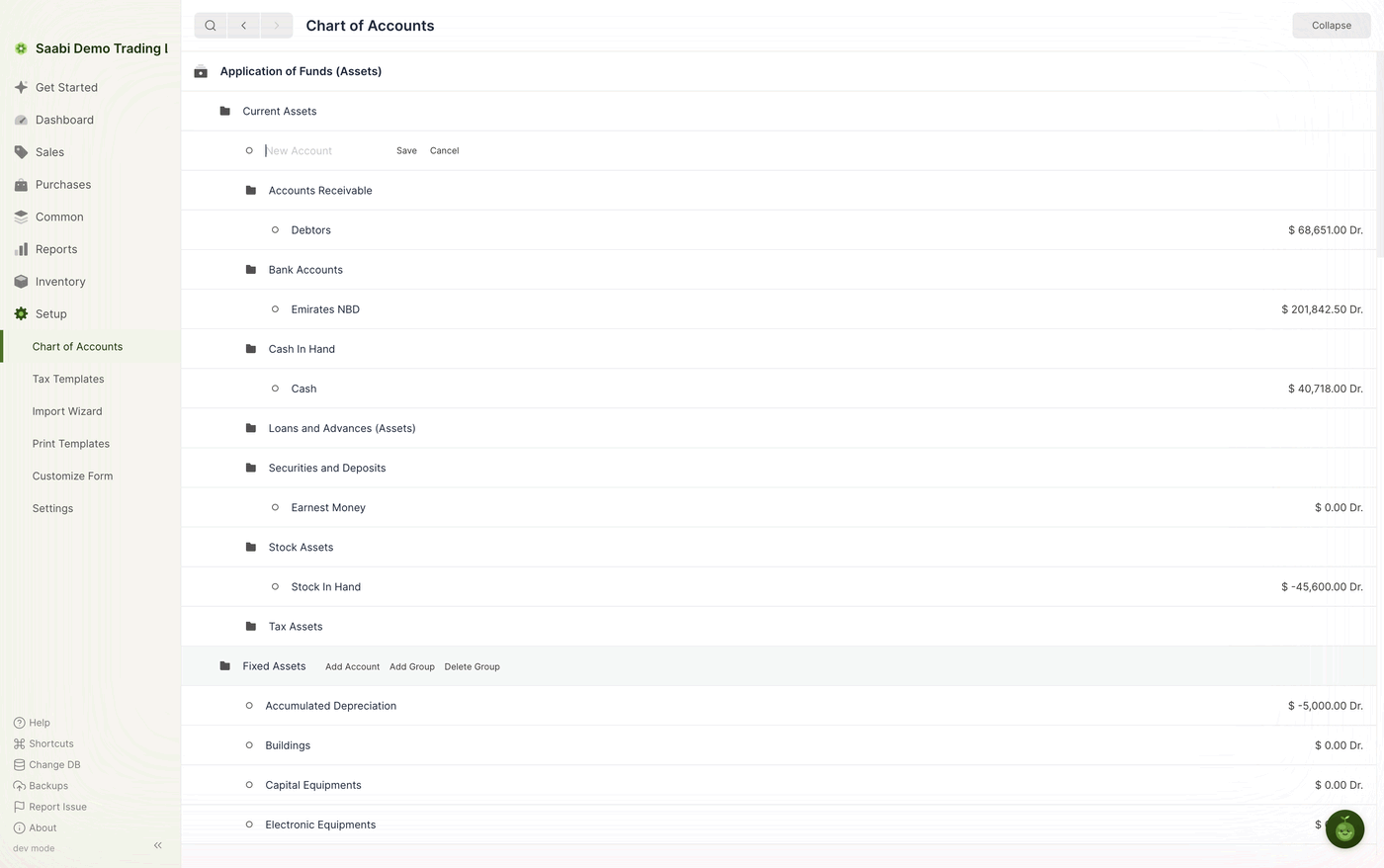

Click Save to create the account, or Cancel to abandon the row. It appears in the tree at once and becomes selectable on invoices, payments and journal entries.
Creating a group works the same way: click Add Group, name it, and save. You can then hover the new group and add accounts inside it.
Important
Put new accounts under the correct parent. The parent decides how the account is classified in every report — an expense account created under Income will distort your Profit and Loss.
Deleting a group
Delete Group removes a group from the tree. SAABI will not let you delete a group that still has accounts inside it, or one that transactions depend on.
Note
Accounts created by your country's chart of accounts are part of a standard structure. Before deleting one, consider whether a later report expects it to exist. An unused group costs nothing, and adding accounts is nearly always safer than removing them.
When to add accounts
Add an account when you need to see something separately in your reports. Open a second bank ledger account when you open a second bank account; if you want vehicle running costs tracked apart from general overheads, that is an account rather than a note on a journal entry.
Resist the urge to build the whole structure in advance. The chart that comes with your country is usually enough to begin with, and you can add to it at any time.
Saabi Desktop User Manual 1.0 · covers Desktop 1.0.0 · Something wrong or missing? Tell us