
Chapter 24 · Purchases · 3 min read
Purchase Items
On this page
A purchase item is anything you buy and put on a purchase invoice — stock you resell, materials you consume, or a service such as freight or a warehouse lease. The item record holds the rate, the unit, the expense account and the tax that SAABI should use each time you buy it, so a purchase invoice line needs only the item and a quantity. Purchase items are the same kind of record as sales items; what separates them is a single field.
The purchase item list
Go to Purchases > Purchase Items. The list shows every item that can be bought.
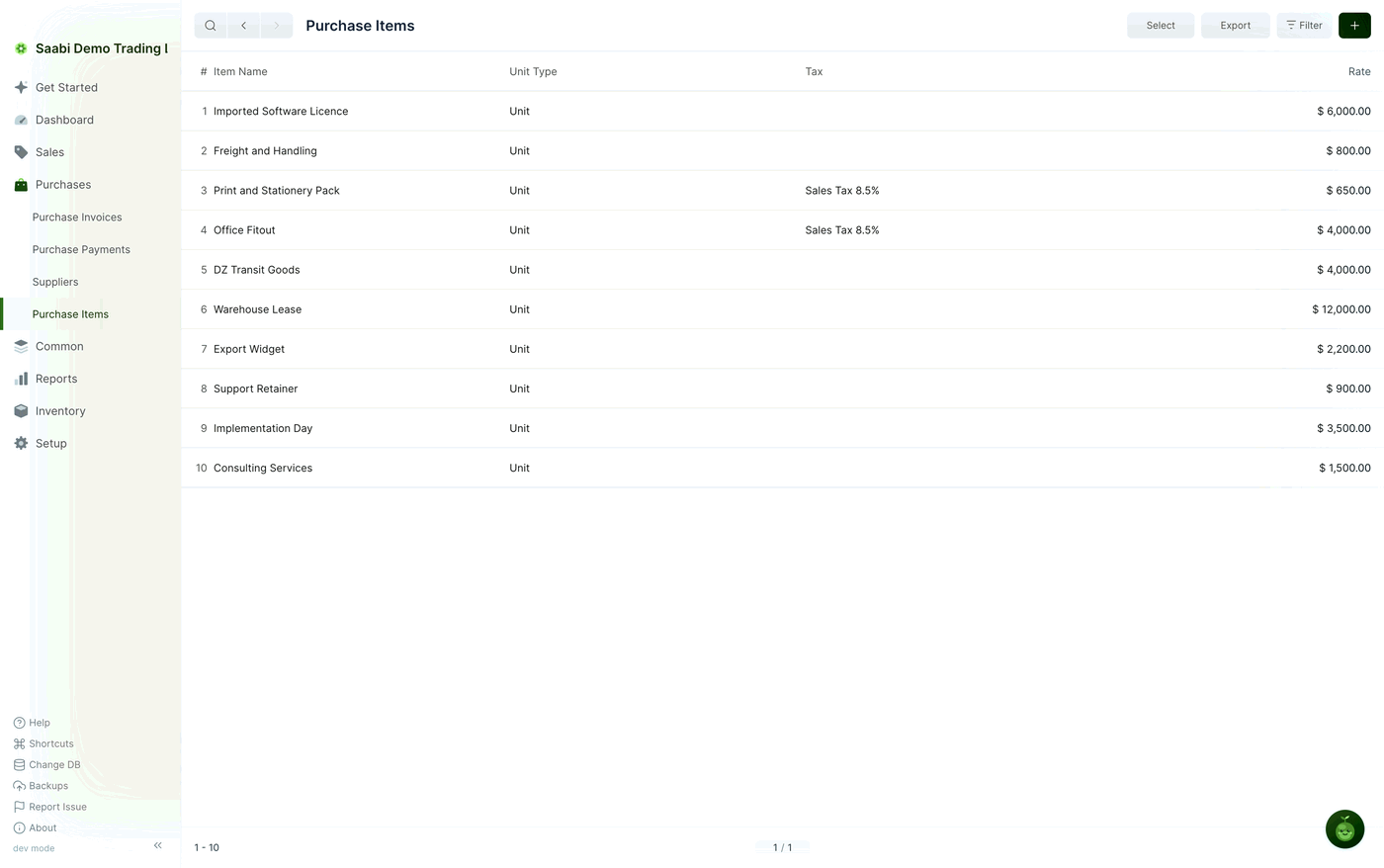
The columns are:
- Item Name — the name the item is known by.
- Unit Type — the base unit the rate applies to, for example
Unit. - Tax — the tax template attached to the item, if any. An item with no template leaves the cell blank and the tax is set on the invoice row instead.
- Rate — the default rate, which can still be changed on any invoice line.
The toolbar carries Select, Export, Filter and the + button for a new item.
Purpose decides which list an item appears in
An item is not fixed to one side of the business by where you created it. Every item record carries a Purpose field with three values, and that field alone decides which lists the item shows up in:
Sales— the item appears inSales > Sales Itemsand can be selected on sales invoices.Purchases— the item appears inPurchases > Purchase Itemsand can be selected on purchase invoices.Both— the item appears in both lists and can be bought and sold.
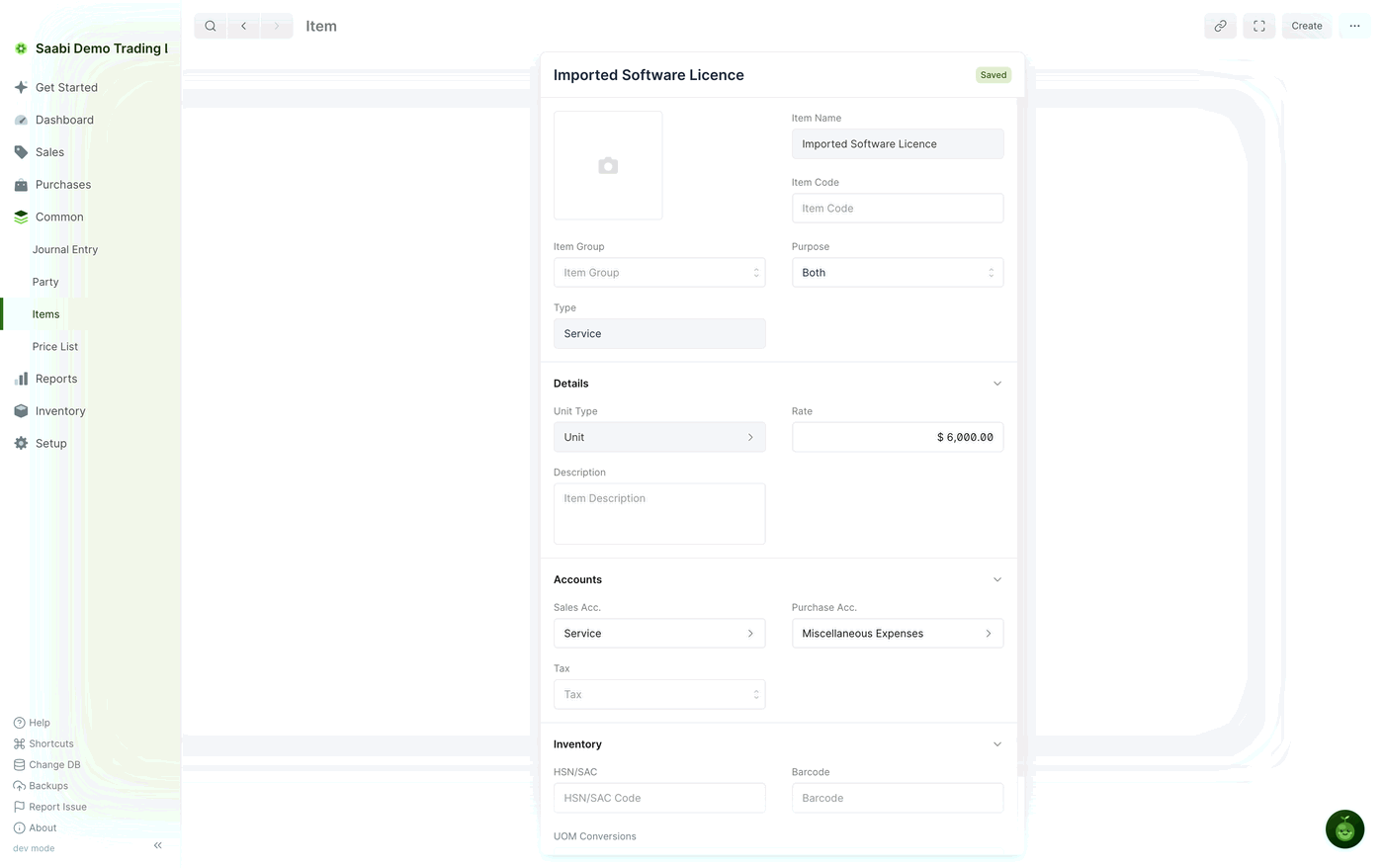
Whatever the purpose, every item is also listed under Common > Items, which is the place to go when you are not sure which side of the business an item belongs to.
Tip
Set Purpose to Both for anything you resell. An item bought at one rate and sold at another needs one record, not two — the item carries a Purchase Acc. and a Sales Acc. side by side.
Adding a purchase item
- On the Purchase Items list, click +.
- Enter the Item Name. Add an Item Code if you track items by code.
- Set Purpose to
Purchases, or toBothif you also sell the item. - Set Type to
Productfor something physical orServicefor work and time. - In the Details section, set the Unit Type and the Rate you usually pay. Add a Description if it should appear on documents.
- In the Accounts section, set Purchase Acc. to the expense or asset account this purchase should be debited to, and attach a Tax template if the item is always taxed at the same rate.
- Click Save.
The item is ready to use straight away. On the next purchase invoice, selecting it fills the row's rate and tax, leaving you the quantity to enter.
What the purchase fields do
- Purchase Acc. — the account debited when the item is bought. This is what decides where the cost lands in your Profit and Loss or Balance Sheet.
- Rate — the default cost. It is a starting point, not a rule: change it on the invoice row whenever a supplier charges something else.
- Tax — the tax template pulled into the invoice row's Tax cell. You can override it per row.
- Unit Type — the unit the rate is quoted in. Use UOM Conversions on the item when you buy in one unit and stock in another.
The full item record, including its inventory and unit-conversion settings, is covered in Chapter 27.
Saabi Desktop User Manual 1.0 · covers Desktop 1.0.0 · Something wrong or missing? Tell us