
Chapter 57 · Reference · 3 min read
Appendix B: Statuses and badges
Every entry in SAABI carries a status, shown as a coloured badge in the list view and next to the entry's name at the top of the form. The badge tells you two things at once: how far the entry has got through the submit and cancel cycle, and — for invoices — how much of it has been paid. This appendix explains the model behind the badges and lists every status you will see.
Where statuses appear
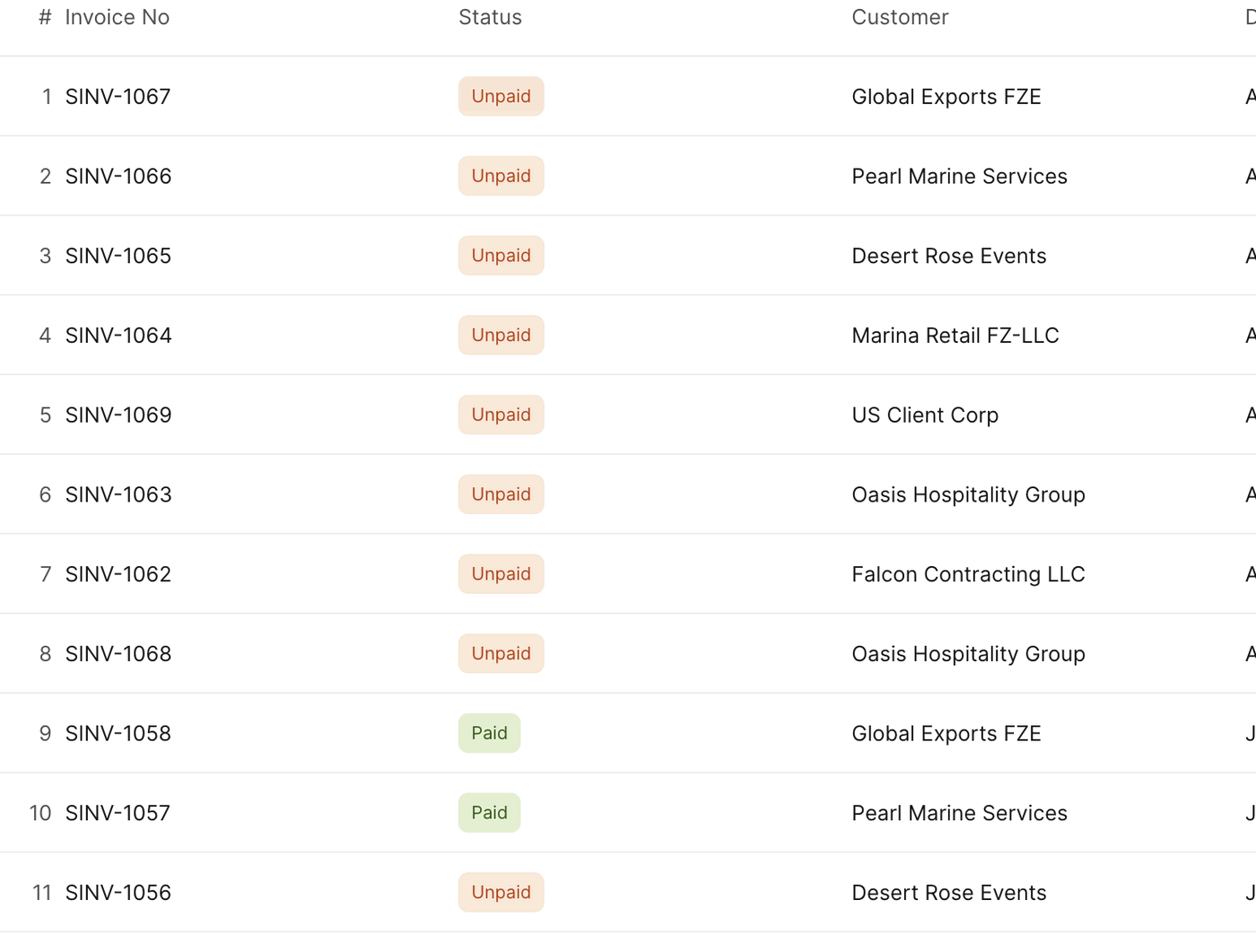
In a list view, the Status column sits between the entry name and the party, so you can scan a whole page of invoices and see at a glance which ones are still owed.
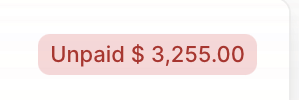
On an invoice, the badge also carries the amount still outstanding, so you do not have to open the entry to see what it is worth.
The submit and cancel model
SAABI separates entries you are still working on from entries that have affected your accounts.
- Draft — you have started an entry but not stored it. Nothing has been recorded.
- Saved / Not Submitted — the entry is stored in the company file and you can still edit it freely. It has not touched the general ledger or your stock.
- Submitted — you have posted the entry. It now shows in your ledgers, reports and outstanding balances.
- Cancelled — you have reversed a submitted entry. It stays in the list, with its name and its history, and its effect on the accounts is undone.
Important
A submitted entry cannot be edited. This is deliberate: once an entry has moved your accounts, changing it behind the scenes would change reports you have already relied on. To correct a submitted entry, cancel it and make a new one. A submittable entry can only be deleted after it has been cancelled.
Status reference
| Status | Where you see it | What it means |
|---|---|---|
| Draft | New entry, before saving | The entry exists only on screen. Nothing has been recorded. |
| Saved | Any entry that has been stored | The entry is in the company file and can still be edited. |
| Not Submitted | Submittable entries, in lists | Saved but not yet posted. It does not appear in your ledgers or in any outstanding total. |
| Submitted | Submittable entries | Posted. The entry has affected your accounts and can no longer be edited, only cancelled. |
| Cancelled | Submitted entries that were reversed | The entry's effect on the accounts has been undone. It keeps its name and stays in the list for the record. |
| Unpaid | Submitted invoices | The full amount of the invoice is still outstanding. The badge shows the amount, for example Unpaid $ 3,255.00. |
| Partly Paid | Submitted invoices | A payment has been recorded against part of the invoice; the rest is still outstanding. This status needs Enable Partial Payment on the General tab of Settings. |
| Paid | Submitted invoices | The outstanding amount is zero. Nothing further is owed on this invoice. |
| Return | Invoices | The entry is itself a return, raised against an earlier invoice. Its amounts reverse those of the original. |
| Return Issued | Invoices | A return has been raised against this invoice, so part or all of it has been given back. |
| Not Transferred | Invoices for stock items | The goods on the invoice have not left or entered stock yet — no shipment or purchase receipt has been made for them. The invoice is posted, but the stock movement is still outstanding. |
Note
Payment status and stock status are separate. An invoice can be Paid and still show stock not shipped, and an invoice can be transferred in full while remaining Unpaid.
Tip
Use Filter on a list view to work through one status at a time — every Unpaid sales invoice when you chase payments, every Not Transferred invoice when you pack the day's orders.
Saabi Desktop User Manual 1.0 · covers Desktop 1.0.0 · Something wrong or missing? Tell us