
Chapter 37 · Inventory · 4 min read
Introduction to Inventory
On this page
SAABI can track the physical movement of your goods alongside the money side of your books. Once inventory is enabled, every item you have marked as tracked carries a running quantity and value at each of your locations, and SAABI keeps that record in step with the invoices you raise and receive. Use this chapter to switch inventory on, to understand what a Location is, and to get your bearings in the five Inventory screens.
Enabling inventory
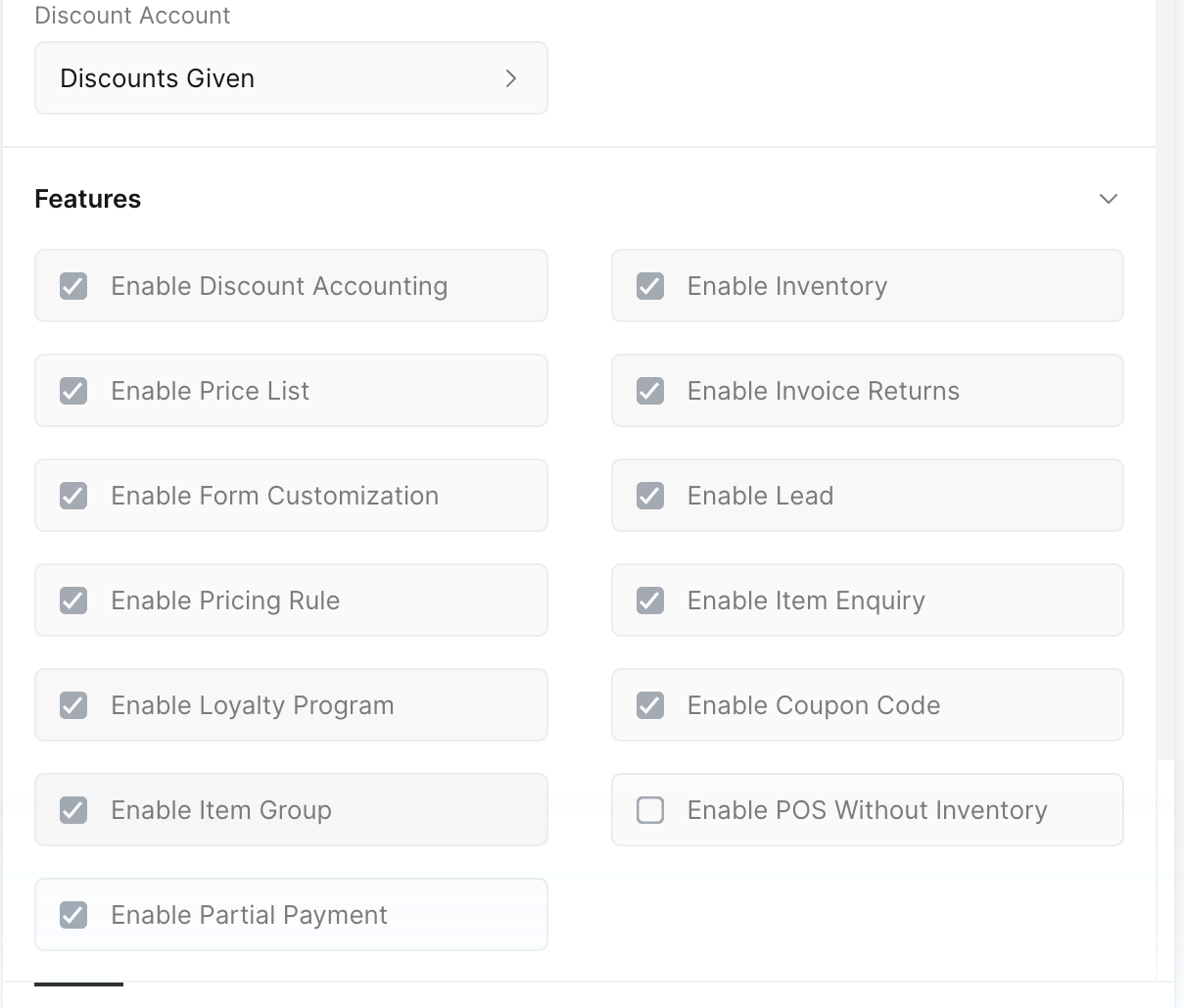
Inventory is off until you turn it on.
- Go to
Setup > Settingsand stay on the General tab. - Scroll down to the Features section.
- Check Enable Inventory.
- Restart SAABI.
After the restart, Inventory appears in the left sidebar with its five entries beneath it.
Important
Inventory cannot be switched off again once it has been enabled. Turn it on only when you intend to keep stock records in SAABI.
Tracking an item
Enabling inventory does not make every item a stock item. An item is tracked only if Track Item is checked on the item record, and Track Item can be set only while you are creating the item. Items you leave untracked — services, for example — continue to appear on invoices without ever touching a location or a stock balance.
Note
If you need to track an item you created earlier without Track Item, create a new item record for it rather than looking for the checkbox on the existing one.
What a Location is
A Location is a place where stock sits: a warehouse, a shop floor, a van. In SAABI every movement of a tracked item is a movement to or from a Location, and there are only two directions:
- Inward movement — stock arrives at a Location and the quantity there increases.
- Outward movement — stock leaves a Location and the quantity there decreases.
You choose the source or destination Location on the transaction itself. A default Location is set on the Inventory tab of Settings and is filled in for you on new entries; in the demo file that default is Main Warehouse, alongside a second location called Showroom. You can add a Location without leaving a transaction: type the new name in the Location field and choose the Create option that the dropdown offers.
Outward movement is checked against what is actually there. If a Location does not hold enough of an item, SAABI blocks the entry rather than letting the quantity fall below zero. The same check applies to backdated entries, so an entry dated last month is refused if it would leave a negative balance at any point after that date. When a movement is blocked, either pick a Location that holds enough stock, or record an inward movement into that Location dated before the blocked entry.
Tip
Use the Stock Balance report to find out which Location currently holds enough of an item.
The accounting side and the stock side
It helps to keep two ideas apart. A Sales Invoice is an accounting document: it records the sale, the tax and what the customer owes. It does not move any stock. A Shipment is the stock document: it records the goods physically leaving a Location. The same split applies on the buying side, where a Purchase Invoice records what you owe the supplier and a Purchase Receipt records the goods arriving.
SAABI shows you when the two sides are out of step. An invoice that has been submitted but whose goods have not moved carries a Not Transferred status badge, and its Outstanding section reports the quantity still to move — Stock Not Shipped on a sales invoice, Stock Not Received on a purchase invoice. Creating the matching Shipment or Purchase Receipt brings that quantity down.
The two sides meet in the ledger accounts you set on the Inventory tab of Settings: Stock In Hand Acc. holds the value of goods you are holding, Stock Received But Not Billed Acc. covers goods received but not yet invoiced, and Cost Of Goods Sold Acc. is charged when goods go out on a shipment.
The five Inventory screens
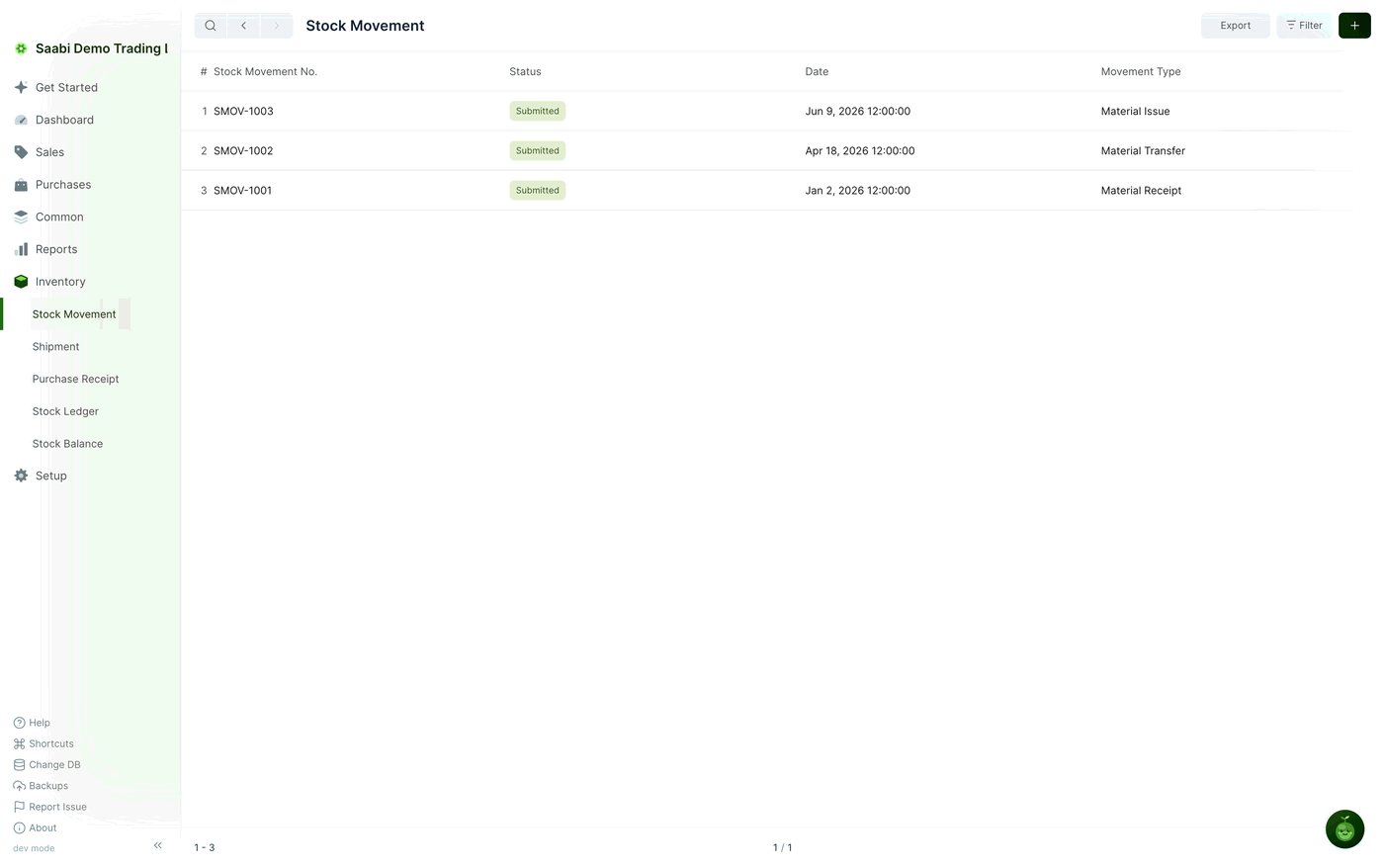
Three of the entries under Inventory are transactions that move stock:
- Stock Movement — moves stock to or from your own Locations. It is the only inventory transaction with no customer or supplier attached, so use it for opening stock, transfers between Locations, write-offs and internal consumption.
- Shipment — records stock going out to a customer after a sale.
- Purchase Receipt — records stock coming in from a supplier after a purchase.
Each of them has a list view with the same chrome as the rest of SAABI: Export and Filter buttons, a + button to start a new entry, and a row count and page control in the footer.
The remaining two entries are reports, and neither of them can be edited:
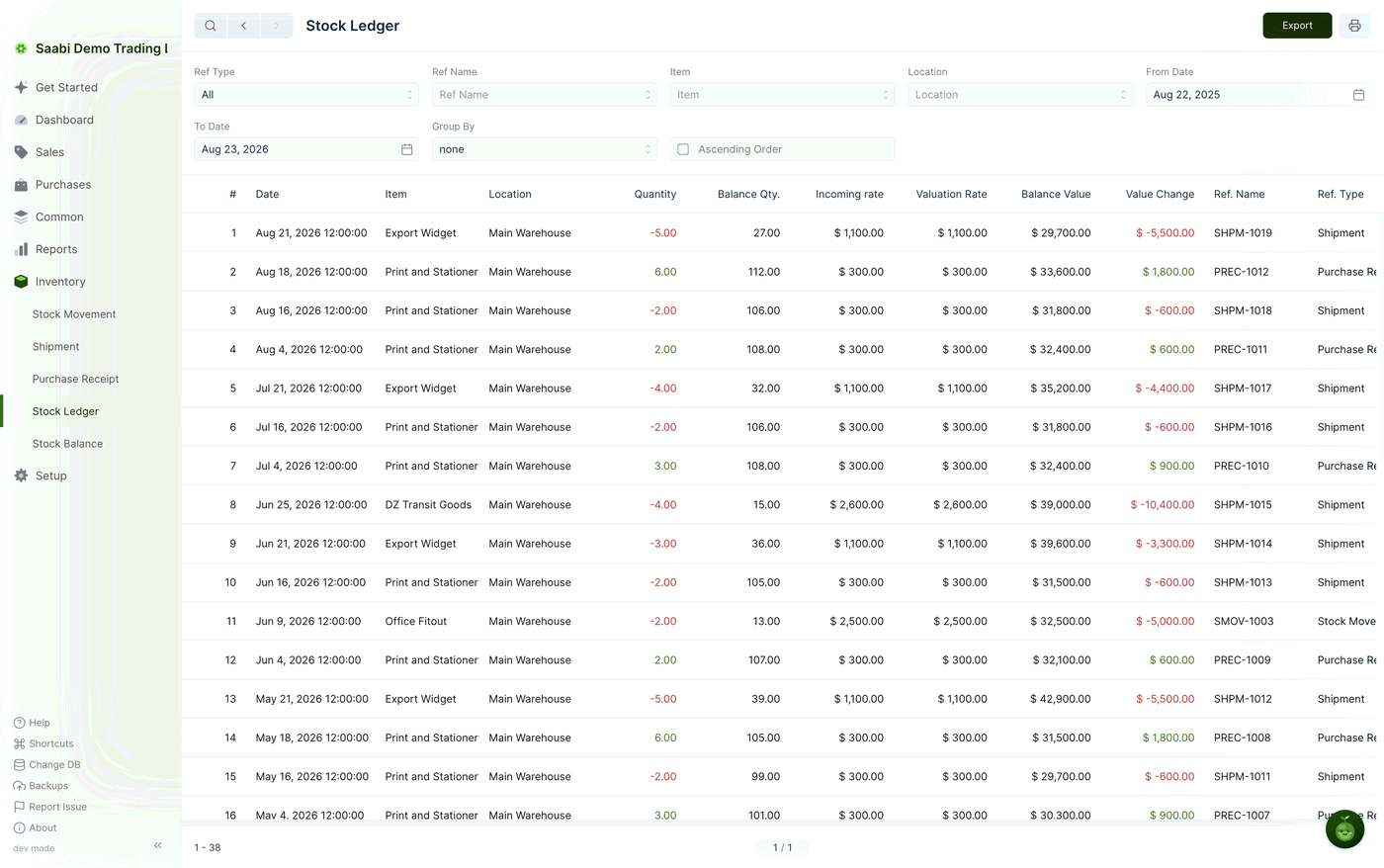
- Stock Ledger — one line for every stock entry SAABI has recorded, in date order, showing the change in quantity, the running balance and the change in value.
- Stock Balance — the current quantity and value of each item at each Location, with the opening figures and the totals in and out for the period.
With inventory enabled and your Locations understood, Chapter 38 covers the settings that control how the inventory module behaves.
Saabi Desktop User Manual 1.0 · covers Desktop 1.0.0 · Something wrong or missing? Tell us