
Chapter 5 · Getting started · 4 min read
Setting your opening balances
On this page
If your business has been trading already — with a previous accounting system, a spreadsheet or a bookkeeper's ledger — your new SAABI company starts empty while your business does not. Opening balances are how you close that gap. You bring across the balance of every account as it stood on the day you switched, so that SAABI's books start from the same position your old records ended at. This chapter covers the whole procedure: getting the figures, making sure the accounts exist, and posting them as a single opening entry.
Do this before you record any invoices or payments. Everything you post afterwards builds on these balances.
When you can skip this
A business that is genuinely new — no prior trading, no existing ledger — has nothing to bring across and can move straight on to creating records. If you have put money into the business, that still needs recording, but it is an ordinary transaction rather than an opening balance.
Step 1 — Get the starting balances
Produce a Trial Balance from your previous accounting system, dated the last day it covered.
The trial balance is the right report for this because it lists every account with its closing balance in a debit or a credit column, and the two columns agree. That is exactly the shape of the entry you are about to make, and the agreement gives you something to check against when you have finished.
If your previous system cannot produce a trial balance, assemble the same information by hand: a list of accounts, each with a closing balance and the side it falls on. Bank and cash balances, amounts owed to you by customers, amounts you owe suppliers, stock on hand, fixed assets, loans and the owners' capital all belong on that list.
Important
Use one date and use it consistently. Every figure on your list must be the balance as at the same day — the day before your SAABI books begin. Mixing dates produces a set of balances that do not agree, and the error is difficult to find later.
Step 2 — Add any accounts that are missing
Your previous system almost certainly used some accounts that SAABI's chart of accounts does not have. Work down your trial balance and check that each line has somewhere to go.
Open Setup > Chart of Accounts and expand the tree.
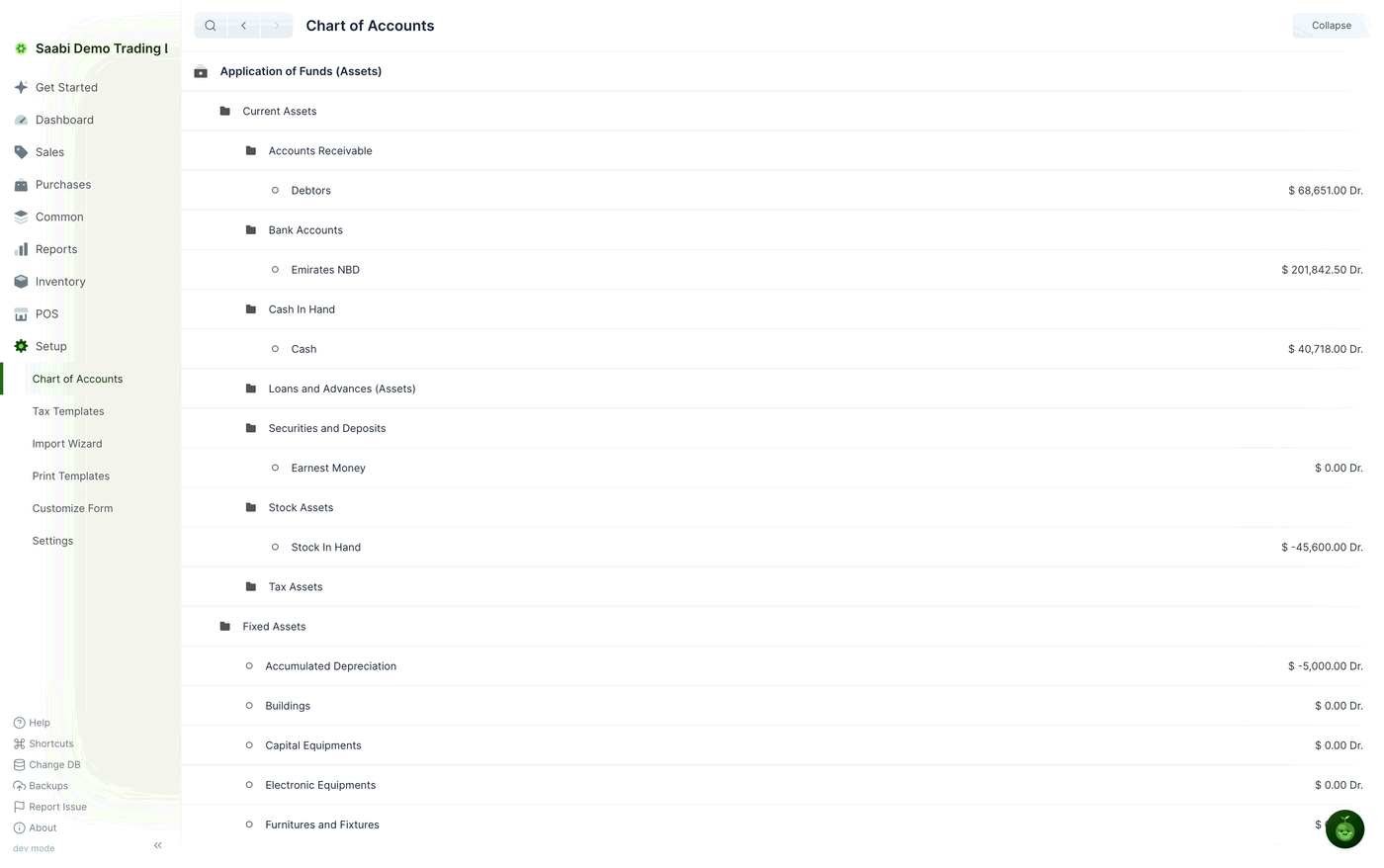
To add one, hover the group that should contain it and click Add Account, then type the name and click Save. Chapter 4 covers this in detail.
Two points matter here.
- Create each account under the correct group. The group decides how the account is classified in every report. A supplier deposit created under expenses will misstate your Profit and Loss from the first day.
- Create ledger accounts, not groups. You post to ledger accounts. A group cannot hold a balance.
Where the names differ but the meaning matches, use SAABI's existing account rather than creating a duplicate. Two accounts for the same thing is a problem you will be reconciling for years.
Step 3 — Post the opening entry
With the accounts in place, record the balances as a single journal entry.
- Open
Common > Journal Entry. - Click the + button at the top right to open a new entry.
- Set the entry type to Opening Entry. This marks the entry as the opening position rather than ordinary trading activity.
- Add one row for each line of your trial balance. On each row, select the Account and enter the amount in the Debit or Credit column, matching the side it fell on in your trial balance.
- Optionally set a Reference Number and Reference Date so the entry can be traced back to the report you took the figures from.
- Click Save.
- Review the saved entry against your trial balance line by line.
- Click Submit.
Note
A journal entry must balance: total debits must equal total credits. If SAABI will not accept the entry, the difference is between your figures and the report you copied them from. Because a trial balance agrees by definition, a mismatch here means a line was mistyped or missed.
Saving and submitting are deliberately separate. A saved entry can still be corrected; a submitted one is posted to the ledger and cannot be edited. Use the gap between the two to check your work.
Step 4 — Check the result
Open Reports > Trial Balance in SAABI and compare it with the report you started from. The two should agree account for account. A Balance Sheet dated the same day is a second check on the same figures.
If the totals agree but individual accounts do not, a line has gone to the wrong account. Correcting it is a further journal entry rather than an edit to the one you submitted.
The Get Started card
SAABI keeps a card for this task on the Get Started page, in the Accounts group.
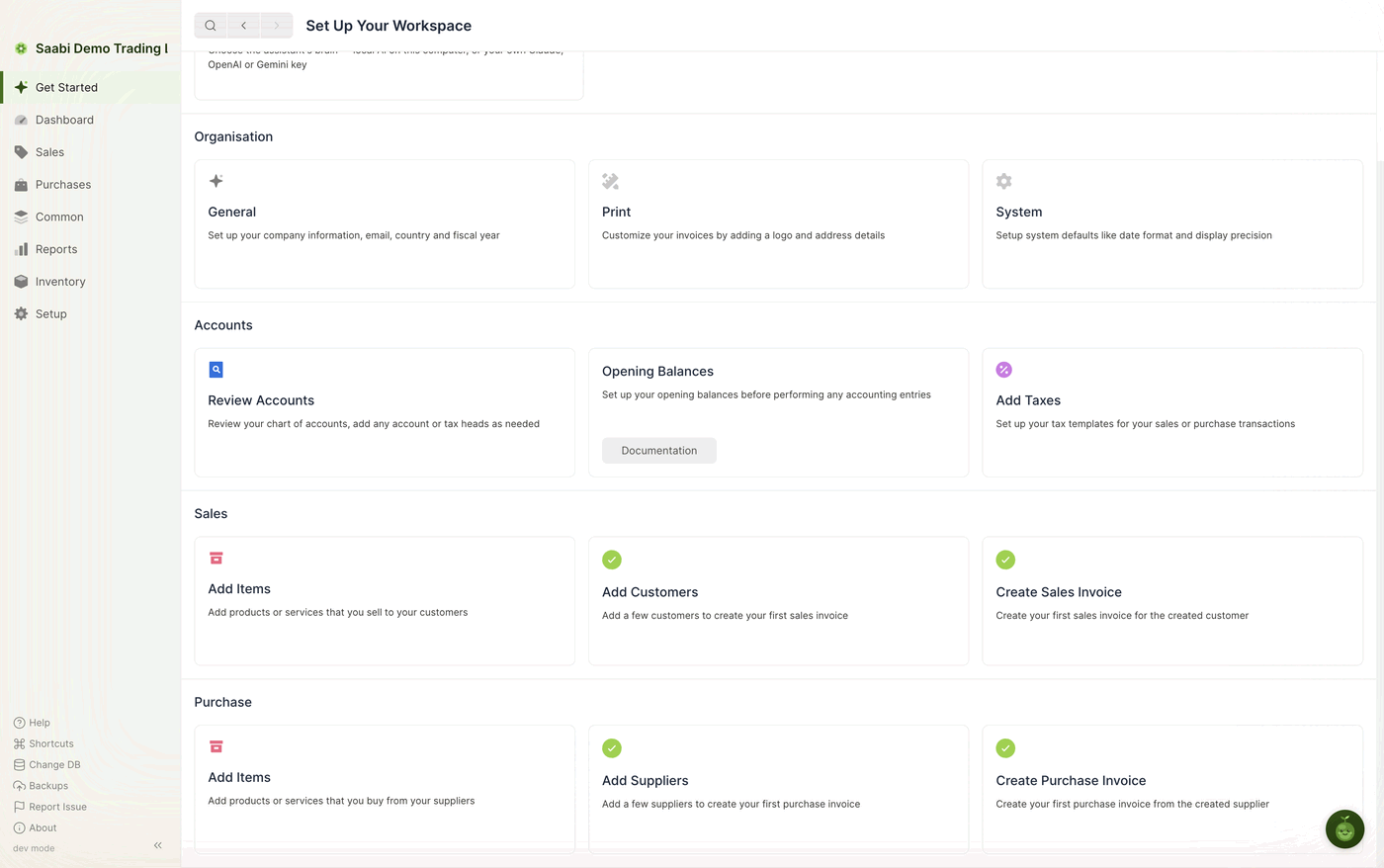
The card reads "Set up your opening balances before performing any accounting entries", which is the sequence to follow. Hovering the card reveals a Documentation button.
After the opening entry
Your books now stand where your previous system left off. Recording continues normally from here: items, customers and suppliers, then invoices and payments. Chapter 6 covers creating those first records.
Saabi Desktop User Manual 1.0 · covers Desktop 1.0.0 · Something wrong or missing? Tell us